Categories:
Aura Minibot user guide
Guidelines for the installation and configuration of Aura minibot
⚠️ In Aura’s new architecture, Aura minibot works jointly with Aura minigroot
Introduction to Aura minibot
Aura minibot is a tool intended for testing purposes in local environment.
It is highly recommended to use Aura minibot to get familiar with aura-bot when developing use cases.
Pre-requirements
- Azure accounts (It can be a free one)
- Visual Studio Code (required for the minibot generated by a Docker image)
- Remote – Containers extension for Visual Studio Code (required for the minibot generated by a Docker image)
- Aura docker registry token (Contact your manager or APE team who will supply it for you)
Register a bot in Azure
The current section explains the steps for the registration of a bot in Azure. Bear in mind that the Azure site and the steps to register a new resource change very often. If any questions arise, please contact APE Team, so they can aid with the registration.
-
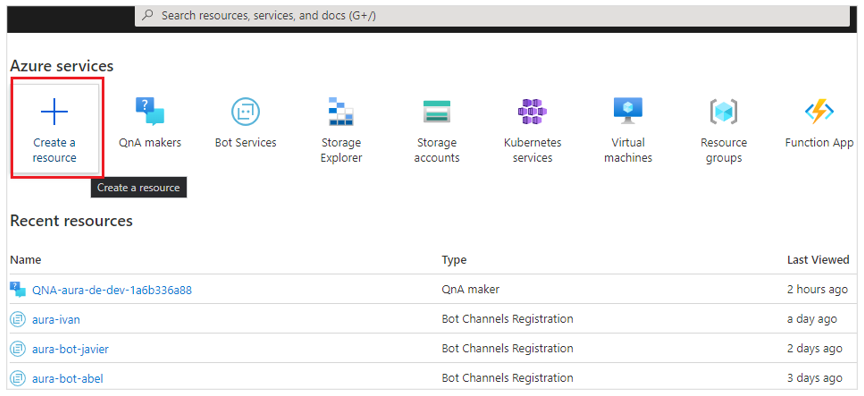
In the Azure portal, create a resource of Azure Bot type.
-
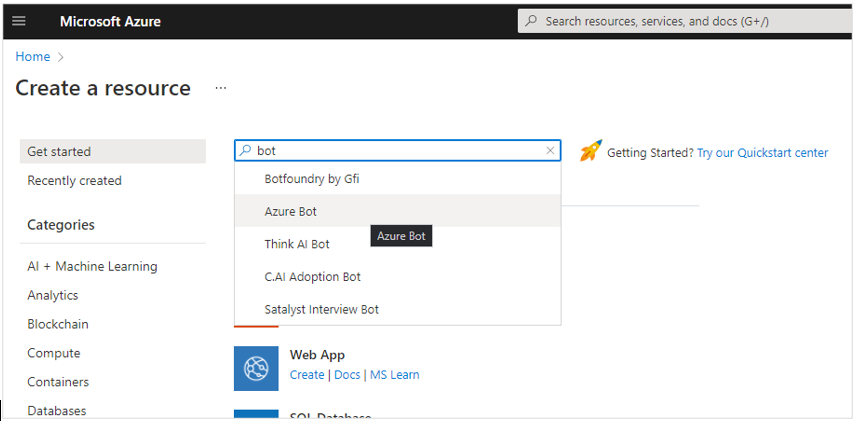
Type in the search box “bot” and click on “Azure Bot”, the click on “Create”.
-
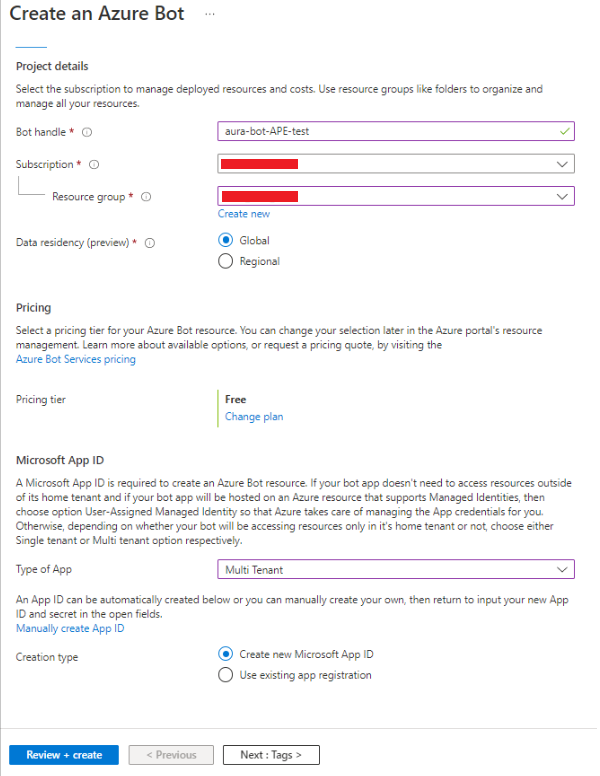
Fill in the form fields with the following values:
- Bot handle: unique identifier for your bot, for instance: aura-bot-ape
- Subscription: OB Subscription
- Resource Group: OB Resource Group
- Pricing tier: Free
- Type of App: Multi Tenant
- Creation type: Create new Microsoft App ID
-
Now click on “Review + create”
⚠️ Currently, with the addition of the aura-groot, it is needed to create 2 bots in Azure (root & skill).
-
The new Azure Bot resource will be validated, so the next step is to click on “Create” again, so this step will deploy our new resource. A new Microsoft App Id and password will be generated.
-
Click on “Go to Resource” to see the breakdown of options and configurations available for your bot.
-
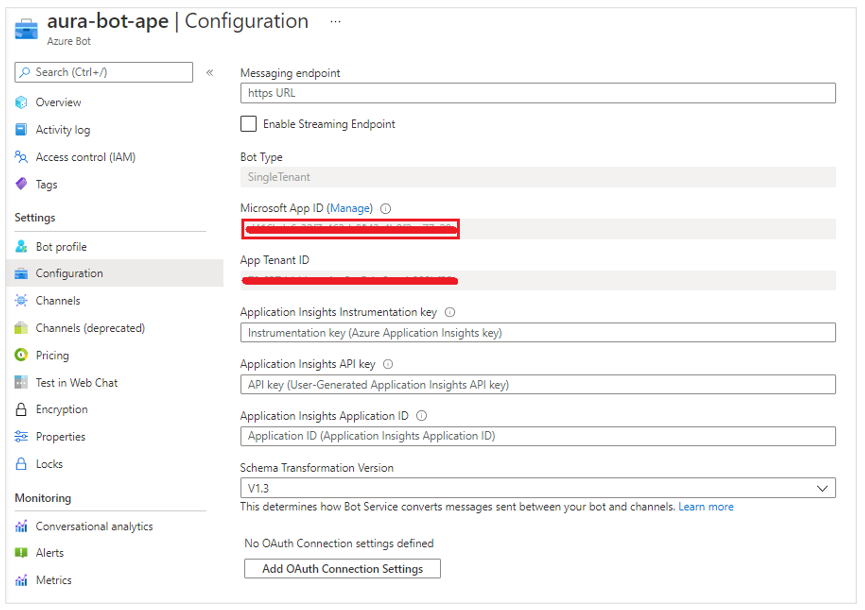
Once the Azure Bot is created, it is required to get two parameters: Microsoft App ID and Microsoft App Password:
-
Microsoft App ID is located in Configuration. Copy it in a safe place.
-
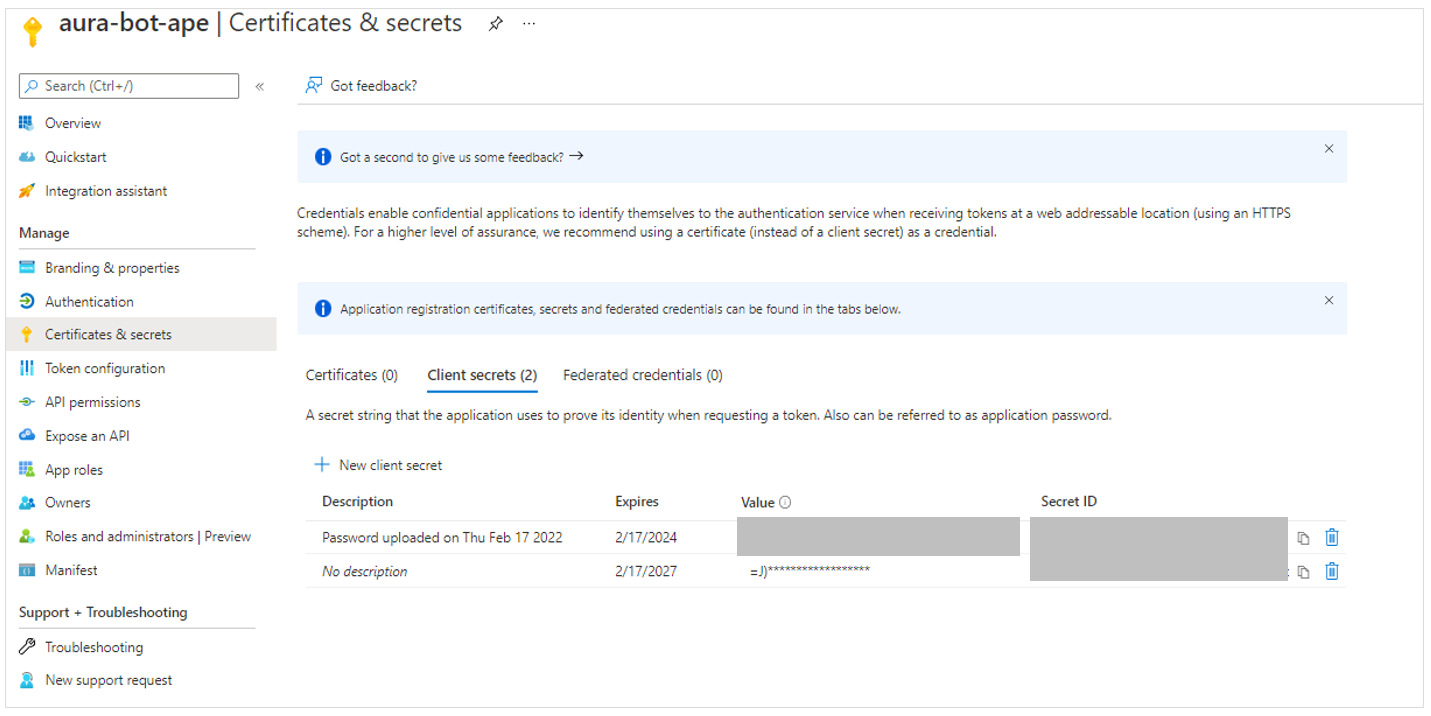
Get Microsoft App Password by clicking on “Manage”.
-
Copy it in a safe place, as you will need it for the bot identification and cannot be visualized afterwards, when requesting a token.
-
In case you have lost it, click on “New client secret” and set the expiration date.
-
Install and configure Aura minibot
The minibot is provided as a Docker image from Aura’s private registry.
From this docker image, follow the next steps for its installation and configuration.
Complementary, the minibot can also be generated through a .tgz file, if the docker cannot be used.
Set all the required environment variables
Firstly, you need to set some environment variables located in:
aura-mini-bot/config.env
In this file, there are the environment variables shared between aura-groot and aura-bot as skill. Also, there are variables for the scripts to set Direct Line endpoint, so in Microsoft variables you should set the ones of the Azure bot that will be configured in aura-groot.
You also have two files with variables for aura-groot and aura-bot as skill. These files are:
aura-mini-bot/config-groot.env
aura-mini-bot/config-bot.env
Bot credentials
Edit the following variables using the values you have in Azure portal for aura-groot and aura-bot:
AURA_MICROSOFT_APP_PASSWORD=<generated secret>
AURA_MICROSOFT_APP_ID=<Microsoft App Id>
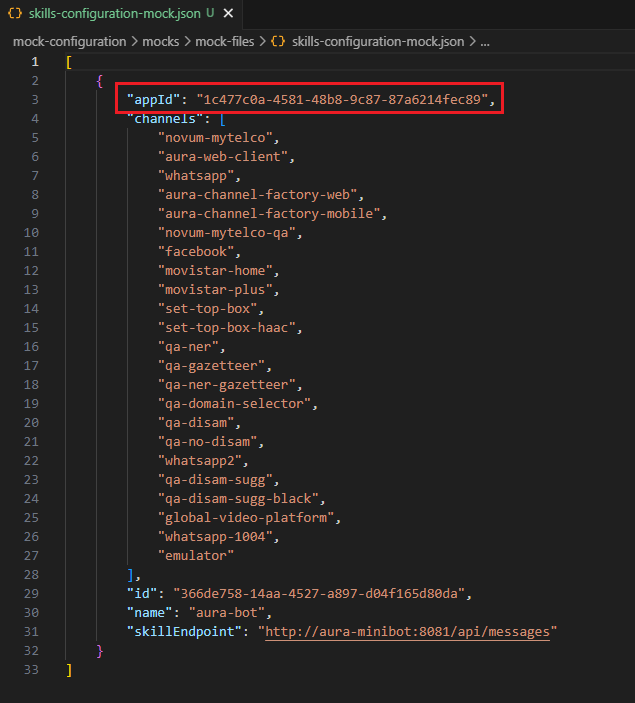
As now we have 2 bots, you should set these variables in both files, config-groot.env and config-bot.env. Also, you
should set the same AURA_MICROSOFT_APP_ID that you set in config-bot.env in the mocked skills configuration file
(mock-configuration/mocks/mock-files/skills-configuration-mock.json), in the appId field, to indicate aura-groot the appId of the skill it has to communicate with.
Access to the database
Minibot requires access to a MongoDB database to be able to store information related to the user session. Those variables can be found here:
AURA_MONGODB_BOT_DATABASE=aura-minibot
AURA_MONGODB_PASSWORD=pass
AURA_MONGODB_URI=mongodb://localhost:27017?authSource=admin
AURA_MONGODB_USERNAME=admin
By default, AURA_MONGODB_USERNAME and AURA_MONGODB_PASSWORD variables are set as “admin” and “pass” in the .env file. These values must match the <user_name> and <password_db> set in the next step.
Run a local database
If you do not have any mongoDB instance, download a Docker image and run docker for storing sessions locally:
docker pull mongo:4.4
docker run -d -p 27017-27019:27017-27019 --name mongodb mongo:4.4
The steps to modify the DB with the default user and password for the minibot are included here as an example, sorted by execution order:
- Enter the docker container:
docker exec -it mongodb bash - Enter in Mongo shell
mongo - Create the user in
adminDBuse admin db.createUser({user:"<user_name>", pwd: "<password_db>", roles: [{role:"userAdmin", db:"admin"}]}) - Create the
aura-bot-es-devDBuse aura-bot-es-dev - Exit MongoDB console
exit - Exit docker container
exit
Run Aura minibot on docker
Minibot is provided as a docker image from a private registry.
To access the private registry, request access to Aura Global (through the APE Team) and set login credentials on docker:
Get registry access
Use the following command:
docker login -u <user-id> -p <user-token> auraregistry.azurecr.io
With azcli:
az login
az acr login --name auraregistry
Pull minibot and minigroot images
Get the minigroot and minibot as skill specific images:
docker pull auraregistry.azurecr.io/aura/aura-mini-groot:<version>
docker pull auraregistry.azurecr.io/aura/aura-mini-bot:<version>
Get all available versions from registry
It is possible to get all available minibot and minigroot images using azcli (native or dockerized version) tool and following these steps:
-
Login in Azure:
az loginThis message will appear: To sign in, use a web browser to open the page https://microsoft.com/devicelogin and enter the code XXXX to authenticate.
-
Open the URI an insert the provided code.
-
To get the available minibot images from registry, the user must use this command.
az acr repository show-tags -n auraregistry --repository aura/aura-mini-bot -
To get the available minigroot images from registry, the user must use this command.
az acr repository show-tags -n auraregistry --repository aura/aura-mini-grootThese commands will show an array of string with all available versions for each.
Get latest version
To get the latest minigroot and minibot versions, replace <version> by latest in the command of the section Pull minibot and minigroot images.
NOTE: using latest for the second or successive times does not update the image if there is a new latest image in the registry. In this scenario, to make sure the latest image is being retrieved and pulled, execute the following docker commands in that order:
docker compose stop

docker-compose rm -f

docker-compose pull

docker-compose up -d
Launch minibot
To work with the all-in-one solution, five files must be created: docker-compose.yml, config.env, config-groot.env, config-bot.env and ngrok.yml.
The initial scaffolding is located in the repo: https://github.com/Telefonica/aura-mini-bot (Contact your manager or APE team if you do not have access to it) In this case, you can use the command:
docker compose up -d
Example of docker-compose.yml file
version: '3'

services:
  mongodb:
    image: mongo:4.2
    restart: unless-stopped
    env_file:
      - config.env
    ports:
      - "27017:27017"

  aura-minigroot:
    image: auraregistry.azurecr.io/aura/aura-mini-groot:<version>
    volumes:
      - ./mock-configuration/mocks/mock-files/skills-configuration-mock.json:/opt/aura-groot/aura-mini-groot/sources/files/mock-files/skills-configuration-mock.json
    env_file:
      - config.env
      - congif-groot.env
    restart: unless-stopped
    depends_on:
      - mongodb
    ports:
      - "8080:8080"

  aura-minibot:
    image: auraregistry.azurecr.io/aura/aura-mini-bot:<version>
    volumes:
      - ./packages:/tmp/dialogs
      - ./mock-configuration:/opt/aura-bot/aura-mini-bot/mock-configuration
    env_file:
      - config.env
      - config-bot.env
    restart: unless-stopped
    depends_on:
      - mongodb
    ports:
      - "8081:8081"

  azcli:
    image: mcr.microsoft.com/azure-cli:2.49.0
    depends_on:
      - ngrok
    env_file:
      - config.env
    command: >
      sh -c "
        az login --tenant $$AURA_MICROSOFT_TENANT &&
        az account set --subscription $$AURA_MICROSOFT_SUBSCRIPTION &&
        az bot update -n $$AURA_MICROSOFT_BOT_NAME -g $$AURA_MICROSOFT_RESOURCE_GROUP --endpoint $$(curl --silent http://ngrok:4040/api/tunnels | jq -r '.tunnels | map(.public_url) | .[]' | grep https)/api/messages
      "
  ngrok:
    image: ngrok/ngrok
    command:
      - "start"
      - "--all"
      - "--config"
      - "/etc/ngrok.yml"
    volumes:
      - ./ngrok.yml:/etc/ngrok.yml
    ports:
      - "4040:4040"
Example of config.env file
# Microsoft Azure
AURA_MICROSOFT_BOT_NAME=<your-aura-bot-name>
AURA_MICROSOFT_RESOURCE_GROUP=<your-azure-resource-group>
AURA_MICROSOFT_TENANT=<your-azure-tenant>
AURA_MICROSOFT_SUBSCRIPTION=<your-azure-subscription>

# MongoDB connection
AURA_MONGODB_BOT_DATABASE=aura-minibot
AURA_MONGODB_URI=mongodb://mongodb:27017?authSource=admin
AURA_MONGODB_USERNAME=admin
AURA_MONGODB_PASSWORD=pass
MONGO_INITDB_ROOT_USERNAME=admin
MONGO_INITDB_ROOT_PASSWORD=pass

# Npm Auth Token
NPM_TOKEN=<your-npm-auth-token>
# NPM_AUTH=<your-optional-local-npm-auth-config>
# NPM_AUTH_SCOPE=<your-optional-local-npm-packages-scope>

# LOCALES
AURA_DEFAULT_LOCALE=<your-locale>
AURA_DEFAULT_TIME_ZONE=<your-time-zone>

AURA_PHONE_COUNTRY_CODE=ES
AURA_SERVICE_ENVIRONMENT=DEV

AURA_HOST_SERVICE_URL=http://aura-minigroot:8080
AURA_KPI_STORE_MODE=file
Example of ngrok.yml file
version: 3
agent:
  authtoken: <your-auth-token>
  web_addr: 0.0.0.0:4040
tunnels:
  minigroot:
    proto: http
    addr: aura-minigroot:8080
Example of config-groot.env file
AURA_MICROSOFT_APP_ID=<your-groot-app-id>
AURA_MICROSOFT_APP_PASSWORD=<your-groot-app-password>
Example of config-bot.env file
AURA_MICROSOFT_APP_ID=<your-bot-app-id>
AURA_MICROSOFT_APP_PASSWORD=<your-bot-app-password>
NOTE: Set all <param> from ngrok.yml, config.env, config-groot.env, config-bot.env and docker-compose.yml to your needs.
The docker-compose.yml file starts MongoDB, azurecli, ngrok, minigroot and minibot containers and exposes minigroot, minibot, MongoDB and ngrok ports (8080, 8081, 27017 and 4040 respectively).
The environments can be started with the command:
docker-compose up -d
Work with Aura minibot and install new dialogs
To work with new dialogs on minibot, follow the steps below:
-
Place a copy of
docker-compose.yml,config-bot.env,config-groot.env,config.envandngrok.ymlin the working directory and create apackagesdirectory to contain the dialogs source code.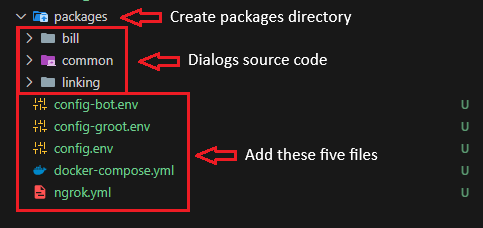
-
Start the environment from shell with the command:
docker-compose up -d
-
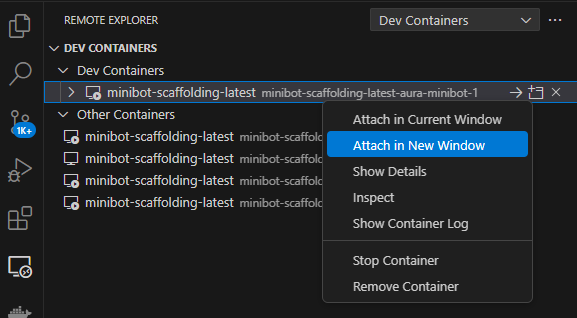
If VSCode is used, you can connect/attach to the aura-minibot container, so you can work as local minibot version.
-
Minibot with the new dialog is located at
/opt/aura-bot/aura-mini-bot. The current dialog sources (TypeScript files) are located at/tmp/dialogs, so you can work as non-container version. -
Azure endpoint must be updated. This can be made by simply right clicking on the azcli container. Then, click on
Show Container Log.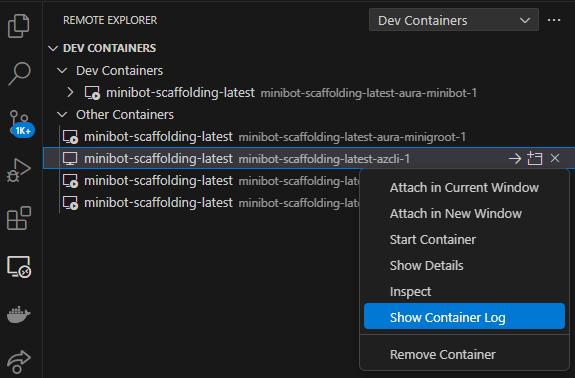
This will show in the integrated terminal a message with the URL that must be opened in a web browser and the code needed to authenticate in Azure.

-
When the URL is opened, an insert code request will appear on web navigator.
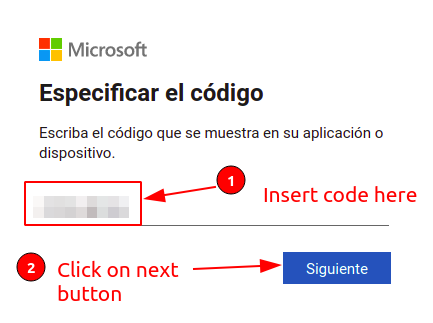
-
If no active session exists, Azure credentials must be inserted.
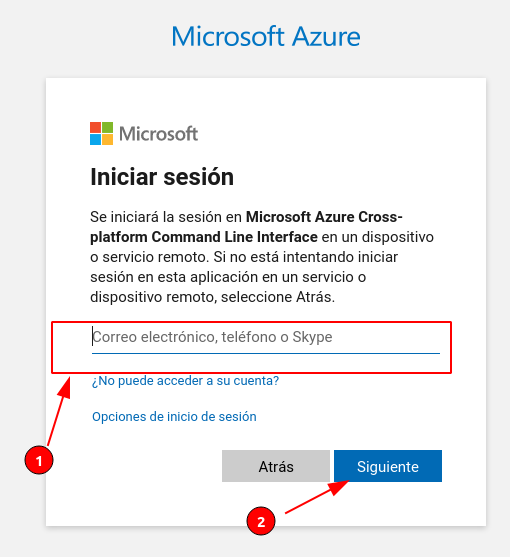
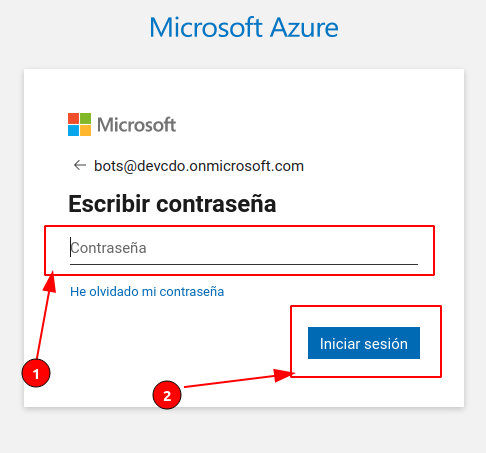
-
After credentials are set, a successful message will appear and bot endpoint will be updated.
Install Dialogs
At this stage, you can install a new dialog or an existing one, as well as update or remove dialogs.
Install a new dialog
To install new dialogs on minibot, another run task is included. To use it, click on Run button (#1 on next image), select Install dialogs from dropdown (#2 on next image) and click on on start debugging (#3 on next image).
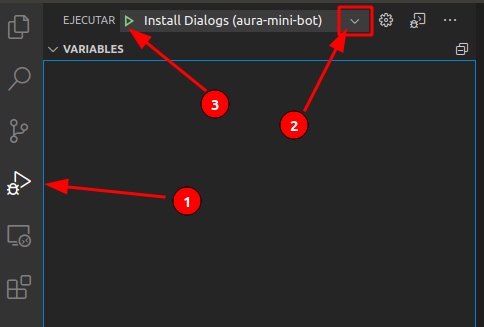
This action will build and pack the dialogs from its source code and insert them into the minibot, but this action will not start minibot.
Install an existing dialog
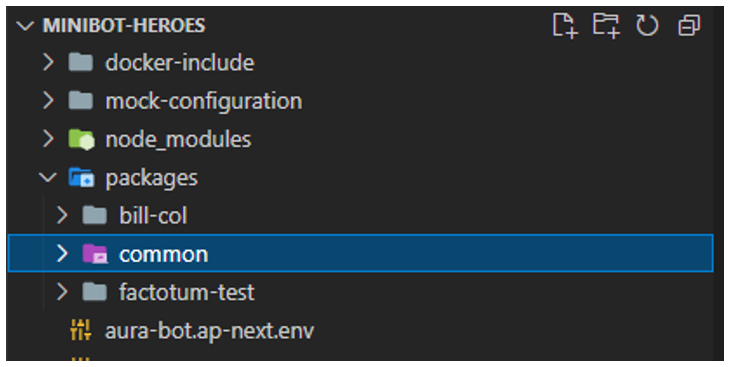
Installing one or more than one existing dialog can be useful for developers, as they can use them as a reference. To install an existing dialog on the minibot container, we firstly need to add it to the minibot source code, inside the packages/ folder.
In the following example, we have added three dialog libraries: bill-col, common and factotum-test.
To add the dialogs to the minibot container, follow these steps:
- Click on “File” -> “Add Folder to Workspace”
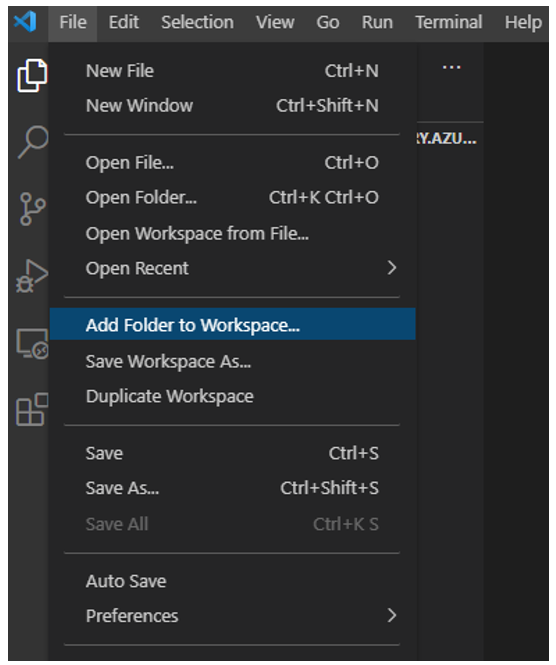
- In the “Add Folder to Workspace” input text bar, type in “/tmp/dialogs/”. A list of dialog libraries passed by volume to the container will be shown. Click “Ok” to add them to the minibot container.
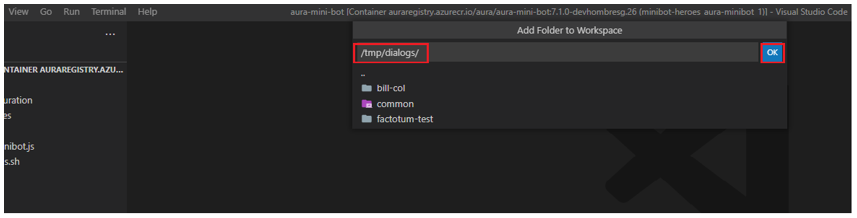
- At this point, we will be able to see the list of dialogs passed by volume in our VS Code File Explorer.
- We can now proceed to install new dialogs, if required, as shown above.
Run Aura minibot
To get minibot running click on Run (#1 on next image) and then click on start debugging (#2 on next image). This action will not install new dialogs from its source (/tmp/dialogs).
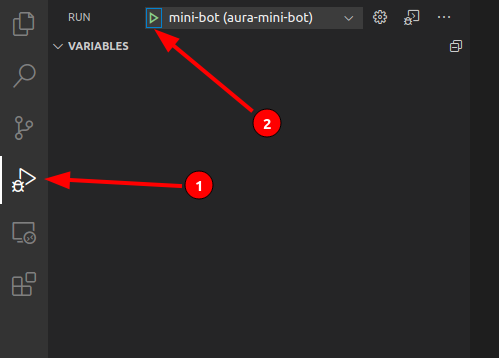
This action will start minibot so it can be debugged as normally.
Update a single dialog
⚠️ Before you can update a single dialog, you must perform the task Install dialogs.
To update a dialog independently click on Update Dialog. The task will ask for the name of the dialog folder inside /tmp/dialogs.
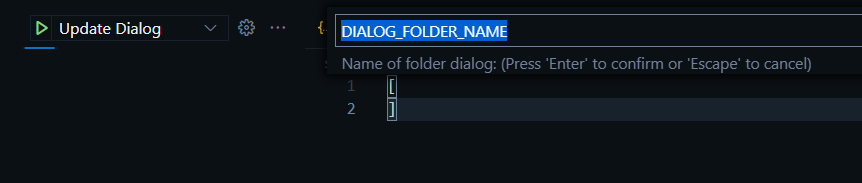
Remove a Dialog
To delete a dialog, temporarily you can delete it from the file /opt/aura-bot/aura-mini-bot/sources/plugin-config.json
To permanently remove it you have to delete its folder inside /tmp/dialogs. Then run the Install Dialog or Update Dialog task.
Working with Mocks in Aura minibot
It is possible to use Mocks to simulate external HTTP services. This is done using a tool called Nock.
In order to use custom Mocks we must:
- Configure the environment variables that we are going to modify, which are usually the endpoints to the services to impersonate.
- Configure the data for Nock.
- If necessary, create a custom response file in JSON format.
To work with custom Mocks it is necessary to create this file and directory structure:
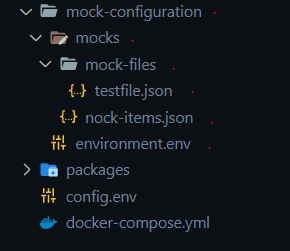
Once the container is generated, this folder will be linked to:
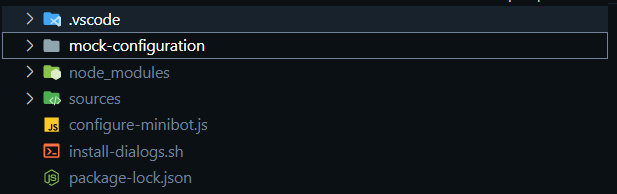
mock-configuration/environment.env
It contains the necessary environment variables. These environment variables will replace the ones configured in the libraries (dialogs).
mock-configuration/mocks/nock-items.json
This file contains the configurations for the Nock tool.
The general format is as follows:
       "name": "<NAME>",
       "var": "<ENVIRONMENT VARIABLE WITH ENDPOINT_>,
       "method": "<HTTP METHOD>",
       "regex": "<REGEX TO ACTIVATE>", (Optional. Mandatory if does not exist path),
       "path": <PATH TO ACTIVATE>, (Optional. Mandatory if does not exist regex)
       "reply": {
           "status": <HTTP STATUS>,
           "response": <HTTP RESPONSE> (Optional.  Mandatory if does not exist file),
           "file": <FILENAME> (Optional.  Mandatory if does not exist response),
       }
A general application example is shown below:
Example
[
    {
        "name": "Channels configuration",
        "var": "AURA_CHANNELS_CONFIGURATION_API_ENDPOINT",
        "method": "get",
        "regex":"\/channels",
        "reply": {
            "status": 200,
            "file": "channels-configuration-mock.json"
        }
    },
    {
        "name": "Skills configuration",
        "var": "AURA_CHANNELS_CONFIGURATION_API_ENDPOINT",
        "method": "get",
        "regex": "\/skills",
        "reply": {
            "status": 200,
            "file": "skills-configuration-mock.json"
        }
    },
    {
        "name": "Authorization",
        "var": "AURA_AUTHORIZATION_ENDPOINT",
        "method": "get",
        "regex":"^/.*",
        "reply": {
            "status": 200,
            "file": "authentication-mock.json"
        }
    },
    {
        "name": "FP Terms and conditions API GET",
        "var": "AURA_TERMS_AND_CONDITIONS_ENDPOINT",
        "method": "get",
        "regex": "\/v0",
        "reply": {
            "status": 404,
            "response": {}
        }
    },
    {
        "name": "FP Terms and conditions API POST",
        "var": "AURA_TERMS_AND_CONDITIONS_ENDPOINT",
        "method": "post",
        "regex": "\/v0",
        "reply": {
            "status": 200,
            "response": { "status": "accepted" }
        }
    }
]
mock-configuration/mocks/mock-files
If the configuration of one of the Nock entries requires a file for the response it must be contained in this directory.
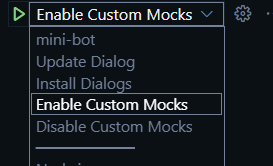
Enable Custom Mocks
To enable custom Mocks, run the task “Enable Custom Mocks”.
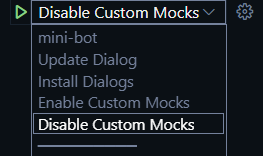
Disable Custom Mocks
To deactivate the custom Mocks and leave everything with the configuration you have the default dialogs you have to run the task “Disable Custom Mocks”.
Aura minibot start-up messages
The start-up messages of the minibot are the following ones:
Minibot start-up messages
/opt/aura-bot/aura-mini-bot/sources #  /usr/bin/env AURA_LOGGING_LEVEL=DEBUG AURA_LOGGING_FORMAT=dev 'NODE_OPTIONS= --require /root/.vscode-server/bin/dc96b837cf6bb4a
f9cd736aa3af08cf8279f7685/extensions/ms-vscode.js-debug/src/bootloader.js  --inspect-publish-uid=http' 'VSCODE_INSPECTOR_OPTIONS=:::{"inspectorIpc":"/tmp/node-cdp.285
-8c9b4a1b-1.sock","deferredMode":false,"waitForDebugger":"","execPath":"/usr/local/bin/node","onlyEntrypoint":false,"autoAttachMode":"always","mandatePortTracking":tr
ue,"fileCallback":"/tmp/node-debug-callback-0cff3d0edb5d6058"}' /usr/local/bin/node ./lib/index.js
Debugger attached.
DEBUG No existing CONFIG_FILE (undefined) found, using only process.env {
        module: 'ConfigurationManager',
        corr: 'aura-system',
        version: 'not-reachable',
        app: 'aura-bot',
        host: 'c77f96ee7285'
      }
DEBUG Environment configuration loaded {
        module: 'ConfigurationManager',
        corr: 'aura-system',
        version: '8.30.0',
        app: 'aura-bot',
        host: 'c77f96ee7285'
      }
DEBUG Starting HttpMonkeyPatcher {
        module: 'StartService',
        corr: 'aura-system',
        version: '8.30.0',
        app: 'aura-bot',
        host: 'c77f96ee7285'
      }
DEBUG HttpMonkeyPatcher starting {
        module: 'orchestrator',
        corr: 'aura-system',
        version: '8.30.0',
        app: 'aura-bot',
        host: 'c77f96ee7285'
      }
INFO  HttpMonkeyPatcher started. {
        module: 'orchestrator',
        corr: 'aura-system',
        version: '8.30.0',
        app: 'aura-bot',
        host: 'c77f96ee7285'
      }
DEBUG MiniBotServiceMock starting {
        module: 'orchestrator',
        corr: 'aura-system',
        version: '8.30.0',
        app: 'aura-bot',
        host: 'c77f96ee7285'
      }
INFO  MiniBotServiceMock started. {
        module: 'orchestrator',
        corr: 'aura-system',
        version: '8.30.0',
        app: 'aura-bot',
        host: 'c77f96ee7285'
      }
DEBUG AuraCurrentChannelsConfiguration starting {
        module: 'orchestrator',
        corr: 'aura-system',
        version: '8.30.0',
        app: 'aura-bot',
        host: 'c77f96ee7285'
      }
INFO  AuraCurrentChannelsConfiguration started. {
        module: 'orchestrator',
        corr: 'aura-system',
        version: '8.30.0',
        app: 'aura-bot',
        host: 'c77f96ee7285'
      }
DEBUG AuraChannelsConfiguration starting {
        module: 'orchestrator',
        corr: 'aura-system',
        version: '8.30.0',
        app: 'aura-bot',
        host: 'c77f96ee7285'
      }
INFO  AuraChannelsConfiguration started. {
        module: 'orchestrator',
        corr: 'aura-system',
        version: '8.30.0',
        app: 'aura-bot',
        host: 'c77f96ee7285'
      }
DEBUG Connector starting {
        module: 'orchestrator',
        corr: 'aura-system',
        version: '8.30.0',
        app: 'aura-bot',
        host: 'c77f96ee7285'
      }
DEBUG Setting connection with options {
        module: 'connector',
        configuration: { maxPoolSize: 60, ssl: false },
        corr: 'no-correlator',
        version: '8.30.0',
        app: 'aura-bot',
        host: 'c77f96ee7285'
      }
INFO  Connector started. {
        module: 'orchestrator',
        corr: 'aura-system',
        version: '8.30.0',
        app: 'aura-bot',
        host: 'c77f96ee7285'
      }
DEBUG KpiHandler starting {
        module: 'orchestrator',
        corr: 'aura-system',
        version: '8.30.0',
        app: 'aura-bot',
        host: 'c77f96ee7285'
      }
DEBUG KPIFileWriter started {
        module: 'kpi-entity-writer',
        corr: '',
        version: '8.30.0',
        app: 'aura-bot',
        host: 'c77f96ee7285'
      }
INFO  KpiHandler started. {
        module: 'orchestrator',
        corr: 'aura-system',
        version: '8.30.0',
        app: 'aura-bot',
        host: 'c77f96ee7285'
      }
DEBUG PluginManager starting {
        module: 'orchestrator',
        corr: 'aura-system',
        version: '8.30.0',
        app: 'aura-bot',
        host: 'c77f96ee7285'
      }
INFO  All plugins were loaded successfully {
        module: 'LoadManager',
        corr: 'aura-system',
        version: '8.30.0',
        app: 'aura-bot',
        host: 'c77f96ee7285'
      }
INFO  PluginManager started. {
        module: 'orchestrator',
        corr: 'aura-system',
        version: '8.30.0',
        app: 'aura-bot',
        host: 'c77f96ee7285'
      }
DEBUG LocaleManager starting {
        module: 'orchestrator',
        corr: 'aura-system',
        version: '8.30.0',
        app: 'aura-bot',
        host: 'c77f96ee7285'
      }
INFO  LocaleManager initialized {
        module: 'locale-manager',
        corr: 'aura-system',
        version: '8.30.0',
        app: 'aura-bot',
        host: 'c77f96ee7285'
      }
INFO  LocaleManager started. {
        module: 'orchestrator',
        corr: 'aura-system',
        version: '8.30.0',
        app: 'aura-bot',
        host: 'c77f96ee7285'
      }
DEBUG AuraCacheManagement starting {
        module: 'orchestrator',
        corr: 'aura-system',
        version: '8.30.0',
        app: 'aura-bot',
        host: 'c77f96ee7285'
      }
INFO  Module AuraCacheManagement has been started. {
        module: 'aura-cache-management',
        corr: 'aura-system',
        version: '8.30.0',
        app: 'aura-bot',
        host: 'c77f96ee7285'
      }
INFO  AuraCacheManagement started. {
        module: 'orchestrator',
        corr: 'aura-system',
        version: '8.30.0',
        app: 'aura-bot',
        host: 'c77f96ee7285'
      }
DEBUG ChannelDataValidator starting {
        module: 'orchestrator',
        corr: 'aura-system',
        version: '8.30.0',
        app: 'aura-bot',
        host: 'c77f96ee7285'
      }
INFO  Successfully loaded validator schema /opt/aura-bot/aura-mini-bot/node_modules/@telefonica/aura-models/resources/channel-data/3.1.0/request/channeldata-3.1.0-request.schema.json {
        module: 'channel-data-validator',
        corr: 'aura-system',
        version: '8.30.0',
        app: 'aura-bot',
        host: 'c77f96ee7285'
      }
INFO  Successfully loaded validator schema /opt/aura-bot/aura-mini-bot/node_modules/@telefonica/aura-models/resources/channel-data/3.1.0/response/channeldata-3.1.0-response.schema.json {
        module: 'channel-data-validator',
        corr: 'aura-system',
        version: '8.30.0',
        app: 'aura-bot',
        host: 'c77f96ee7285'
      }
INFO  ChannelDataValidator started. {
        module: 'orchestrator',
        corr: 'aura-system',
        version: '8.30.0',
        app: 'aura-bot',
        host: 'c77f96ee7285'
      }
DEBUG AuraSessionManager starting {
        module: 'orchestrator',
        corr: 'aura-system',
        version: '8.30.0',
        app: 'aura-bot',
        host: 'c77f96ee7285'
      }
DEBUG Index created: [object Object] {
        module: 'connector',
        corr: 'aura-system',
        version: '8.30.0',
        app: 'aura-bot',
        host: 'c77f96ee7285'
      }
DEBUG Index created: [object Object] {
        module: 'connector',
        corr: 'aura-system',
        version: '8.30.0',
        app: 'aura-bot',
        host: 'c77f96ee7285'
      }
INFO  AuraSessionManager started. {
        module: 'orchestrator',
        corr: 'aura-system',
        version: '8.30.0',
        app: 'aura-bot',
        host: 'c77f96ee7285'
      }
DEBUG FileManager starting {
        module: 'orchestrator',
        corr: 'aura-system',
        version: '8.30.0',
        app: 'aura-bot',
        host: 'c77f96ee7285'
      }
INFO  FileManager started. {
        module: 'orchestrator',
        corr: 'aura-system',
        version: '8.30.0',
        app: 'aura-bot',
        host: 'c77f96ee7285'
      }
DEBUG PrometheusRegex starting {
        module: 'orchestrator',
        corr: 'aura-system',
        version: '8.30.0',
        app: 'aura-bot',
        host: 'c77f96ee7285'
      }
INFO  PrometheusRegex started. {
        module: 'orchestrator',
        corr: 'aura-system',
        version: '8.30.0',
        app: 'aura-bot',
        host: 'c77f96ee7285'
      }
DEBUG UserProfileManager starting {
        module: 'orchestrator',
        corr: 'aura-system',
        version: '8.30.0',
        app: 'aura-bot',
        host: 'c77f96ee7285'
      }
INFO  UserProfileManager started. {
        module: 'orchestrator',
        corr: 'aura-system',
        version: '8.30.0',
        app: 'aura-bot',
        host: 'c77f96ee7285'
      }
DEBUG AuraBotServer starting {
        module: 'orchestrator',
        corr: 'aura-system',
        version: '8.30.0',
        app: 'aura-bot',
        host: 'c77f96ee7285'
      }
INFO  Middleware: BatchOutgoingMessageMiddleware loaded. {
        module: 'aura-bot-server',
        corr: 'aura-system',
        version: '8.30.0',
        app: 'aura-bot',
        host: 'c77f96ee7285'
      }
DEBUG speak processor rules wont be applied, AURA_MIDDLEWARE_SPEAK_PROCESSOR {
        module: 'SpeakMiddleware',
        corr: 'no-correlator',
        version: '8.30.0',
        app: 'aura-bot',
        host: 'c77f96ee7285'
      }
INFO  Middleware: SpeakMiddleware loaded. {
        module: 'aura-bot-server',
        corr: 'aura-system',
        version: '8.30.0',
        app: 'aura-bot',
        host: 'c77f96ee7285'
      }
INFO  'suggestionDbCache' has been created with options: [object Object] {
        module: 'aura-cache-management',
        corr: 'aura-system',
        version: '8.30.0',
        app: 'aura-bot',
        host: 'c77f96ee7285'
      }
DEBUG adding trigger conditions {
        module: 'RoutingMap',
        trigger: [ { intent: 'intent.internal.context-filters-send-resource' } ],
        corr: 'aura-system',
        version: '8.30.0',
        app: 'aura-bot',
        host: 'c77f96ee7285'
      }
DEBUG Route intent.internal.context-filters-send-resource related to context-filter:send-resource {
        module: 'RoutingMap',
        corr: 'aura-system',
        version: '8.30.0',
        app: 'aura-bot',
        host: 'c77f96ee7285'
      }
DEBUG adding trigger conditions {
        module: 'RoutingMap',
        trigger: [ { intent: 'intent.internal.context-filters-send-resource.v3' } ],
        corr: 'aura-system',
        version: '8.30.0',
        app: 'aura-bot',
        host: 'c77f96ee7285'
      }
DEBUG Route intent.internal.context-filters-send-resource.v3 related to context-filter:send-resource-v3 {
        module: 'RoutingMap',
        corr: 'aura-system',
        version: '8.30.0',
        app: 'aura-bot',
        host: 'c77f96ee7285'
      }
DEBUG adding trigger conditions {
        module: 'RoutingMap',
        trigger: [ { intent: 'intent.internal.unexpected.file' } ],
        corr: 'aura-system',
        version: '8.30.0',
        app: 'aura-bot',
        host: 'c77f96ee7285'
      }
DEBUG Route intent.internal.unexpected.file related to unexpected-file-core {
        module: 'RoutingMap',
        corr: 'aura-system',
        version: '8.30.0',
        app: 'aura-bot',
        host: 'c77f96ee7285'
      }
INFO  AuraBotServer started. {
        module: 'orchestrator',
        corr: 'aura-system',
        version: '8.30.0',
        app: 'aura-bot',
        host: 'c77f96ee7285'
      }
INFO  Server listening to 8081 {
        module: 'aura-bot-server',
        corr: 'aura-system',
        version: '8.30.0',
        app: 'aura-bot',
        host: 'c77f96ee7285'
      }
Once this step is done, developers will have their local Aura instance up and running.
Aura minigroot start-up messages
The start-up messages of the minigroot are the following ones:
Minigroot start-up messages
DEBUG Environment configuration loaded {
        module: 'configuration-manager',
        corr: 'aura-system',
        version: '1.23.0',
        app: 'aura-groot',
        host: '12c481794fce'
      }
DEBUG Starting HttpMonkeyPatcher {
        module: 'start-service',
        corr: 'aura-system',
        version: '1.23.0',
        app: 'aura-groot',
        host: '12c481794fce'
      }
DEBUG AuthenticationApiKey starting {
        module: 'orchestrator',
        corr: 'aura-system',
        version: '1.23.0',
        app: 'aura-groot',
        host: '12c481794fce'
      }
INFO  AuthenticationApiKey started. {
        module: 'orchestrator',
        corr: 'aura-system',
        version: '1.23.0',
        app: 'aura-groot',
        host: '12c481794fce'
      }
DEBUG MiniBotServiceMock starting {
        module: 'orchestrator',
        corr: 'aura-system',
        version: '1.23.0',
        app: 'aura-groot',
        host: '12c481794fce'
      }
INFO  MiniBotServiceMock started. {
        module: 'orchestrator',
        corr: 'aura-system',
        version: '1.23.0',
        app: 'aura-groot',
        host: '12c481794fce'
      }
DEBUG Connector starting {
        module: 'orchestrator',
        corr: 'aura-system',
        version: '1.23.0',
        app: 'aura-groot',
        host: '12c481794fce'
      }
DEBUG Setting connection with options {
        module: 'connector',
        configuration: { maxPoolSize: 60, ssl: false },
        corr: 'no-correlator',
        version: '1.23.0',
        app: 'aura-groot',
        host: '12c481794fce'
      }
INFO  Connector started. {
        module: 'orchestrator',
        corr: 'aura-system',
        version: '1.23.0',
        app: 'aura-groot',
        host: '12c481794fce'
      }
DEBUG LocaleManager starting {
        module: 'orchestrator',
        corr: 'aura-system',
        version: '1.23.0',
        app: 'aura-groot',
        host: '12c481794fce'
      }
INFO  LocaleManager initialized {
        module: 'locale-manager',
        corr: 'aura-system',
        version: '1.23.0',
        app: 'aura-groot',
        host: '12c481794fce'
      }
INFO  LocaleManager started. {
        module: 'orchestrator',
        corr: 'aura-system',
        version: '1.23.0',
        app: 'aura-groot',
        host: '12c481794fce'
      }
DEBUG AuraCurrentChannelsConfiguration starting {
        module: 'orchestrator',
        corr: 'aura-system',
        version: '1.23.0',
        app: 'aura-groot',
        host: '12c481794fce'
      }
INFO  AuraCurrentChannelsConfiguration started. {
        module: 'orchestrator',
        corr: 'aura-system',
        version: '1.23.0',
        app: 'aura-groot',
        host: '12c481794fce'
      }
DEBUG AuraSkillConfiguration starting {
        module: 'orchestrator',
        corr: 'aura-system',
        version: '1.23.0',
        app: 'aura-groot',
        host: '12c481794fce'
      }
INFO  1 skill have been loaded {
        module: 'aura-skill-configuration',
        skillsNames: [ 'aura-bot' ],
        corr: 'aura-system',
        version: '1.23.0',
        app: 'aura-groot',
        host: '12c481794fce'
      }
INFO  AuraSkillConfiguration started. {
        module: 'orchestrator',
        corr: 'aura-system',
        version: '1.23.0',
        app: 'aura-groot',
        host: '12c481794fce'
      }
DEBUG ChannelDataValidator starting {
        module: 'orchestrator',
        corr: 'aura-system',
        version: '1.23.0',
        app: 'aura-groot',
        host: '12c481794fce'
      }
INFO  Successfully loaded validator schema /opt/aura-groot/aura-mini-groot/node_modules/@telefonica/aura-models/resources/channel-data/3.1.0/request/channeldata-3.1.0-request.schema.json {
        module: 'channel-data-validator',
        corr: 'aura-system',
        version: '1.23.0',
        app: 'aura-groot',
        host: '12c481794fce'
      }
INFO  Successfully loaded validator schema /opt/aura-groot/aura-mini-groot/node_modules/@telefonica/aura-models/resources/channel-data/3.1.0/response/channeldata-3.1.0-response.schema.json {
        module: 'channel-data-validator',
        corr: 'aura-system',
        version: '1.23.0',
        app: 'aura-groot',
        host: '12c481794fce'
      }
INFO  ChannelDataValidator started. {
        module: 'orchestrator',
        corr: 'aura-system',
        version: '1.23.0',
        app: 'aura-groot',
        host: '12c481794fce'
      }
DEBUG KpiHandler starting {
        module: 'orchestrator',
        corr: 'aura-system',
        version: '1.23.0',
        app: 'aura-groot',
        host: '12c481794fce'
      }
DEBUG KPIFileWriter started {
        module: 'kpi-entity-writer',
        corr: '',
        version: '1.23.0',
        app: 'aura-groot',
        host: '12c481794fce'
      }
INFO  KpiHandler started. {
        module: 'orchestrator',
        corr: 'aura-system',
        version: '1.23.0',
        app: 'aura-groot',
        host: '12c481794fce'
      }
DEBUG PrometheusManager starting {
        module: 'orchestrator',
        corr: 'aura-system',
        version: '1.23.0',
        app: 'aura-groot',
        host: '12c481794fce'
      }
INFO  PrometheusManager started. {
        module: 'orchestrator',
        corr: 'aura-system',
        version: '1.23.0',
        app: 'aura-groot',
        host: '12c481794fce'
      }
DEBUG AuraGrootCache starting {
        module: 'orchestrator',
        corr: 'aura-system',
        version: '1.23.0',
        app: 'aura-groot',
        host: '12c481794fce'
      }
WARN  AuraGrootCache could not be started, no instance returned at init. {
        module: 'orchestrator',
        error: 'AuraGrootCache could not be started, no instance returned at init.',
        corr: 'aura-system',
        version: '1.23.0',
        app: 'aura-groot',
        host: '12c481794fce'
      }
DEBUG Server starting {
        module: 'orchestrator',
        corr: 'aura-system',
        version: '1.23.0',
        app: 'aura-groot',
        host: '12c481794fce'
      }
INFO  Skills have been updated {
        module: 'activity-handler',
        corr: 'aura-system',
        version: '1.23.0',
        app: 'aura-groot',
        host: '12c481794fce'
      }
DEBUG SkillsChannelMap {
        module: 'activity-handler',
        skillsChannelMap: {
          'novum-mytelco': '366de758-14aa-4527-a897-d04f165d80da',
          whatsapp: '366de758-14aa-4527-a897-d04f165d80da',
          'aura-channel-factory-web': '366de758-14aa-4527-a897-d04f165d80da',
          'aura-channel-factory-mobile': '366de758-14aa-4527-a897-d04f165d80da',
          'novum-mytelco-qa': '366de758-14aa-4527-a897-d04f165d80da',
          'movistar-plus': '366de758-14aa-4527-a897-d04f165d80da',
          'set-top-box': '366de758-14aa-4527-a897-d04f165d80da',
          'set-top-box-haac': '366de758-14aa-4527-a897-d04f165d80da',
          'qa-ner': '366de758-14aa-4527-a897-d04f165d80da',
          'qa-gazetteer': '366de758-14aa-4527-a897-d04f165d80da',
          'qa-ner-gazetteer': '366de758-14aa-4527-a897-d04f165d80da',
          'qa-domain-selector': '366de758-14aa-4527-a897-d04f165d80da',
          'qa-disam': '366de758-14aa-4527-a897-d04f165d80da',
          'qa-no-disam': '366de758-14aa-4527-a897-d04f165d80da',
          whatsapp2: '366de758-14aa-4527-a897-d04f165d80da',
          'qa-disam-sugg': '366de758-14aa-4527-a897-d04f165d80da',
          'qa-disam-sugg-black': '366de758-14aa-4527-a897-d04f165d80da',
          'global-video-platform': '366de758-14aa-4527-a897-d04f165d80da',
          'whatsapp-1004': '366de758-14aa-4527-a897-d04f165d80da',
          emulator: '366de758-14aa-4527-a897-d04f165d80da'
        },
        corr: 'aura-system',
        version: '1.23.0',
        app: 'aura-groot',
        host: '12c481794fce'
      }
INFO  Module: Server, loaded. {
        module: 'aura-groot-server',
        corr: 'aura-system',
        version: '1.23.0',
        app: 'aura-groot',
        host: '12c481794fce'
      }
INFO  Server started. {
        module: 'orchestrator',
        corr: 'aura-system',
        version: '1.23.0',
        app: 'aura-groot',
        host: '12c481794fce'
      }
DEBUG HttpMonkeyPatcher starting {
        module: 'orchestrator',
        corr: 'aura-system',
        version: '1.23.0',
        app: 'aura-groot',
        host: '12c481794fce'
      }
INFO  HttpMonkeyPatcher started. {
        module: 'orchestrator',
        corr: 'aura-system',
        version: '1.23.0',
        app: 'aura-groot',
        host: '12c481794fce'
      }
INFO  I Am Groot!!! {
        module: 'start-service',
        corr: 'aura-system',
        version: '1.23.0',
        app: 'aura-groot',
        host: '12c481794fce'
      }
INFO  Module: Server, listening to 8080 {
        module: 'aura-groot-server',
        corr: 'aura-system',
        version: '1.23.0',
        app: 'aura-groot',
        host: '12c481794fce'
      }
Test the bot
Now, the bot is ready to receive messages through Microsoft’s Direct Line 3.0 protocol.
POSTMAN can be used as a client to send messages to the bot and check the replies from the bot. To be able to do this task, please use a Microsoft POSTMAN collection for Direct Line.
Create a Direct Line token
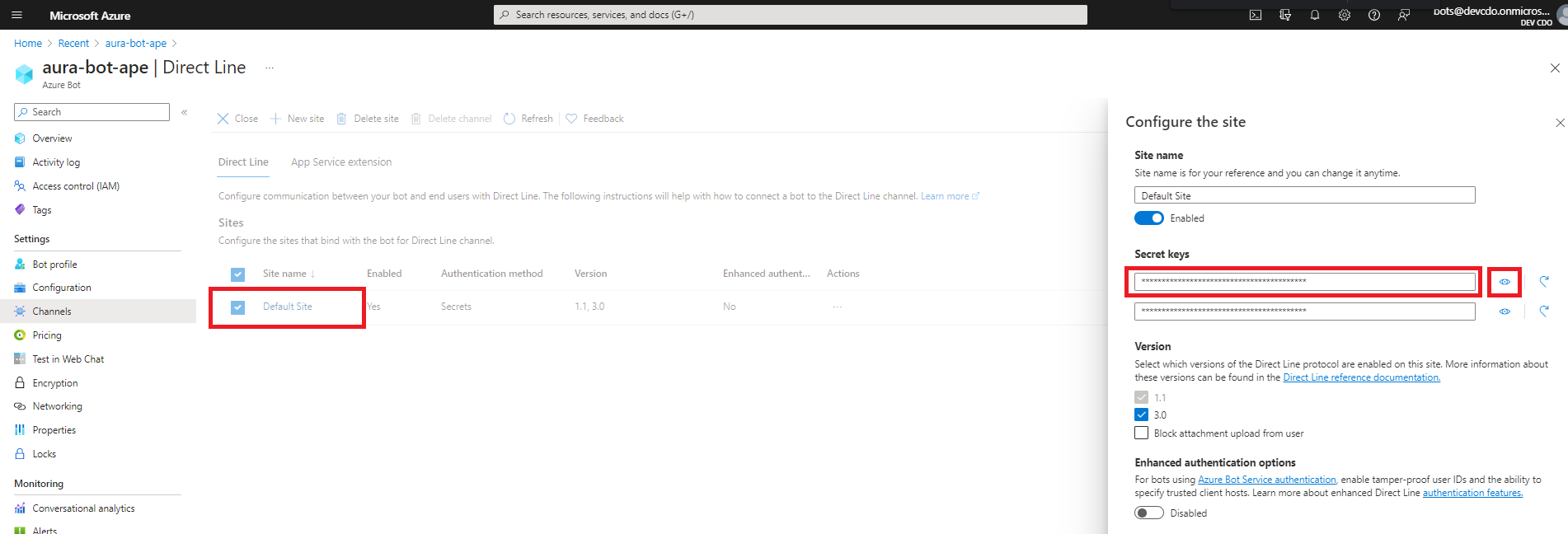
Create a Direct Line token to be able to talk with your bot. This can be done in the Azure portal: Firstly, go to the bot service resource, and then to Direct Line channel configuration.
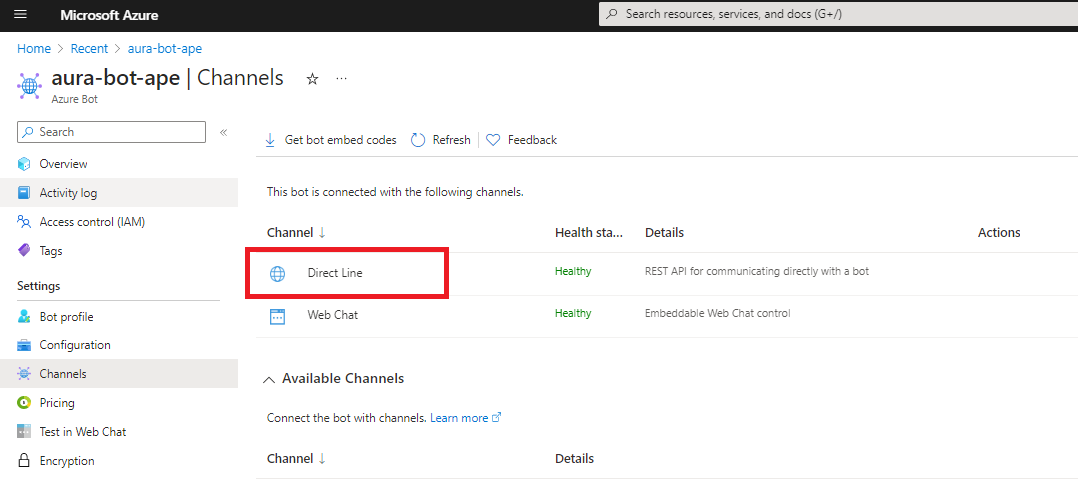
If you click on Direct Line, a new side window will open on the right hand side of the screen where you can see your bot keys. At this stage, click on the eye icon to view they key and copy it, so it can be used later from POSTMAN.
Publish your bot
The Aura instance is running locally in your machine.
Now, you should publish it, so it is available to the world. It can be deployed in Azure or similar clouds, but we recommend to use some applications that allow you to generate an external URL, such as ngrok or Localtunnel. You have to expose the 8080 port of your machine, which is the default port used by Aura.
_> ngrok http 8080
_> lt --port 8080
An URL like this is obtained:
https://adf65ab5.ngrok.io
https://localtunnel.github.io/www/
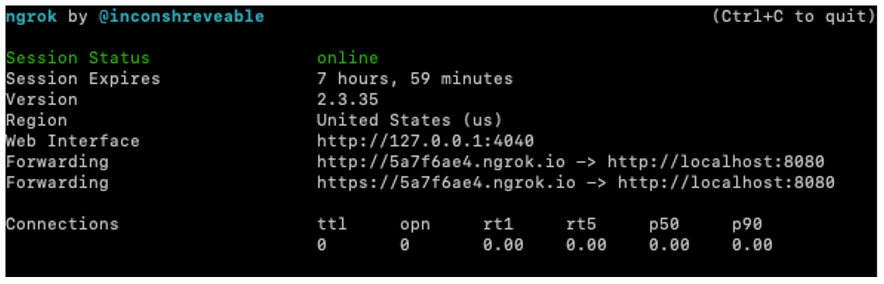
This is the URL you have to set in the Configuration section of your bot in Azure portal.
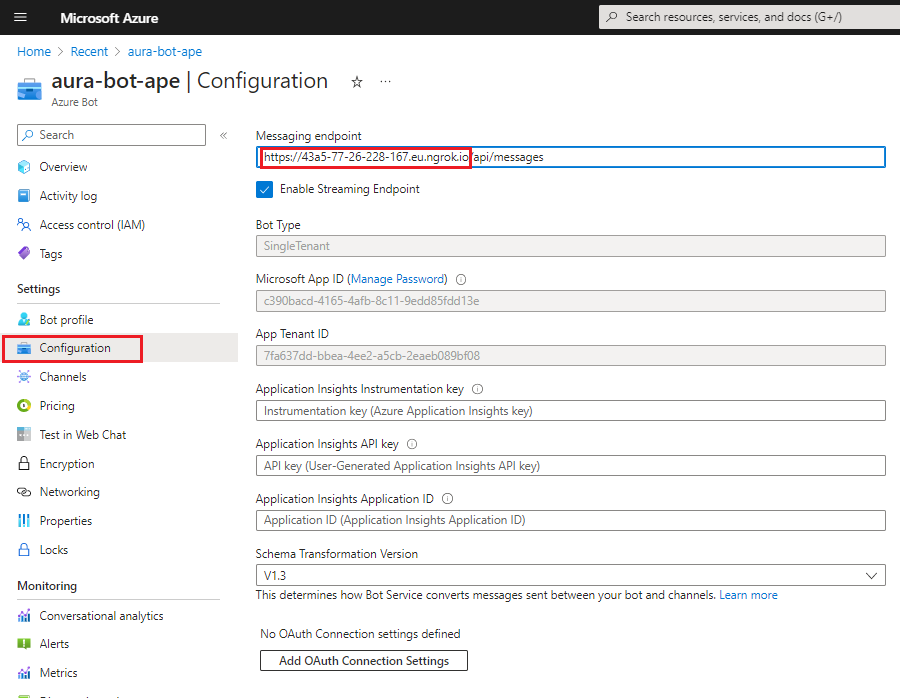
NOTE: This process is already done automatically if you use the all-in-one solution with docker-compose.
Test from POSTMAN
-
Once the POSTMAN collections provided by Microsoft are downloaded, store them in the same folder and import the folder from POSTMAN (File -> Import -> Import Folder).
-
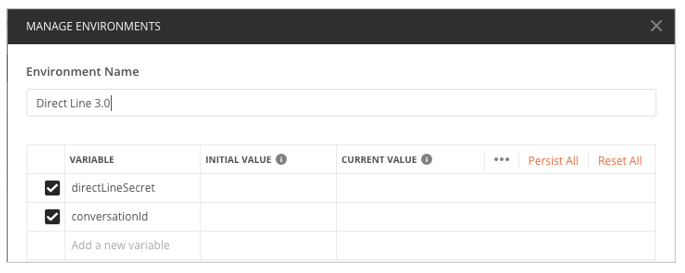
Set the DirectLine secret in the POSTMAN environment. Select the right environment file and then click on the Gears icon, both are located on top right.
-
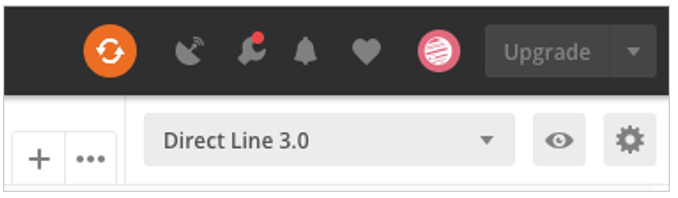
Select the Direct Line 3.0 POSTMAN environment:
-
Enter the secret key value copied in previous steps inside the INITIAL VALUE and CURRENT VALUE of directLineSecret variable, so other requests can use it. This secret key is the responsible to tell Microsoft which bot has to reach once we send requests to DirectLine 3.0 endpoints.
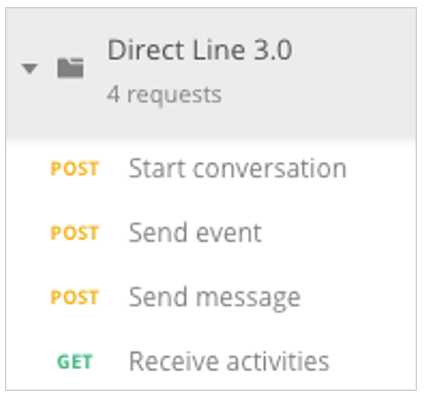
- Once this information is filled, execute the requests step by step, as shown below:
-
Start conversation response:
{
  "conversationId": "BZ3zYAXMr1VFzElZ369fbm-a",
  "token": "<token>.ew0KICAiYm90IjogImF1cmEtYm90LWxvY2FsLWFkdmwiLA0KICAic2l0ZSI6ICIwSEwtQjdCLUhqOCIsDQogICJjb252IjogIkJaM3pZQVhNcjFWRnpFbFozNjlmYm0tYSIsDQogICJuYmYiOiAxNTczNjUwMDkwLA0KICAiZXhwIjogMTU3MzY1MzY5MCwNCiAgImlzcyI6ICJodHRwczovL2RpcmVjdGxpbmUuYm90ZnJhbWV3b3JrLmNvbS8iLA0KICAiYXVkIjogImh0dHBzOi8vZGlyZWN0bGluZS5ib3RmcmFtZXdvcmsuY29tLyINCn0.GvmD7MI7fBw1mjtSD_bzD2xW9X3G7l-Pd64HvchADls1SuOmYvisR-PKcxGCoVkHN3g2KRsgFw6oyMf93jPT7E0ejM52j-etegl1nOLF2XUkM3TzM9vVig9qDhfAdQFxaxSeAV3zOKdCGbofH4PklscGKrmtEpnD2LpWmc-vHoMlx6gpBQaQaCtwykpEWceJ4cmd8ffkF3aCM1mnMyf-x2TZrH15URmPMPBdZ37y4-8pN_EGmNqLujOtuZgXbZG7s1tksk4LUhMuntRHLq6mwQrTvurd4fUdWOz7rO547RT9DymAQCfcuI0S_7buZN8Ii-4Dcwx0ByiGj932zhQXhA",
  "expires_in": 3600,
  "streamUrl": "wss://directline.botframework.com/v3/directline/conversations/BZ3zYAXMr1VFzElZ369fbm-a/stream?watermark=-&t=<token>.ew0KICAiYm90IjogImF1cmEtYm90LWxvY2FsLWFkdmwiLA0KICAic2l0ZSI6ICIwSEwtQjdCLUhqOCIsDQogICJjb252IjogIkJaM3pZQVhNcjFWRnpFbFozNjlmYm0tYSIsDQogICJuYmYiOiAxNTczNjUwMDkwLA0KICAiZXhwIjogMTU3MzY1MDE1MCwNCiAgImlzcyI6ICJodHRwczovL2RpcmVjdGxpbmUuYm90ZnJhbWV3b3JrLmNvbS8iLA0KICAiYXVkIjogImh0dHBzOi8vZGlyZWN0bGluZS5ib3RmcmFtZXdvcmsuY29tLyINCn0.Hcl15E483KyRlD5geEZSX2zWP5ihpnwQAl09Ah3aKLvL5Hl2kkiirllZppSZmxl8KZKb84BOav8MYlQCkrLtbQ5c5BA0s0DYH469-jNAryhQYIwDVwNdep_0OwZvRSnsgxJU4FOqx-0rpvY26W86HrXM4vhSrVYewcRLvm_F3e5dDGekfIDX3krvsqT4tykmI-RTaR20jeErDucoJvW5gLKfk1uduVnCllcNG6Vwn4zsm6hhPy7Q0Xcq9OfQlD17Bc8J3XPmJiv7vzG48ooNA7wr_E1ju2uElgRh5Iore7wjT3H4gQNVXmRDSNKmhACQv6KfU5CJLmtyELjfsRvyAQ",
  "referenceGrammarId": "55db166a-b049-c059-b26c-07296f680752"
}
The
conversationIdfield is extracted automatically from this first request and is included in the rest of the requests. -
Send message sends an AuraCommand in order to avoid the NLP process, so the dialog is triggered without NLP. You should edit the body request to be similar to the following one (remember to change the intent name to the one set in your library):
  {
    "type": "message",
    "from": {
        "id": "b1a72a34-626e-4c54-b2f7-6b45acf743a2"
    },
    "locale": "es-ES",
    "textFormat": "plain",
    "timestamp": "2019-11-06T17:33:31.319Z",
    "channelData": {
      "auraCommand": {
          "type": "suggestion",
          "value": {
              "intent": "intent.greetings-demo.greetings"
          }
      }
    }
}
Where:
from.idis the user who is going to access the bot. This information can be obtained from the file/sources/files/mock-files/authentication-mock.json, choosing anuserAuraId.auraCommand.value.intentcontains the intent (dialog) to be reached. This information can be obtained in the files located indev/settings/dialog-config.xx-xx.json(where xx-xx is the locale referred to the country, i.e., es-gb) in the library repository or local development in case of a new one.
{
  "dialogs": [
    {
      "triggerConditions": [
        {
          "intent": "intent.greetings-demo.greetings"
        }
      ],
      "id": "greetings",
      "onlyIn": ["movistar-plus", "set-top-box"]
    }
  ],
  "name": "greetings-demo"
}
If everything worked fine, once the request is sent, it is shown in the ngrok console. Also, the dialog activation is shown on the bot console.
-
ngrok:
ngrok example
HTTP Requests ------------- POST /api/messages 202 Accepted Bot (consola Visual Studio Code): INFO HTTP API request GET authorization-mock/ca9961f9-c6f0-3acd-5c72-ce2719f43ec9 { domain: 'authorization-mock', method: 'GET', path: '/ca9961f9-c6f0-3acd-5c72-ce2719f43ec9', corr: 'no-correlator', module: 'HttpMonkeyPatcher', version: '6.0.0', app: 'aura-bot', host: 'cc45bbf4b438' } DEBUG HTTP API response GET authorization-mock/ca9961f9-c6f0-3acd-5c72-ce2719f43ec9 200 { domain: 'authorization-mock', method: 'GET', status: 200, path: '/ca9961f9-c6f0-3acd-5c72-ce2719f43ec9', drt: 4, corr: 'no-correlator', module: 'HttpMonkeyPatcher', version: '6.0.0', app: 'aura-bot', host: 'cc45bbf4b438' } INFO HTTP API response GET authorization-mock/ca9961f9-c6f0-3acd-5c72-ce2719f43ec9 200 { domain: 'authorization-mock', method: 'GET', status: 200, path: '/ca9961f9-c6f0-3acd-5c72-ce2719f43ec9', drt: 4, corr: 'no-correlator', module: 'HttpMonkeyPatcher', version: '6.0.0', app: 'aura-bot', host: 'cc45bbf4b438' } DEBUG Starting recognizer AuraCommandRecognizer { corr: '11efcaff-67fb-46cd-be7f-6a54f68fd926', module: 'recognizer-middleware', version: '6.0.0', app: 'aura-bot', host: 'cc45bbf4b438' } DEBUG Intent set { corr: '11efcaff-67fb-46cd-be7f-6a54f68fd926', intent: { intents: { 'intent.common.greetings': [Object] }, entities: [], text: '', answers: undefined, promptCheck: true, utm: { source: 'channel_name', medium: 'text' } }, module: 'aura-context-utils', version: '6.0.0', app: 'aura-bot', host: 'cc45bbf4b438' } INFO AuraCommandRecognizer:6e204898-9fee-4006-a17e-7e6851fb8fca { corr: '11efcaff-67fb-46cd-be7f-6a54f68fd926', intent: '{"intent.common.greetings":{"score":1}}', module: 'recognizer-middleware', version: '6.0.0', app: 'aura-bot', host: 'cc45bbf4b438' } DEBUG End recognizer AuraCommandRecognizer. Result: {"intents":{"intent.common.greetings":{"score":1}},"entities":[],"text":"","promptCheck":true,"utm":{"source":"channel_name","medium":"text"}} { corr: '11efcaff-67fb-46cd-be7f-6a54f68fd926', module: 'recognizer-middleware', version: '6.0.0', app: 'aura-bot', host: 'cc45bbf4b438' } DEBUG Finalize recognizers. Result: {"intents":{"intent.common.greetings":{"score":1}},"entities":[],"text":"","promptCheck":true,"utm":{"source":"channel_name","medium":"text"}} { corr: '11efcaff-67fb-46cd-be7f-6a54f68fd926', module: 'incoming-message-middleware', version: '6.0.0', app: 'aura-bot', host: 'cc45bbf4b438' } DEBUG Break prompt { topIntent: { intent: 'intent.common.greetings', score: 1, entities: [], type: 'suggestion' }, corr: '11efcaff-67fb-46cd-be7f-6a54f68fd926', module: 'incoming-message-middleware', version: '6.0.0', app: 'aura-bot', host: 'cc45bbf4b438' } DEBUG Clear stack evaluation: Prompt Options: No Prompt detected. Score 1, min-score threshold: 0.95 { corr: '11efcaff-67fb-46cd-be7f-6a54f68fd926', module: 'aura-context-utils', version: '6.0.0', app: 'aura-bot', host: 'cc45bbf4b438' } DEBUG Request received { domain: '26eba81ecfb9.ngrok.io', method: 'POST', path: '/api/messages', corr: '11efcaff-67fb-46cd-be7f-6a54f68fd926', module: 'AuraBotServer', version: '6.0.0', app: 'aura-bot', host: 'cc45bbf4b438' } DEBUG Running dialog with Message Activity. { corr: '11efcaff-67fb-46cd-be7f-6a54f68fd926', module: 'aura-bot', version: '6.0.0', app: 'aura-bot', host: 'cc45bbf4b438' } INFO Recognize this intent pre-contextfilter { intent: '{"intent":"intent.common.greetings","score":1,"entities":[],"type":"suggestion"}', corr: '11efcaff-67fb-46cd-be7f-6a54f68fd926', module: 'main', version: '6.0.0', app: 'aura-bot', host: 'cc45bbf4b438' } DEBUG routing resolution { recognizer: 'intent.common.greetings', result: undefined, corr: '11efcaff-67fb-46cd-be7f-6a54f68fd926', module: 'RoutingMap', version: '6.0.0', app: 'aura-bot', host: 'cc45bbf4b438' } INFO There is no dialog to handle this message { corr: '11efcaff-67fb-46cd-be7f-6a54f68fd926', module: 'main', version: '6.0.0', app: 'aura-bot', host: 'cc45bbf4b438' } INFO Outgoing activity { text: 'Vaya, parece que no soy capaz de entenderte. Inténtalo de nuevo', corr: '11efcaff-67fb-46cd-be7f-6a54f68fd926', module: 'outgoing-message-middleware', version: '6.0.0', app: 'aura-bot', host: 'cc45bbf4b438' } DEBUG Finalize middlewares pipeline { corr: '11efcaff-67fb-46cd-be7f-6a54f68fd926', module: 'outgoing-message-middleware', version: '6.0.0', app: 'aura-bot', host: 'cc45bbf4b438' } DEBUG Dialog undefined finished, NO suggestions. { corr: '11efcaff-67fb-46cd-be7f-6a54f68fd926', module: 'main', version: '6.0.0', app: 'aura-bot', host: 'cc45bbf4b438' } INFO Response returned 200 POST /api/messages { method: 'POST', status: 200, path: '/api/messages', drt: 35, corr: '11efcaff-67fb-46cd-be7f-6a54f68fd926', module: 'AuraBotServer', version: '6.0.0', app: 'aura-bot', host: 'cc45bbf4b438' } INFO HTTP API request POST login.microsoftonline.com/botframework.com/oauth2/v2.0/token { domain: 'login.microsoftonline.com', method: 'POST', path: '/botframework.com/oauth2/v2.0/token', corr: 'no-correlator', module: 'HttpMonkeyPatcher', version: '6.0.0', app: 'aura-bot', host: 'cc45bbf4b438' } DEBUG HTTP API response POST login.microsoftonline.com/botframework.com/oauth2/v2.0/token 200 { domain: 'login.microsoftonline.com', method: 'POST', status: 200, path: '/botframework.com/oauth2/v2.0/token', drt: 1974, body: '{"token_type":"Bearer","expires_in":86398,"ext_expires_in":86398,"access_token":"<token>"}', corr: 'no-correlator', module: 'HttpMonkeyPatcher', version: '6.0.0', app: 'aura-bot', host: 'cc45bbf4b438' } INFO HTTP API response POST login.microsoftonline.com/botframework.com/oauth2/v2.0/token 200 { domain: 'login.microsoftonline.com', method: 'POST', status: 200, path: '/botframework.com/oauth2/v2.0/token', drt: 1974, corr: 'no-correlator', module: 'HttpMonkeyPatcher', version: '6.0.0', app: 'aura-bot', host: 'cc45bbf4b438' } INFO HTTP API request POST directline.botframework.com/v3/conversations/IiKY7bzb1Pd5VdtN4FZKmB-a/activities/IiKY7bzb1Pd5VdtN4FZKmB-a%7C0000000 { domain: 'directline.botframework.com', method: 'POST', path: '/v3/conversations/IiKY7bzb1Pd5VdtN4FZKmB-a/activities/IiKY7bzb1Pd5VdtN4FZKmB-a%7C0000000', corr: 'no-correlator', module: 'HttpMonkeyPatcher', version: '6.0.0', app: 'aura-bot', host: 'cc45bbf4b438' } DEBUG HTTP API response POST directline.botframework.com/v3/conversations/IiKY7bzb1Pd5VdtN4FZKmB-a/activities/IiKY7bzb1Pd5VdtN4FZKmB-a%7C0000000 200 { domain: 'directline.botframework.com', method: 'POST', status: 200, path: '/v3/conversations/IiKY7bzb1Pd5VdtN4FZKmB-a/activities/IiKY7bzb1Pd5VdtN4FZKmB-a%7C0000000', drt: 185, body: '{\r\n "id": "IiKY7bzb1Pd5VdtN4FZKmB-a|0000001"\r\n}', corr: 'no-correlator', module: 'HttpMonkeyPatcher', version: '6.0.0', app: 'aura-bot', host: 'cc45bbf4b438' } INFO HTTP API response POST directline.botframework.com/v3/conversations/IiKY7bzb1Pd5VdtN4FZKmB-a/activities/IiKY7bzb1Pd5VdtN4FZKmB-a%7C0000000 200 { domain: 'directline.botframework.com', method: 'POST', status: 200, path: '/v3/conversations/IiKY7bzb1Pd5VdtN4FZKmB-a/activities/IiKY7bzb1Pd5VdtN4FZKmB-a%7C0000000', drt: 185, corr: 'no-correlator', module: 'HttpMonkeyPatcher', version: '6.0.0', app: 'aura-bot', host: 'cc45bbf4b438' } ``` </details>
-
Inside POSTMAN, use “Receive activities” request to follow up all the messages sent to and from the bot.
Example
{
"activities": [
  {
    "type": "message",
    "id": "IiKY7bzb1Pd5VdtN4FZKmB-a|0000000",
    "timestamp": "2021-01-28T16:02:49.6587305Z",
    "serviceUrl": "https://directline.botframework.com/",
    "channelId": "directline",
    "from": {
      "id": "ca9961f9-c6f0-3acd-5c72-ce2719f43ec9"
    },
    "conversation": {
      "id": "IiKY7bzb1Pd5VdtN4FZKmB-a"
    },
    "textFormat": "plain",
    "locale": "es-ES",
    "channelData": {
      "auraCommand": {
        "type": "suggestion",
        "value": {
          "intent": "intent.common.greetings"
        }
      }
    }
  },
  {
    "type": "message",
    "id": "IiKY7bzb1Pd5VdtN4FZKmB-a|0000001",
    "timestamp": "2021-01-28T16:02:52.6086472Z",
    "channelId": "directline",
    "from": {
      "id": "bot-antonio",
      "name": "bot-antonio"
    },
    "conversation": {
      "id": "IiKY7bzb1Pd5VdtN4FZKmB-a"
    },
    "text": "Vaya, parece que no soy capaz de entenderte. Inténtalo de nuevo",
    "inputHint": "acceptingInput",
    "channelData": {
      "correlator": "11efcaff-67fb-46cd-be7f-6a54f68fd926"
    },
    "replyToId": "IiKY7bzb1Pd5VdtN4FZKmB-a|0000000"
  }
],
"watermark": "1"
}
Develop a new use case
Once the use case is developed following the guidelines included in the document Use cases development over Aura Bot, it is required to follow the step below:
- Run the command npm pack from the library root folder to generate a
.tgzwith the library packed. Now, the library is ready to be imported and used by the minibot.
Minibot set-up to import and run the library
-
Copy the path where the
.tgzfile is located (right click and copy path in VSCode):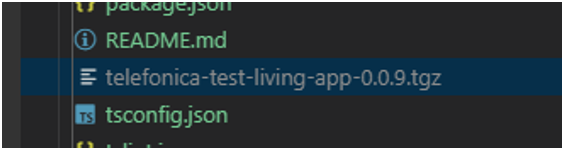
-
Go to root/ folder in your minibot project and run:
npm install <path copied>` -
Open the
plugin-config.jsonfile and set the name of the library inside the array as below (in the sample, the library’s name istest-app):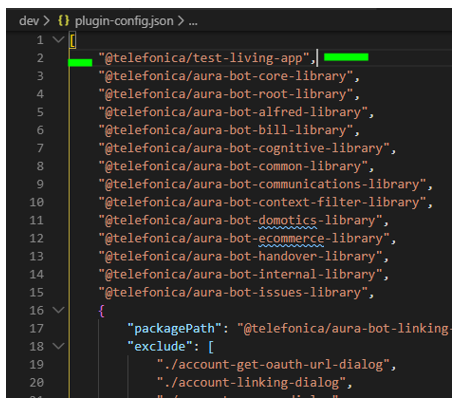
-
Add the dialogs in their libraries inside
aura-mini-bot/sources/files/mock-files/channels-configuration-mock.jsonas well:Example of channels-configuration-mock.json
{ "name": "novum-mytelco", "prefix": "nov", "channel_id": "xxxxxxx", "fpa_auth_scopes": "device-catalog:devices-read device-stock:stock-read", "fpa_auth_purposes": "customer-self-service detect-abnormal-usage device-recommendations-v3 sim-upgrade-suggestion aura-read-insight-events identify-customer bolt-on-suggestion", "batchMessages": true, "notifications_enabled": true, "notifications_insights_mitigation": true, "notification_configuration": { "notifications_event_types_enabled": [ { "id": "unusual-data-usage", "enabled": true, "push_text": "notifications:notifications.unusual-data-usage.pushText", "action": "usage.anomaly", "subscription_filters": [ "user_id", "phone_number" ] } ], "notification_callback": "https://ha42ojf7mb.execute-api.us-east-1.amazonaws.com/prod/callback/xxxxx" }, "dialogLibraries": [ { "name": "my-library", "dialogs": [ { "id": "my-dialog", "triggerConditions": [ { "intent": "intent.my-intent" } ] } ] ]NOTE: We can do a copy of the content inside of the file
dialog-config.jsonlocated in our original library development. -
Go to dev folder and run
npm run makeup-localand wait until it finishes (it will notify us through the console):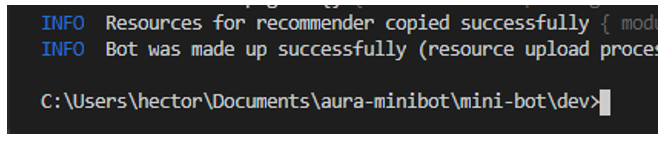
-
Now the library is ready to be used from the minibot. Run the minibot through VSCode debugger (using your
launch.jsonfile).
Debugging with Aura minibot
Right now, the best way to debug a dialog is from .js files located into node_modules once our packed library is installed. This is the way to avoid NPM Link dependency issues.
Breakpoints can be set in those dialog files. Once our breakpoint is reached, when we send the request from POSTMAN, the minibot will stop and it will show the debug options in VSCode:
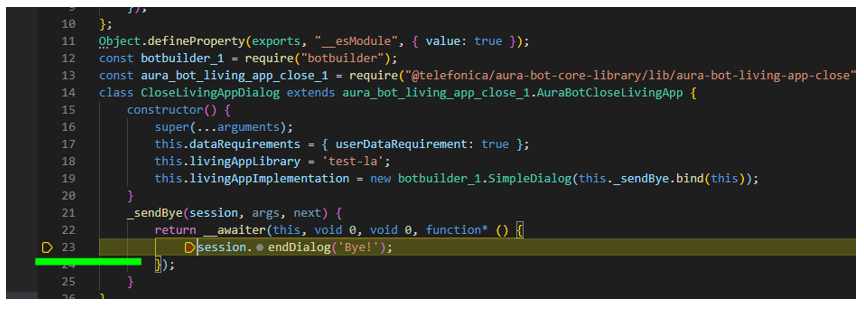
Global use cases debugging example (personalized data)
In the following example it is shown how to debug an existing dialog with personalized data using the intent intent.billing.check. The steps to debug it from scratch are the following:
- Set the channel configuration and enable the dialog in that channel.
-
Go to channels-configuration-mock.json located into the folder:
aura-mini-bot/sources/files/mock-files -
Once there, check that the dialog is enabled inside the dialogLibraries property of the desired channel:
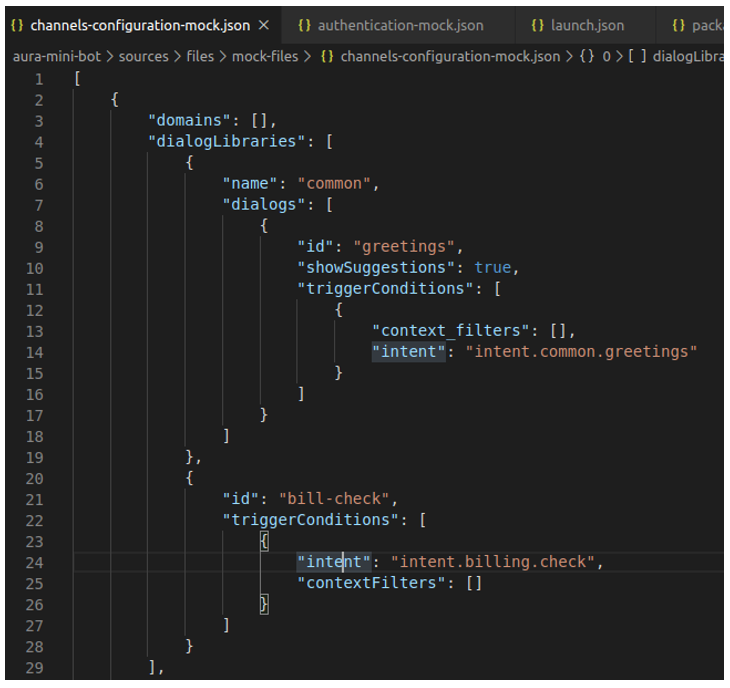
We use the
intent.billing.checkname to activate the dialog through POSTMAN in future steps. Let’s see now a screenshot of the full channel configuration for this example: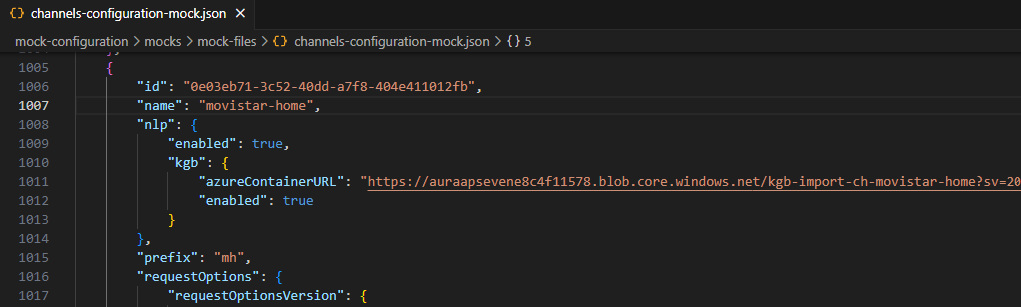
From the code above, the
idproperty must be copied to a safe place, because it will be used in the next step.
-
Go to
aura-mini-bot/sources/files/mock-files/authentication-mock.jsonfile located intoaura-mini-bot/sources/files/mock-files/folder.Paste the previous value copied (
id) into theidproperty and check that thenameandprefixproperty fit with the channel information.The
idproperty is the responsible to link the user to that channel (remember that a user has to be registered on a channel).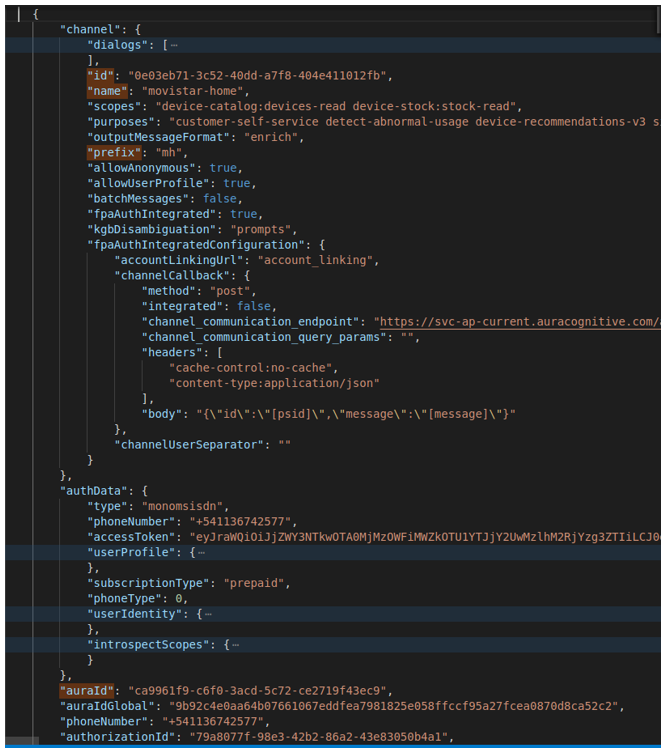
Now we have all we need. Pay attention to
auraIdproperty, as it will be used on POSTMAN to send messages to Aura. -
Go to the root
node_modulesfolder and open thebill-check-dialog.jsfile in order to set the desired breakpoints: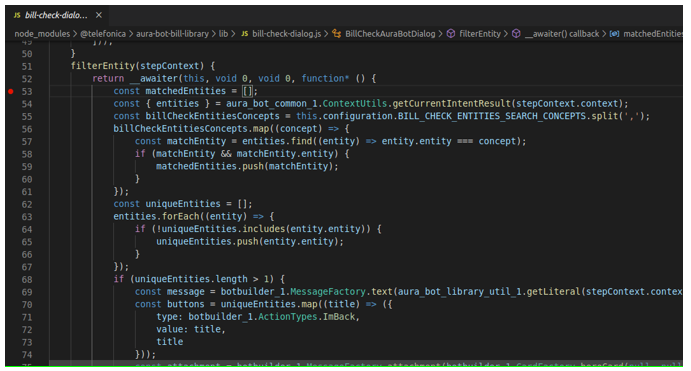
Go to debug module in VSCode and run the minibot in debug mode.
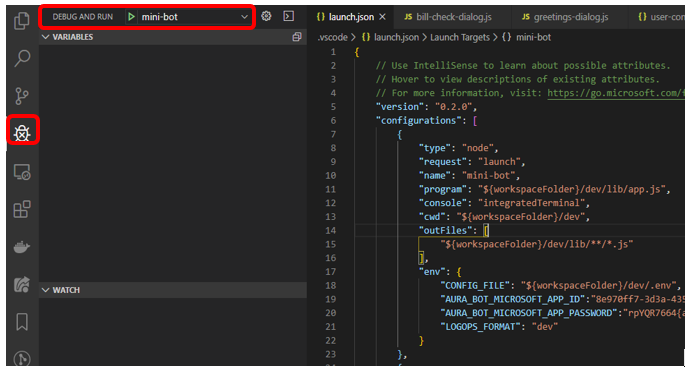
-
Go to POSTMAN and send the request to start conversation. In addition, send a request with an aura command to reach
bill-checkdialog: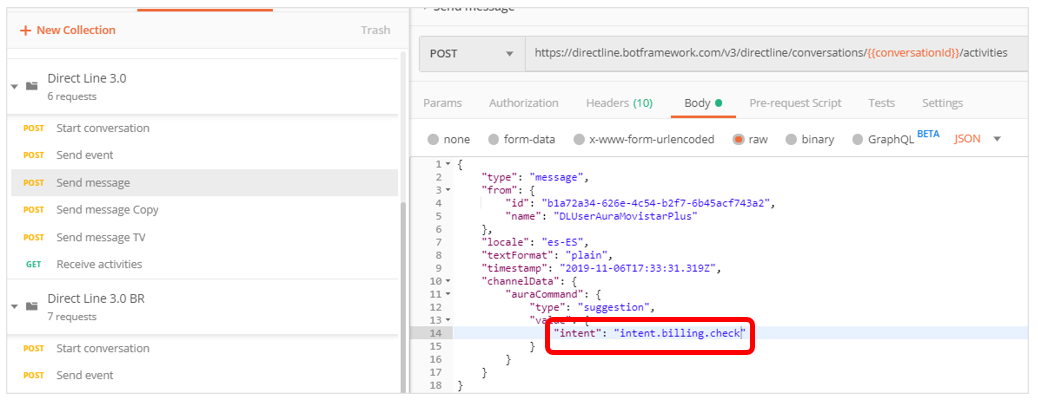
-
We should be able to see our minibot stops in our breakpoints set in previous steps:
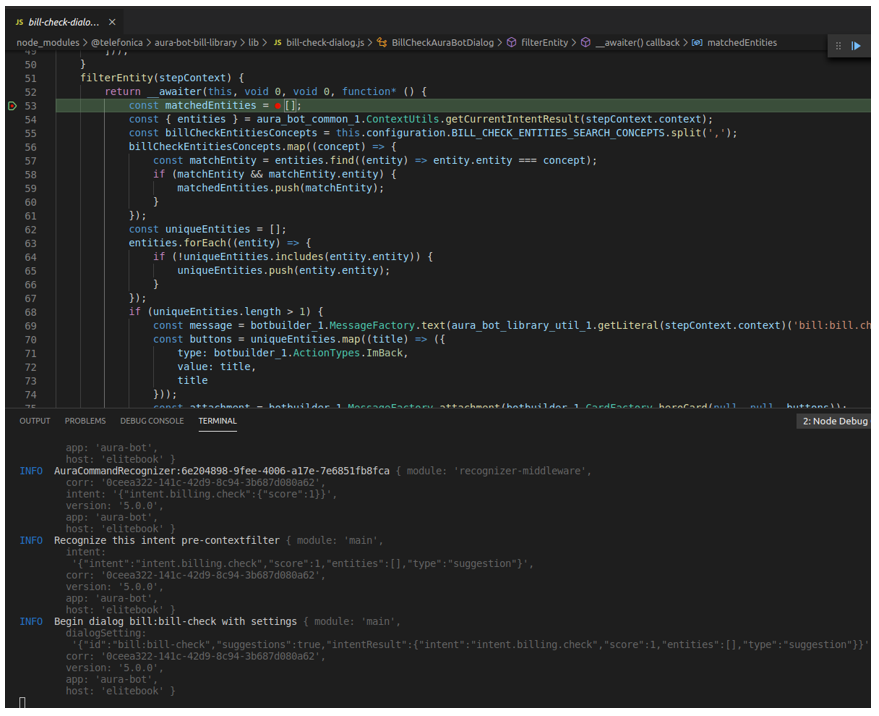
As we can see in the console, we have reached the intent.billing.check as a Final recognizer result. It can be noticed that the auraData object includes the information from the authentication-mock.json file mentioned before.
Run Aura minibot against a remote environment
In cases where it is necessary or desired to test use cases against a remote test environment, the following steps should be performed.
Get the environment variables
Using the kubeconfig file that your manager or DevOps Team should provide you with, run the following commands from a Unix terminal which will generate an .env file:
  $ export KUBECONFIG=<path-to-file>
  $ (kubectl -n aura-<environment> get cm aura-bot -o json | jq -r ".data|to_entries|map(\"\(.key)=\(.value|tostring)\")|.[]" ; kubectl -n aura-<environment> get secret aura-bot -o json | jq -r ".data|to_entries|map(\"\(.key)=\(.value|tostring|@base64d)\")|.[]" ) > aura-<environment>.env
NOTE: Set all 3 of <environment> params to your needs.
NOTE: In case the command does not find jq, you must install the library by executing the following:
  $ apt-get update
  $ apt-get install jq
Modify environment file
In order for the minibot to work correctly against a remote environment, the following variables must be added at the beginning of the .env file:
  # REMOTE ENV
  AURA_ACTIVATE_MINI_BOT=false
  AURA_LOGGING_LEVEL=DEBUG
  AURA_LOGGING_FORMAT=dev
Then, we will proceed to modify the following variables:
  AURA_CHANNELS_CONFIGURATION_API_ENDPOINT=http://wiremock:8080
  AURA_COGNITIVE_ENDPOINT=http://host.docker.internal:7000/auracognitive/v3
  AURA_MONGODB_URI=mongodb://host.docker.internal:27017
And comment or delete the subsequent ones:
  # AURA_LOGGING_LEVEL=INFO
  # AURA_MICROSOFT_APP_ID=********
  # AURA_MICROSOFT_APP_PASSWORD=********
Create new docker-compose
For convenience, we will create a new docker-compose file to be able to use the minibot locally and remotely without making modifications each time. This file will be added along with the previous docker-compose.yml file.
docker-compose-remote.yml
version: '3'

services:
  wiremock:
    image: wiremock/wiremock:2.33.2
    volumes:
      - ./mock-configuration/mocks/mock-files:/home/wiremock/__files:ro
      - ./mappings:/home/wiremock/mappings:ro
    restart: unless-stopped
    expose:
      - "8080"
    ports:
      - "4041:8080"

  mongodb:
    image: mongo:4.2
    restart: unless-stopped
    env_file:
      - config.env
    ports:
      - "27017:27017"

  aura-minigroot:
    image: auraregistry.azurecr.io/aura/aura-mini-groot:<version>
    volumes:
      - ./mock-configuration/mocks/mock-files:/opt/aura-groot/aura-mini-groot/sources/files/mock-files/
    env_file:
      - config.env
      - remote-config.env
      - config-bot.env
    restart: unless-stopped
    depends_on:
      - mongodb
    ports:
      - "8080:8080"
    entrypoint: sh -c "sh -c \"$${@}\""
    command: >
      sh -c "
        set -e
        echo $$(echo $$(nslookup host.docker.internal | grep -o 192.*) aura-bridge-outbound) >> /etc/hosts
        /opt/aura-groot/aura-mini-groot/sources/docker-entrypoint-mini-groot.sh
        sh || exit 0
      "

  aura-minibot:
    image: auraregistry.azurecr.io/aura/aura-mini-bot:<version>
    volumes:
      - ./packages:/tmp/dialogs
      - ./mock-configuration:/opt/aura-bot/aura-mini-bot/mock-configuration
      - mock-files:/opt/aura-bot/aura-mini-bot/sources/files/mock-files
    env_file:
      - config.env
      - remote-config.env
      - config-bot.env
    restart: unless-stopped
    depends_on:
      - mongodb
    ports:
      - "8081:8081"

  azcli:
    image: mcr.microsoft.com/azure-cli:2.49.0
    depends_on:
      - ngrok
    env_file:
      - config.env
    command: >
      sh -c "
        az login --tenant $$AURA_MICROSOFT_TENANT &&
        az account set --subscription $$AURA_MICROSOFT_SUBSCRIPTION &&
        az bot update -n $$AURA_MICROSOFT_BOT_NAME -g $$AURA_MICROSOFT_RESOURCE_GROUP --endpoint $$(curl --silent http://ngrok:4040/api/tunnels | jq -r '.tunnels | map(.public_url) | .[]' | grep https)/api/messages
      "
  ngrok:
    image: ngrok/ngrok
    command:
      - "start"
      - "--all"
      - "--config"
      - "/etc/ngrok.yml"
    volumes:
      - ./ngrok.yml:/etc/ngrok.yml
    ports:
      - "4040:4040"

volumes:
  mock-files:
NOTE: Set <version> to your needs.
Mappings for the Channels API
In order to get the configuration of locally installed use cases, and skills, create a mappings folder in the working directory and add these three files:
channels.json
  {
    "request": {
      "method": "GET",
      "urlPattern": "(.*)\/channels(.*)"
    },
    "response": {
      "status": 200,
      "bodyFileName": "channels-configuration-mock.json",
      "headers": {
        "Content-Type": "application/json"
      }
    }
  }
skills.json
{
  "request": {
    "method": "GET",
    "urlPattern": "(.*)\/skills(.*)"
  },
  "response": {
    "status": 200,
    "bodyFileName": "skills-configuration-remote-mock.json",
    "headers": {
      "Content-Type": "application/json"
    }
  }
}
This configuration will use the docker volume created in the docker-compose to be able to serve through the WireMock container the files located in /sources/files/mock-files/.
Start the minibot containers
You must use the following command to raise the containers with the new compose file:
$ docker-compose -f ./docker-compose-remote.yml up -d
You should also use the following command to shut down the correct containers:
$ docker-compose -f ./docker-compose-remote.yml down
Docker scaffolding
Below, you can find the complete folder and file structure with links to download them, so you can start using minibot in docker right away:
https://github.com/Telefonica/aura-mini-bot