Categories:
File manager recognizer
Description of the file-manager-recognizer-middleware, in charge of managing files in use cases messages
Introduction to file-manager recognizer
file-manager recognizer manages messages that include files, both as text messages or as attachments. Although it is not a real recognizer, it is included in the list of recognizers because it is executed in the same way as the rest of them, and it is in charge of managing files, that are handled in the same way as intents.
The source code of this recognizer is included in Aura Bot Platform recognizers - Github repository.
Depending on which dialog is running (PromptAttachment, BypassDialog, none) and whether the channel is ready for managing files, these files can be:
- Used by the dialog that requested it.
- Processed and validated by the aura-file-manager API.
- Sent to the unexpected-file dialog.
- Other situations beyond the happy path.
This recognizer checks the attachments property or the property channelData.payload.asyncCallback.attachments inside an activity. The reason behind searching for two different properties has to do with its execution flow. The first one is used to send files from the user to aura-bot and the second one is used to send files from file-manager back to aura-bot, once they are validated.
It is the recognizer with more priority, (the first to be executed after the initialization middleware), so if it finds an intention, it will win, because its resulting score for the recognized intent will be always 1.0, i.e., a perfect recognition.
Example of an activity with a file attachment:
{
  "attachments": [
    {
      "contentType": "image/png",
      "contentUrl": "https://example.com/image.png"
    }
  ]
}
Example of an activity with a validated file attached in the channelData.payload.asyncCallback.attachments.
{
  "channelData": {
    "payload": {
      "asyncCallback": {
        "attachments": [
          {
            "contentUrl": "https://<host>/fromId/messageId_1646724898352?sv=2020-10-02&se=2022-03-08T08%3A34%3A59Z&sr=b&sp=r&sig=GTCdk%2B9lU4IkYTJVH1%2BpEMBAKHWmaOjMB026Qxxw1ZU%3D",
            "name": "messageId_1646724898352",
            "content": {
              "processed": true,
              "typeValidation": {
                "valid": true,
                "value": "png"
              },
              "sizeValidation": {
                "valid": true,
                "value": 40663
              },
              "status": [
                {
                  "code": "OK",
                  "message": ""
                }
              ]
            },
            "contentType": "image/png"
          }
        ]
      }
    }
  }
}
aura-bot includes the content-type of the incoming attachment in its request to the file-manager, so a proper extension can be inferred in all the cases.
file-manager recognizer flow
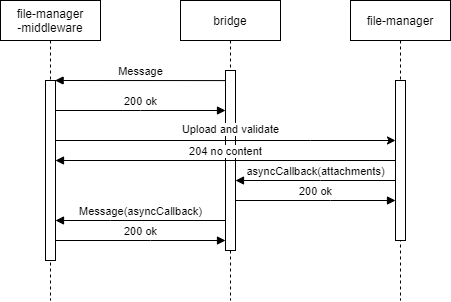
- The recognizer first checks if attachments data is present in the
activity. - Then, the recognizer checks if the
channelDatahas file configuration enabled. - The recognizer searchs for an active
PromptAttachmentor bypass with file treatment.- If it is found, then we will be on the case of an expected file and the processing will continue.
- If not, the processing will be redirected to the unexpected-file dialog.
- If we have an active
PromptAttachmentor bypass with file treatment, the recognizer will send the data to be asynchronously processed by the file-manager API (a microservice with the only purpose of validating and upload files to a local repository). - Through aura-bridge, the recognizer will receive the data processed by the file-manager API: (
channelData.payload.asyncCallback.attachments). In this stage, data with validations will be passed to the dialog where it can use it to do extra validations.
The following figures shows the different scenarios that can arise:
- The use case requests one file
sequenceDiagram
Title: Normal flow one file requested
    User/Kernel->>+Bridge: Phrase to init UC file dialog
    Bridge->>+Groot/Bot: Phrase to init UC file dialog
    Groot/Bot->>+NLP: Phrase user
    NLP->>+Groot/Bot: Intent dialog
    Groot/Bot->>+File Dialog: Start UC file dialog
    File Dialog->>+Bridge: Send me a file
    Bridge->>+User/Kernel: Send me a file
    User/Kernel->>+Bridge: Send a file
    Bridge->>+Groot/Bot: Send the attachment
    Groot/Bot->>+File Api: Validate / process the attachment
    File Api->>+Bridge: Attachment processed, validated and ready
    Bridge->>+Groot/Bot: Send attachment processed
    Groot/Bot->>+File Dialog: Send attachment processed
    File Dialog->>+Bridge: Ok
    Bridge->>+User/Kernel: Ok
- The use case requests one file but the user decides to send more than one file
sequenceDiagram
Title: One file requested, user send more
    User/Kernel->>+Bridge: Phrase to init UC file dialog
    Bridge->>+Groot/Bot: Phrase to init UC file dialog
    Groot/Bot->>+NLP: Phrase user
    NLP->>+Groot/Bot: Intent dialog
    Groot/Bot->>+File Dialog: Start UC file dialog
    File Dialog->>+Bridge: Send me a file
    Bridge->>+User/Kernel: Send me a file
    User/Kernel->>+Bridge: Send a file
    Bridge->>+Groot/Bot: Send the attachment
    Groot/Bot->>+File Api: Validate / process the attachment
    alt Processing file
    User/Kernel->>+Bridge: Send a file
    Bridge->>+Groot/Bot: Send the attachment
    Groot/Bot->>+File Dialog: Processing file & New attachment no validated send it
    File Dialog->>+Bridge: Processing file, don't send me more files
    Bridge->>+User/Kernel: Processing file, don't send me more files
    end
    File Api->>+Bridge: Attachment processed, validated and ready
    Bridge->>+Groot/Bot: Send attachment processed
    Groot/Bot->>+File Dialog: Send attachment processed
    File Dialog->>+Bridge: Ok
    Bridge->>+User/Kernel: Ok
- The use case requests several files: Files will arrive to the dialog as they are processed.
sequenceDiagram
Title: User send multiples files
    User/Kernel->>+Bridge: Phrase to init UC file dialog
    Bridge->>+Groot/Bot: Phrase to init UC file dialog
    Groot/Bot->>+NLP: Phrase user
    NLP->>+Groot/Bot: Intent dialog
    Groot/Bot->>+File Dialog: Start UC file dialog
    File Dialog->>+Bridge: Send me 3 files
    Bridge->>+User/Kernel: Send me 3 files
    User/Kernel->>+Bridge: Send 3 files
    alt Process attachment 2
    Bridge->>+Groot/Bot: Send attachment 2
    Groot/Bot->>+File Api: Validate / process the attachment 2
    File Api->>+Bridge: Attachment 2 processed, validated and ready
    Bridge->>+Groot/Bot: Send attachment 2 processed
    Groot/Bot->>+File Dialog: Receive 1/3 files processed
    end
    alt Process attachment 1
    Bridge->>+Groot/Bot: Send attachment 1
    Groot/Bot->>+File Api: Validate / process the attachment 1
    File Api->>+Bridge: Attachment 1 processed, validated and ready
    Bridge->>+Groot/Bot: Send attachment 1 processed
    Groot/Bot->>+File Dialog: Receive 2/3 files processed
    end
    alt Process attachment 3
    Bridge->>+Groot/Bot: Send attachment 3
    Groot/Bot->>+File Api: Validate / process the attachment 3
    File Api->>+Bridge: Attachment 3 processed, validated and ready
    Bridge->>+Groot/Bot: Send attachment 3 processed
    Groot/Bot->>+File Dialog: Receive 3/3 files processed
    end
    File Dialog->>+Bridge: Ok
    Bridge->>+User/Kernel: Ok
- In case of unexpected file:
sequenceDiagram
Title: Unexpected File
    User/Kernel->>+Bridge: Send a file
    Bridge->>+Groot/Bot: Send the attachment
    Groot/Bot->>+Unexpected File: Send the attachment
    Unexpected File->>+Bridge: Unexpected file
    Bridge->>+User/Kernel: Unexpected file
- Different problems may arise in reference to unavailable file-manager* API or aura-bridge:
sequenceDiagram
Title: File Api No Available
    User/Kernel->>+Bridge: Phrase to init UC file dialog
    Bridge->>+Groot/Bot: Phrase to init UC file dialog
    Groot/Bot->>+NLP: Phrase user
    NLP->>+Groot/Bot: Intent dialog
    Groot/Bot->>+File Dialog: Start UC file dialog
    File Dialog->>+Bridge: Send me a file
    Bridge->>+User/Kernel: Send me a file
    User/Kernel->>+Bridge: Send a file
    Bridge->>+Groot/Bot: Send the attachment
    alt Retries with File API
    Groot/Bot-xFile Api: Validate / process the attachment
    Groot/Bot-xFile Api: Validate / process the attachment
    Groot/Bot-xFile Api: Validate / process the attachment
    end
    Groot/Bot->>+File Dialog: Attachment no processed with problem explanation
sequenceDiagram
Title: Bridge no available
    User/Kernel->>+Bridge: Phrase to init UC file dialog
    Bridge->>+Groot/Bot: Phrase to init UC file dialog
    Groot/Bot->>+NLP: Phrase user
    NLP->>+Groot/Bot: Intent dialog
    Groot/Bot->>+File Dialog: Start UC file dialog
    File Dialog->>+Bridge: Send me a file
    Bridge->>+User/Kernel: Send me a file
    User/Kernel->>+Bridge: Send a file
    Bridge->>+Groot/Bot: Send the attachment
    Groot/Bot->>+File Api: Validate / process the attachment
    alt Bridge no reachable
    File Api-xBridge: Attachment processed, validated and ready
    File Api-xBridge: Attachment processed, validated and ready
    File Api-xBridge: Attachment processed, validated and ready
    end
    User/Kernel->>+Bridge: Aura, what's going on?
    Bridge->>+Groot/Bot: Aura, what's going on?
    Groot/Bot->>+File Dialog: Aura, what's going on? / Cut PromptAttachment or Bypass
    File Dialog->>+Bridge: Try again later / Other message
    Bridge->>+User/Kernel: Try again later / Other message
Environment variables
| Property | Type | Description | Modifiable by OB? |
|---|---|---|---|
| AURA_FILE_ENDPOINT | string | Endpoint for the file-manager microservice | NO |
Practical process for managing files in a use case
Currently, it is only available for WhatsApp channels. Follow the guidelines in Use of files in WhatsApp.