Categories:
General guidelines for locales management
The aim of this document is to describe how locales are handled by Aura Bot services for the following components: aura-groot, aura-authentication-api, aura-bridge, aura-bridge-outbound.
⚠️ Remember that hot swapping of aura-bot locales must be done through the aura-configuration-updater
Introduction
The objective of the current document is to describe the hot swapping process to update POEditor texts in Aura without service outage, both for global and local use cases. Hereinafter, we will refer it as hot swapping process.
For each type of use cases, the process uses different projects and has a different scope, as shown in the following table.
| Global use cases | Local use cases |
|---|---|
| - Aura POEditor global project (owned by Aura Global Team) | - Aura POEditor local project (owned by L-CDO Team) |
| - Scope: edition of texts | - Scope: edition of texts and definition of resources |
In both cases, the texts correspond to PRE and PRO resources in POEditor.
Follow the orderly guidelines in the succeeding sections:
⚠️ If you have local use cases, you must carry out the process included in this document for update POEditor texts each time a new version of your local use cases is deployed.
Previous steps
Previous steps include the management of POEditor itself for the edition of texts and, depending on the use case type, the generation of resources. These tasks are fully defined in the corresponding documents:
-
Global Use Cases > Edition of POEditor texts
-
Local Use Cases > Edition of POEditor texts and generation of resources (references)
Generation of POEditor token
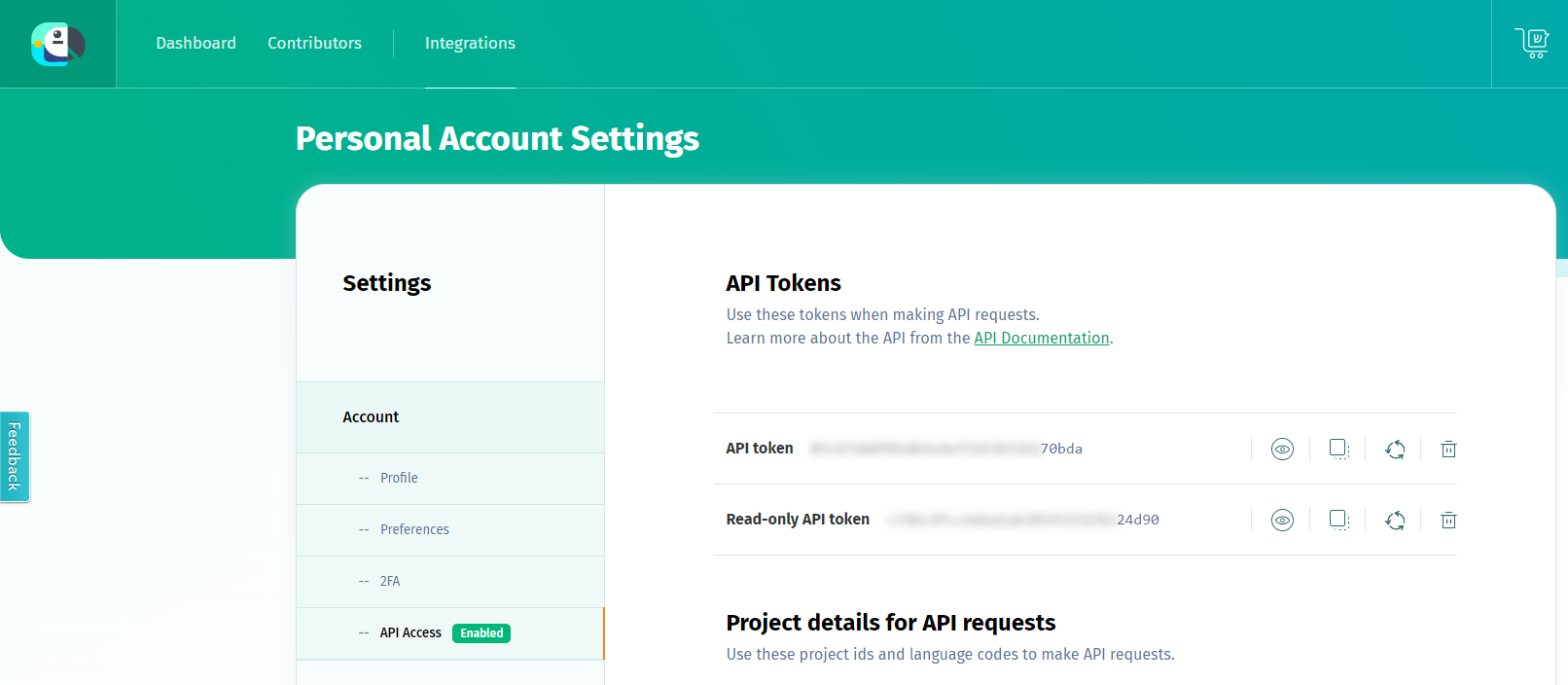
Once the texts have been modified in POEditor, it is necessary to have a Read-only API Token in order to import them into aura-bot.
- Global Use Cases: developers should request the read-only API Token to the APE Team.
- Local Use Cases: developers should request the read-only API Token to the local responsible of POEditor project.
The reading token is obtained from the POEditor website, where the OB edits the texts.
Figure 1. Add readonly API token
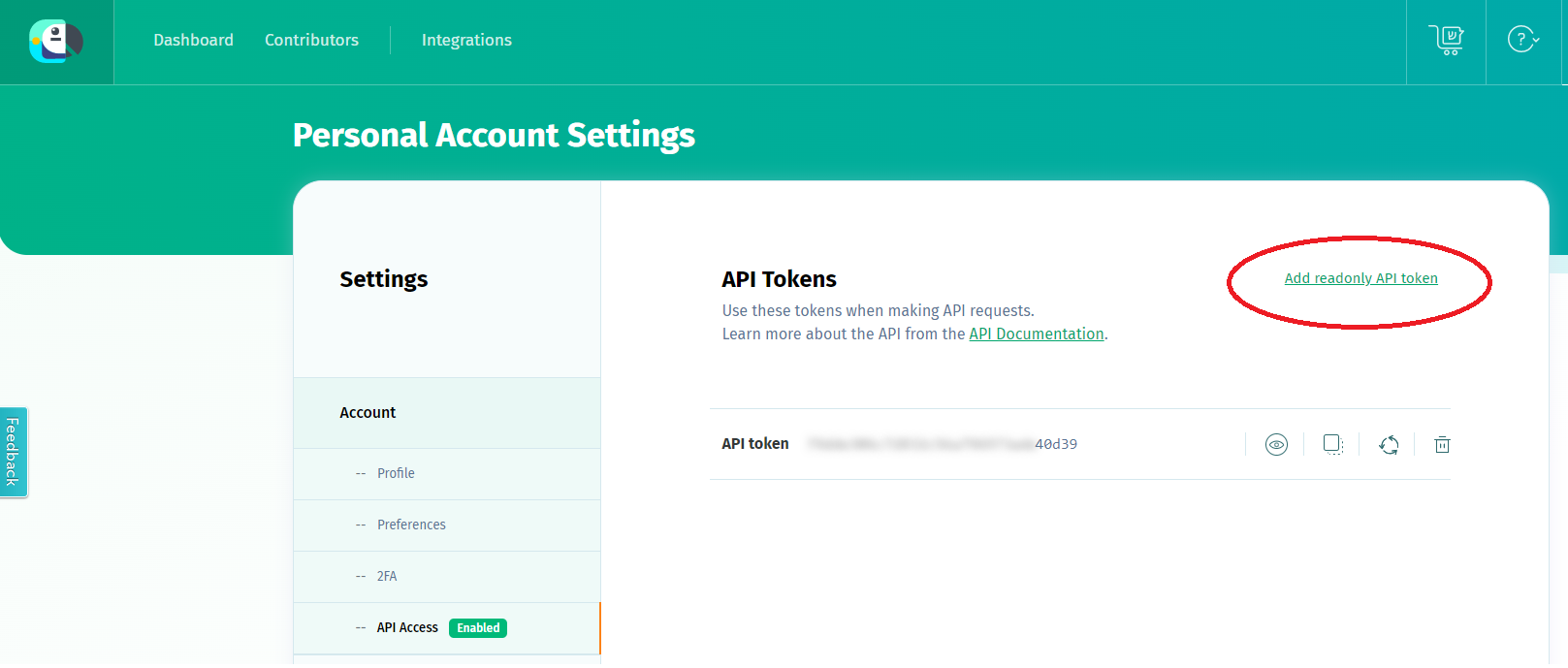
Figure 2. API access
Importing locale files with aura-locale-importer tool
We recommend using aura-locale-importer tool, a utility developed by Aura Global Team that allows to handle the importation and exportation of locale files with POEditor.
-
Install aura-locale-importer tool:
1.1. Log in NPM to download the private NPM package dependencies. You can log in with user/password or using the token:- User/password -> npm login
- Token -> Add the token to your environment variables on your machine. Follow the guidelines for mac/linux.
1.2. Install the npm application globally in the host. You can use two equivalent commands for installing the latest available version:
npm install –g @telefonica/aura-locale-importeror
npm i @telefonica/aura-locale-importer -g -
Copy in a local directory the file containing the locale resources to be updated (JSON file from aura-bot/locale/ directory). If there is no file, the aura-locale-importer tool will generate one.
-
Get full locale files to be uploaded:
$ aura-locale-importer -u -l <language-country> -j <POEditor project> -b <my-library> -d <local-directory> -m library -f –t <token>Where:
-l <language-country>: country translation e.g.,es-es,de-de,en-gb. If this field is empty, the system will import every translation file.-j <POEditor project>: POEditor project to be used:- For global use cases: aura-bot project (global project)
- For local use cases: name of the OB’s local project
-b <my-library>: specific libraries to be uploaded in the hot swapping process. For example: fill this parameter withauthenticationfor aura-authentication-api, or fill it withbridgefor aura-bridge.-d <local-directory>: local directory where result files will be imported.-f: this parameter forces the files overwriting.-m library: it indicates the way of working. For the current release, it must belibrary.-t <token>: read-only API token to access to POEditor.
Here, developers can follow two different processes:
a. Define it in the environment variable
$POEDITOR_TOKENin the host running the process. In this case, this command should not be included here.b. Add it in the current command within
-t <token>An example for a local use case in Germany is shown below:
-
This command will generate all the locale files that fulfil the conditions established in the parameters above:
`$ aura-locale-importer -u -l de-de -j Aura-Bot-De -d ./locale -m library -f –t f9023005c8792e57d3593511b69c300e` -
This command lists the content of the locale folder in Aura Bot project.
$ ls .locale
The output will be:
de-de.json
Locale files uploading
This process requires certain previous steps, as all the resources and texts (from the bot core, global use cases or local use cases) must be merged together during the make-up process.
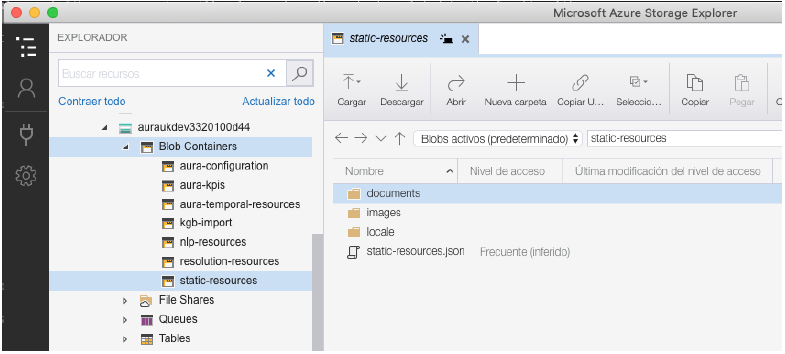
- Access the Azure blob container
static-resourcesin your intended environment, where the JSON file with your resources and texts is. This file will be in the following paths, depending on the component:
-
For aura-authentication-api:
static-resources/authentication/locale/<aura-version>/<language-country>.json -
For aura-bridge:
static-resources/aura-bridge/locale/<aura-version>/<language-country>.json
It is recommended to use Azure Storage Explorer in order to easily access this file.
Figure 3. Updating locale files to Azure
-
Download this file for its edition.
-
Add the new content from the imported locale files to the downloaded files or replace the specific content.
For example, you can add a new resource from the imported file (Section 4.3.) to the end of the file downloaded from Azure (Step 1). Or you could replace one of the texts appearing in the downloaded file (Step 1) with one of the new texts shown in the imported file.
-
Validate the JSON format through the online tool JSONLint.
-
Upload again the JSON file into the corresponding Azure blob container (depending on the component, the locale file must be in a different container as explained in step 1). Depending on the component, the files should be loaded into a different folder. In case the folder in that path does not exist, please create it manually.
⚠️ It is recommended to make a backup copy before overwriting.
-
If you want to keep previous versions of the JSON files as a backup during testing, you must remove the JSON extension from the file name to prevent these files from also being imported into Aura. For example:
❌<language-country>.json.backup
✔️<language-country>.backupThis assures that only one JSON file is present for each language.
Make modifications available
Check LocaleManager configuration
Check the configuration of the component to be updated, aura-authentication-api or aura-bridge, following LocaleManager configuration, for instance:
$ kubectl –n <aura-ns> edit cm <authentication-api|aura-bridge>
⚠️ Firstly, read the document connecting to Kubernetes to know how to operate with Kubernetes in your environment.
Where:
<aura-ns>is aura namespace, with the following format:aura-<OB>-<environment>
The specific value for<aura-ns>is an output for the installation process and can be found in the path _output_install/*info.json, in the fieldservices_namespace.
This will open a text editor (such as vi) showing the whole config map of the specified pod.
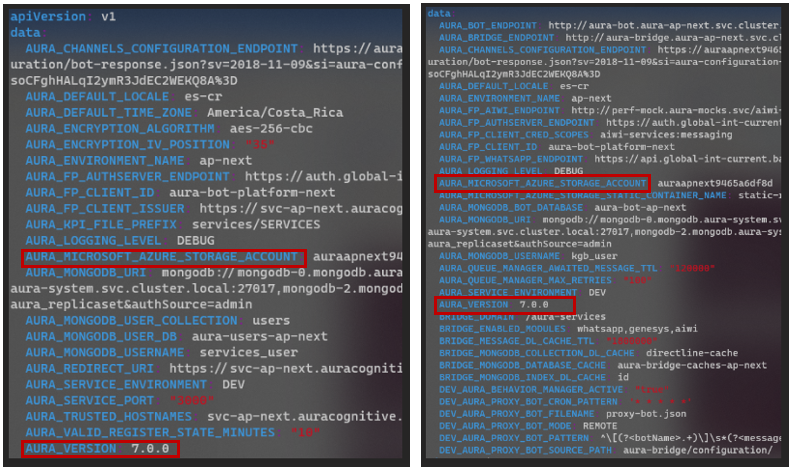
The servers aura-authentication-api and aura-bridge count on a series of environment variables that manage the process. Developers should check several items, shown in the following screenshots for both servers.
- You have the right Aura version: variable
AURA_VERSION. - Verify the values for the Azure Storage account: variable
AURA_MICROSOFT_AZURE_STORAGE_ACCOUNT.
Figure 4. Check LocaleManager configuration
The definition of these variables is shown below:
AURA_VERSION: string with the semantic versioning of Aura to be read from the remote blob container. By default, it takes the version packaged originally in the docker image (7.0.0. in the case of Heroes). It is required to put a correct value, to be sure that the container is loading the correct set of files.AURA_MICROSOFT_AZURE_STORAGE_ACCOUNT: string with the name of the Azure Storage account related to the given aura deployment.
Restart the corresponding pod/pods
For the Kubernetes version 1.15 onwards, the following command must be launched for restarting the corresponding pod/pods.
- If developers have modified the locale file for aura-bridge, they will need to restart aura-bridge pods.
- The same applies for changes made in aura-authentication-api, its pod should only be restarted in case you modified the locale file in the folder for this component.
kubectl version >= 1.15:
$ kubectl rollout restart deployment [authentication-api, aura-bridge]