Categories:
Guidelines for the design of graphic resources in Aura response
Learn how to design of different types of graphic resources and include them in the response that Aura provides to its users
Introduction
You can design your own graphic resources inside the visual components of Aura response (mainly, in the card), always depending on the rendering capability of the channel.
They are categorized into two main groups:
- Static graphic resources: icons, images, diagrams, etc.
- Dynamic graphic resources: graphics that include users’ data and change depending on them (for instance, new plot for data usage use case per country). These graphics can fetch data from Kernel or from external services (for instance, images from smartphone models that can be shown to the user).
The following sections define the procedure for including both a static and dynamic graphic resource in Aura response.
Include static resources by library
-
The static resource must be previously defined in the
resources/folder of the use case library. -
In the use case dialog (.ts file), each resource must be declared as shown in the following snippet:
import * as libraryUtil from '@telefonica/aura-bot-utilities/lib/aura-bot-library-util';
(...)
const wholeUrl = libraryUtil.getResourcePath(config, 'my_library', 'icon.png');
Where:
config: configuration object that should contain the environment variablesAURA_STATIC_RESOURCE_ENDPOINTandAURA_STATIC_RESOURCE_SAS_TOKEN.'my_library': library name'icon.png': name of the image
In order to get a complete URL, including device screen resolution, invoke
getImageUrlfrom the libraryaura-bot-library-utils. -
In the index.ts file of your use case library, the resources path must be exposed in the
resourcesproperty when registering the plugin, as shown in the following example:register(null, { my_library: { … resources: path.resolve(__dirname, '..', 'resources'), (...) }Where:
'resources': name of the folder where the resources are defined, within the library.
-
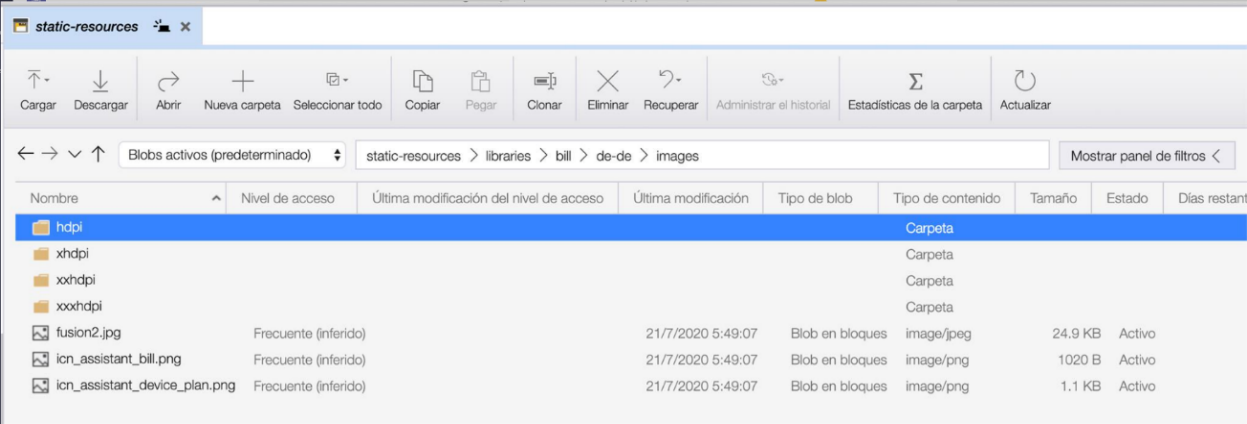
Just after it, the resource must be uploaded to Microsoft Azure Storage Explorer, in the
images/folder of the corresponding library. Doing so, Azure generates an URL for the defined resource.
Hot swapping of static resources
Once a static resource is created through the above defined steps, the OB can follow a hot swapping process for the modification of the resource:
- The name of the icon must not be modified: it has to be the same as the name in the code.
- Updata de resource file directly in Microsoft Azure Storage Explorer, in the
/resources/images/folder of the corresponding library. Doing so, Azure generates an URL for the defined resource. - However, it must be taken into account that, during the make-up process, the bot overwrites it, so the updating process should be repeated by the OB. For example, this process can be executed when publishing a local use case.
- It is not necessary to restart the bot, as the method which is invoked internally already fetches the icon from Azure Storage.
Include a dynamic graphic resource
The inclusion of dynamic graphic resources in Aura involves two main stages:
-
Data recovery from a Kernel API or from an external API For Kernel APIs, follow the process in the document Create / update an API client.
-
Generation of dynamic graphic resources: Developers must implement their own dynamic graphic resources generator. After generating the resource, the process of uploading the resource into Azure must be done manually.
-
If the dynamic resource is integrated into the card of Aura response, follow the instructions in Build Aura response: cards.