Categories:
Guidelines for building an Aura Bot library
Orderly steps for building a library in Aura Bot when developing a use case
Introduction
The customization of aura-bot is done through libraries: libraries in aura-bot are node.js packages, with a particular structure of folders and files that contain one or several dialogs, plus i18n strings, environment variables, configuration files and graphical resources. Libraries are deployed in the bot as plugins.
Within these libraries’ structure, developers are able to build extensions over aura-bot global components (dialogs) to be deployed in concrete scenarios where customized capabilities and functionalities are required, such as the development of a new use case.
The following sections include the detailed steps for building or modifying a library over aura-bot.
Build an Aura Bot library
When developing a local use case in Aura, you should:
✅ For local use cases generated from scratch: develop a new use case library
✅ For local use cases based on the customization of a global use case: modify existing use case library
We can have one or several libraries in one repository:
-
If the repository only contains one library, the root/ folder can be used. In this case, the folders of the library can be created directly from the root/ folder.
For example, for the src/ folder: [repository_name]/src -
If the repository contains more than one library, a folder hierarchy is required. The working directory is:
For example, for the src/ folder: [repository_name]/[library name]/src
# Optional, only with multiple libraries in same repository (replace newlibrary with library name)
$ mkdir -p packages/newlibrary
$ cd packages/newlibrary
# Creates the src folder and move the dialog files inside
$ mkdir src
⚠️ The names of Aura global libraries are reserved. Therefore, both for the creation of a new local library or a customization of a global one, constructors must use a different name in order to avoid overlapping. We recommend to use the following structure for local libraries’ names: [local_library_name]-[OB]
⚠️ The library name must be exactly the same in all its associated files.
At this stage, you should build the structure of your library repository, with all the required folders and files.
📌Practical tip
Use a global library as template, copy it and edit the corresponding folders and files for your use case.
You can use: https://github.com/Telefonica/aura-bot-libraries/tree/master/packages/bill. This library will be used as an example throughout the document.
The recommended order is detailed below:
-
Copy in the root of the library the generic required files as identical copies:
.gitignore,.npmignore,tsconfig.jsonandtslint.json. -
Create a
package.jsoncontaining a plugin block with the name of the service this plugin will provide.
ℹ️ Detailed guidelines: Section package.json -
A
README.mdfile will be also desirable, explaining the library. -
Create one file within src/ folder for each dialog (parts common to several dialogs could share utility clases, as usual).
ℹ️ Detailed guidelines: Use case dialogs Now, copy here your dialog or code the it as explained in General guidelines for building an Aura Bot dialog. -
Create an
index.tsfile, that will register all the dialogs when loading the plugin.
ℹ️ Detailed guidelines: index.ts -
After publishing or npm linking the package (or npm packing), this plugin could be loaded from aura-bot by declaring the package name in the plugin configuration array. Additionally, any of the dialogs could be excluded from the load. A simple plugin configuration file could be:
[
    "@telefonica/aura-bot-bill-library",
    "@telefonica/aura-bot-common-library",
    {
        "packagePath": "@telefonica/aura-bot-other-library",
        "exclude": [
            "./first-dialog"
        ]
    }
]
Note that the object format (with
packagePath) is optional. When no options are passed to the plugin, we could just use a string with the name of the package. When there are more options (likeexcludearray), the object format must be used. So, these two configuration files are equivalent:[ "@telefonica/aura-bot-bill-library", "@telefonica/aura-bot-common-library" ]and
[
    {
        "packagePath": "@telefonica/aura-bot-bill-library"
    },
    {
        "packagePath": "@telefonica/aura-bot-common-library"
    }
]
Aura bot libraries repository
A library in aura-bot must contain a fixed structure of folders and files, both mandatory or optional.
These elements can differ for different environments, deploys or channels.
| Folder / Files | Content |
|---|---|
| src/ | - <dialog-name>.ts files: Files containing the dialogs logic- index.ts file: Registration of dialogs in the library. Declaration of locale, config and .env files of the library.- configuration-schema.ts: schema for library-specific configuration variables- Unit tests for each dialog: <dialog-name>.spec.ts |
| settings/ | - locale folder: Definition of text resources for Aura response- dialog-config.json: Mapping of intents with dialogs within the library; definition of context filters- .env files: Definition of environment variables associated with the library |
| resources/ | Optional folder including files for composing Aura response |
| package.json | File that contains a plugin block with the name of the service this plugin provides |
| package-lock.json | File including the versioning control Do not modify it |
| Other files | .gitignore, .npmignore, tsconfig.json and tslint.jsonCopy them in the root library as identical copies and do not modify them |
| Readme.md | Optional file with information regarding the library |
src/ folder
-
Working directory: [repository_name]/src/ or [repository_name]/[library name]/src/
-
This folder must contain three different types of files:
| src/ content | Mandatory/Optional |
|---|---|
File(s) containing the use case dialog(s): <dialog-name>.ts |
Mandatory |
index.ts file |
Mandatory |
configuration-schema.ts |
Optional |
📌Practical tip Check the src/ folder in our global library: https://github.com/Telefonica/aura-bot-libraries/tree/master/packages/bill/src
Use case dialogs
Dialogs are .ts files containing the dialog logic.
Bot developers must generate the associated dialog(s) for their use case following the guidelines defined in General guidelines for building an Aura Bot dialog.
Afterwards, remember that all the developed dialogs must be tested.
index.ts file
index.ts file registers all the dialogs in the library.
Once the use case dialog is developed, edit this file with the corresponding values for each field explained below:
let dialogNames: names of all the dialogs included in the library.register:<libraryName>: library name.dialogs: it points to the dialogs declared inlet dialogNames.locale: the locale files must be exposed in thelocaleproperty when registering the plugin in order to be merged (during the make-up process).env: the.envfiles must be exposed in theenvproperty when registering the plugin in order to be merged (during the make-up process).config: theconfigfiles must be exposed in theconfigproperty when registering the plugin in order to be merged (during the make-up process).configSchema: declaration of specific variables for the use case included in theconfiguration-schema.tsfile.resources: it indicates the path (__dirname) where theresourcesfolder, containing the resources used in the use case, is included:resources: path.resolve(__dirname, '..', 'resources')
A complete example can be found below for the library generic:
  import * as path from 'path';
import * as libraryUtil from '@telefonica/aura-bot-utilities/lib/aura-bot-library-util';
import configurationSchema from './configuration-schema';


export = function setup(options: any, imports: any, register: (err: Error, result: any) => void) {
    let dialogNames = [
        './generic-dialog'
    ];
    // If there is an array of dialogs to disable, remove from dialog array
    libraryUtil.excludeDialogs(dialogNames, options);
    // Register that this plugin has been fully loaded
    const settingsPath = path.resolve(__dirname, '..', 'settings');
    register(null, { resources: path.resolve(__dirname, '..', 'resources')
        generic: {
            dialogs: dialogNames.map(dialogName => require(dialogName)),
            locale: libraryUtil.readLocaleFolder(path.resolve(settingsPath, 'locale')),
            env: libraryUtil.readEnv(settingsPath),
            config: libraryUtil.readDialogConfig(settingsPath),
            configSchema: configurationSchema,
            resources: path.resolve(__dirname, '..', 'resources')
        }
    });
};
configuration-schema.ts
Optional file for the validation of schemas from the library-specific configuration variables required for the use case. When the bot loads all the plugins, it verifies that the schemas provided by the library fulfil the conditions established in the current file.
The orderly process for editing this file is defined below:
-
Declare the library-specific configuration variables in the
.envconfiguration file starting with the library name:[library_name]_[variable_name]. This file includes the values of these variables. -
For these variables, include in the
configuration-schema.tsrestrictions, default values, checking, etc. in order to validate them. During the during the make-up process, the content of the differentconfiguration-schema.tsfiles for each library will be automatically uploaded into a.env.librariesfile.
You can create a schema (using @hapi/joi) and specify the name of the library-specific variable as shown in the following example:
import joi from 'joi';

const configurationSchema = {
    LIBRARYNAME_DEFAULT_GREETINGS: joi.string().default('hello'),
    LIBRARYNAME_COMMON_COUNT_GREETINGS: joi.number().default(1800)
};

export default configurationSchema;
settings/ folder
-
Working directory: [repository_name]/src/ or [repository_name]/[library name]/src/
-
This folder must contain three different types of files:
| settings/ content | Mandatory/Optional |
|---|---|
localefolder |
Optional |
dialog-config.json file |
Mandatory |
.envconfiguration files |
Optional |
📌Practical tip Check the settings/ folder in our global library: https://github.com/Telefonica/aura-bot-libraries/tree/master/packages/bill/settings
locale/ folder
Each library may contain (optionally) a settings/locale folder, with one or more locale files with the format: settings/locale/dialog-config.<culture_code>.json
The content of this file corresponds to the text resources, both from aura-bot core or text of Aura response for a specific use case. This content can be generated using POEditor, which handles the different messages that the bot shows to the customer and to adapt them to a specific language.
Find detailed information for the generation of texts included in Aura response in Build Aura response: POEditor texts.
⚠️ These files must be generated during the building up of a dialog, as they must be included in the unit tests for the dialogs.
An example of this file is shown below:
[
  "common:common.goodbyes.main": [
        "See you soon.",
        "See you soon."
    ],
    "common:common.greetings.main": [
        "Hello. How can I help?"
    ],
    "common:common.thankyous.main": [
        "Happy to help",
        "Happy to help."
    ]
}
dialog-config.json
dialog-config.json is a mandatory file that maps each intent with a dialog from the library. Therefore, the dialog is launched if the intent is recognized.
Moreover, the file defines the suitability of the use case and allows the definition of context filters.
Each library must contain a dialog-config.json file that can be general or defined per language and OB.
This general configuration could be merged (with higher priority) with a specific file per language and OB:
dialog-config.<AURA_DEFAULT_LOCALE>.json
where AURA_DEFAULT_LOCALE contains the culture code to be used by default in the current deployment: en-gb, es-es, etc.
The dialog-config.json file follows the DialogLibrary model, excepting for the field onlyIn which is described below.
onlyIn property
The OnlyIn field is an optional field that indicates to which channels the dialog will be added.
If it is not present, it means that the dialog will be added to all the channels of the environment.
Configure it, if required, including an array of channels names.
contextFilters
A contextFilter allows to configure the behavior of a dialog depending on the fulfilment of specific conditions. You can define contextFilters in the dialog-config.json file for a specific intent.
Currently, the conditions that can be established correspond to the user’s subscription type (for example, prepaid or postpaid) and the type of contract (monomsisdn or multimsisdn). Depending on the fulfilment of the established condition (true or false), the behavior of the dialog is different.
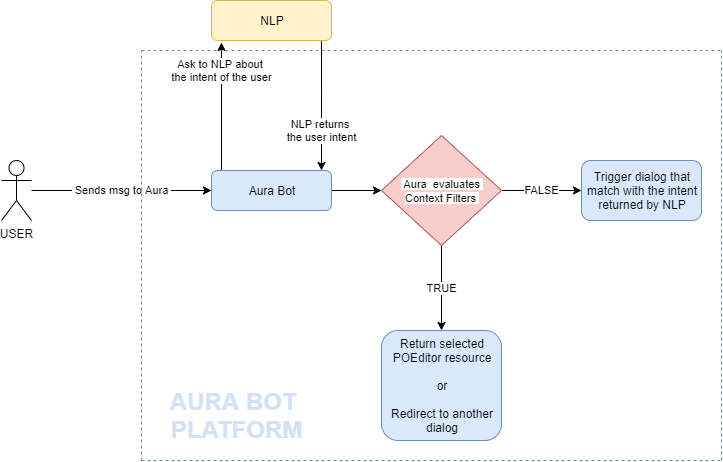
For including contextFilters, edit the fields included in the ContextFilter model.
An example is shown below with authorization at library level, only a dialog, without contextFilters, that is returned without suggestions and that applies to all channels.
  {
 "name": "handover",
  "authorization": {
    "purposes": "customer-self-service",
    "scopes": "subscribed-products-user-read"
  },
  "dialogs": [
    {
      "id": "handover",
      "suggestions": false,
      "triggerConditions": [
        {
          "intent": "intent.common.handover"
        }
      ]
    }
  ]
}
The following example includes authorization at library level, only a dialog, without contextFilters, that is returned without suggestions and that applies only to Novum and Movistar Home.
 {
 "name": "handover",
  "authorization": {
    "purposes": "customer-self-service",
    "scopes": "subscribed-products-user-read"
  },
  "dialogs": [
    {
      "id": "handover",
      "suggestions": false,
      "triggerConditions": [
        {
          "intent": "intent.common.handover"
        }
      ],
     "onlyIn": ["novum-mytelco"]
    }
  ]
}
The third example includes contextFilters:
  "dialogs": [
             {
               "intent": "intent.billing.check",
               "contextFilters": [
                  {
                      "name": "subscrition_type_prepaid_invoice",
                      "type": "subscrition_type_filter",
                      "conditions": "/authData/subscriptionType eq 'prepaid'",
                      "true": {
                          "name": "subscription_type_prepaid_invoice_true",
                          "breakDialogExecution": true,
                          "breakFilterEval": false,
                          "resource": "bill:bill.check.prepaid",
                          "suggestions": true
                    }
NOTE: All
intentsof the samedialogmust be defined together for eachchannel. Like:
  {
    "name": "mocks",
    "dialogs": [
        {
            "id": "mocksv3-dialog",
            "channelDataVersion": "v3",
            "triggerConditions": [
                {
                    "intent": "intent.tv.display"
                }
            ],
            "onlyIn": [
                "set-top-box"
            ]
        },
        {
            "id": "mocksv3-dialog",
            "channelDataVersion": "v3",
            "triggerConditions": [
                {
                    "intent": "intent.tv.search"
                },
                {
                    "intent": "intent.tv.display"
                }
            ],
            "onlyIn": [
                "movistar-plus"
            ]
        }
    ]
}
.env configuration files
When developing a use case, you must include in this file the values for the library-specific configuration variables required for the use case.
These variables must be formatted as follows: [library_name]_[variable_name].
There can be multiple .env files corresponding to different libraries, environments, etc. All of them are automatically uploaded into a .env.libraries file during the make-up process.
A simple example of .env variables is shown below:
MYLIBRARY_VERSION=1.2.3
MYLIBRARY_ENDPOINT=https://my-library.test/v1
resources/ folder
The resource folder is optional and, if existing, is placed on the directory: [repository_name]/resources/ or [repository_name]/[library name]/resources/
It includes different folders with images or any other binary files (such as JSON files) required by the use case. Resources in this directory can be organized in different sub-folders: a default folder and locale folders for different culture codes.
📌Practical tip Check the resources/ folder in our global library: https://github.com/Telefonica/aura-bot-libraries/tree/master/packages/bill/resources
Declare in this folder the graphic resources of your use case, if existing. Inside each folder /images, if required, resources may be organized in sub-folders depending on the image resolution.
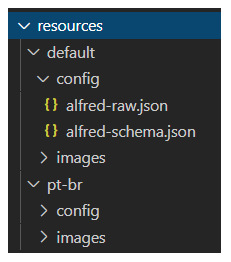
If existing, the files in the resources/ folder are uploaded to Azure container pointed by the AURA_STATIC_RESOURCE_ENDPOINT and the AURA_STATIC_RESOURCE_SAS_TOKEN environment variables, during the during the make-up process.
package.json file
The package.json is a mandatory file and is placed on the directory:
[repository_name]/package.json or [repository_name]/[library name]/package.json
This file contains a plugin block, with the name of the service this plugin provides.
📌Practical tip
Check the package.json file in our global library: https://github.com/Telefonica/aura-bot-libraries/blob/master/packages/bill/package.json
For including your use case, follow the structure shown below changing “newlibrary” with the name of your library:
"plugin": {
    "provides": [
        "newlibrary"
    ]
},
The package.json can contain different dependencies. Useful ones for libraries are:
@telefonica/aura-bot-utilities/lib/aura-bot-common: common library shared among aura-bot Platform and the corresponding library for global use cases.@telefonica/aura-bot-utilities/lib/aura-bot-library-util: library with specific utilities for libraries, such as resource loading, currencies, etc.@telefonica/aura-logging: recommended for Aura logs tracking.botbuilder-dialogs: dialogs classes.