Categories:
Calls to API
How to make different calls to the API in the process for creating an experience in ATRIA
ATRIA use cases constructors
Introduction
Once your preset configuration is designed, whether for Generative AI or RAG, you can proceed to use the API to continue with the process of creating experiences in ATRIA.
The current document includes a specific procedure for calling APIs. You can access more detailed technical content in this document: Create and configure a preset
Prerequisites
These prerequisites are common for all the tasks included in the following sections.
-
Download the aura-configuration-api API swagger
-
Make sure you have available Postman or a similar tool to call the API.
-
Connect to the intended environment for your preset, by modifying the corresponding
{{baseUrl}}and{{apiKey}}.
1. Create a new preset
-
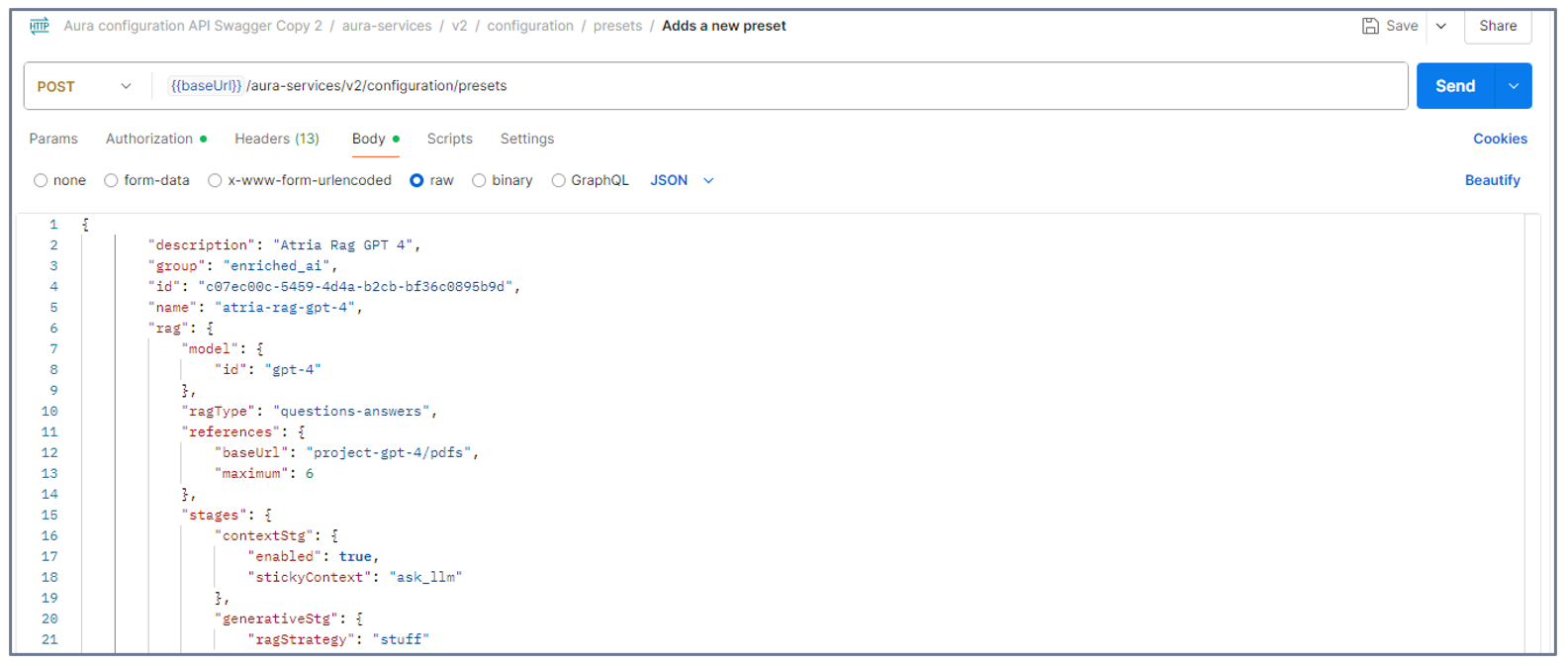
Open the Postman application and select the
POSTcall:
aura-services > v2 > configuration > presets > Adds a new preset -
Copy and paste the content of your configured preset (JSON file) in the body.
-
Send the
POSTrequest.
2. Update an existing preset
- Do you have your preset on hand?
- No: Go to step 2.
- Yes: Go directly to step 3.
- Access your intended preset:
2.1. Open the Postman application.
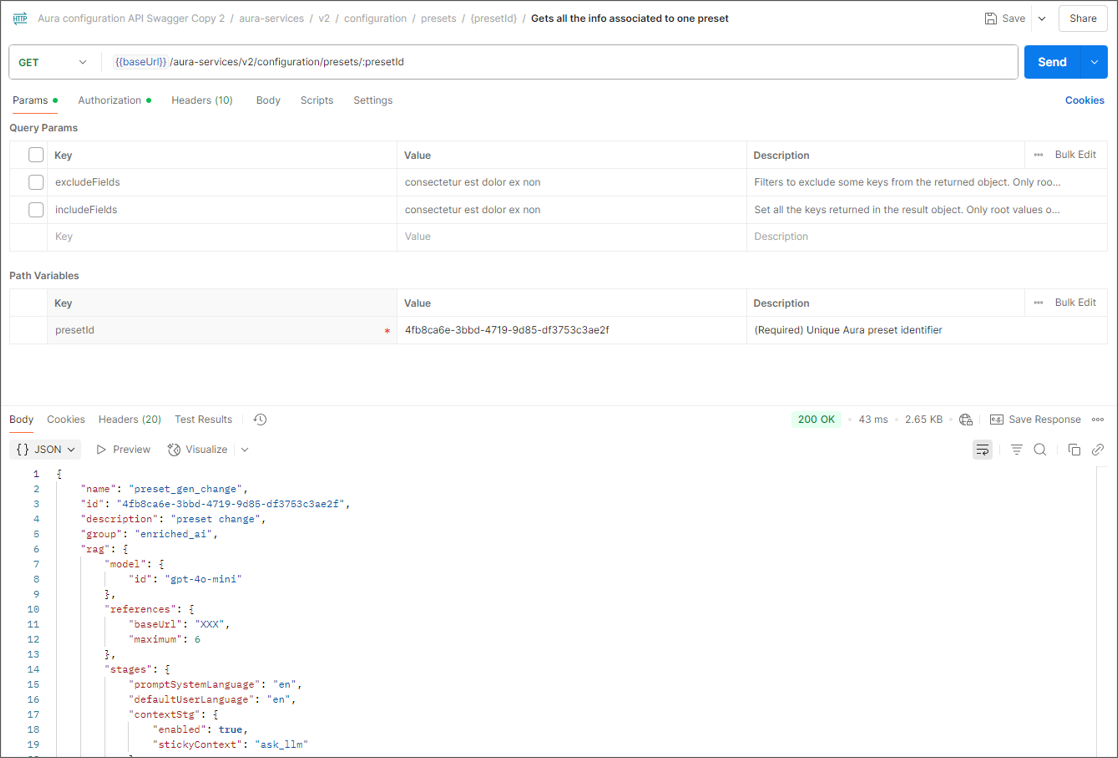
2.2. Make aGETrequest to the API with the preset ID.
aura-services > v2 > configuration > presets > {presetId} > Gets all the info associated to one preset
This will show you the entire preset to be updated.
-
Select the
PATCHcall:
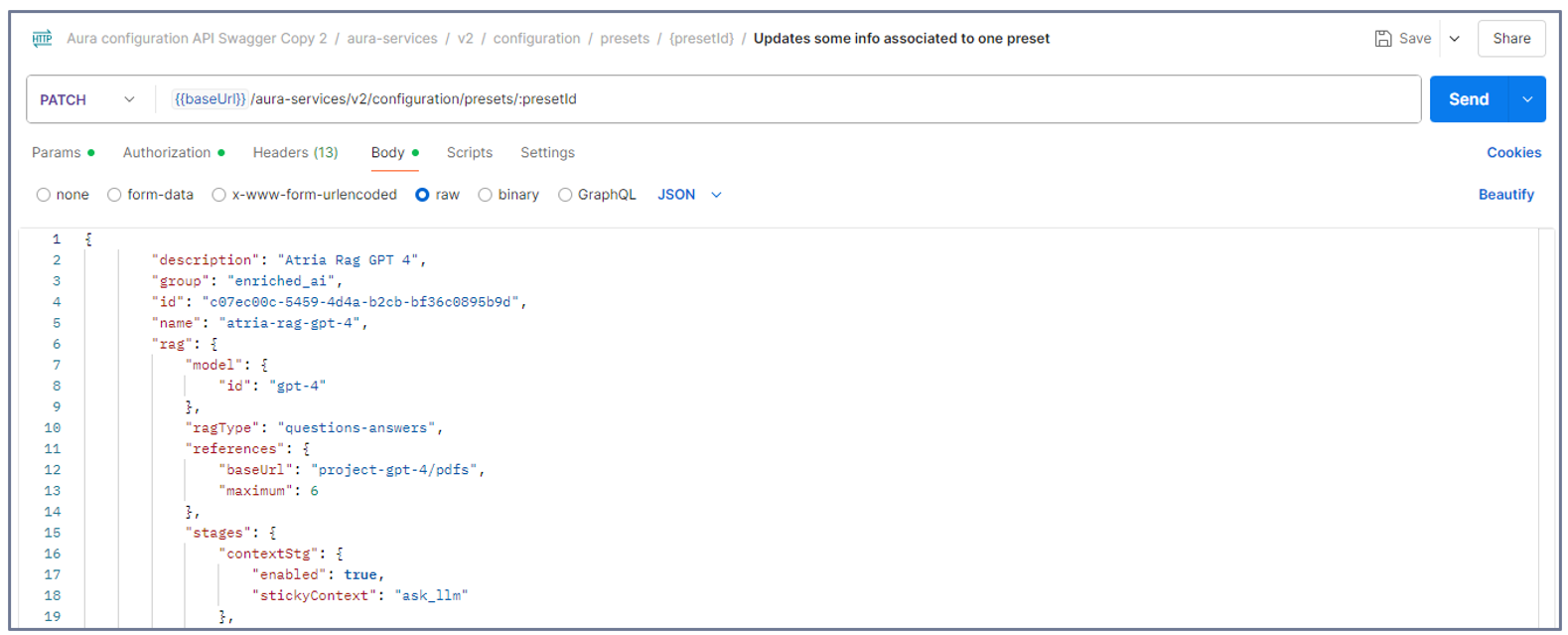
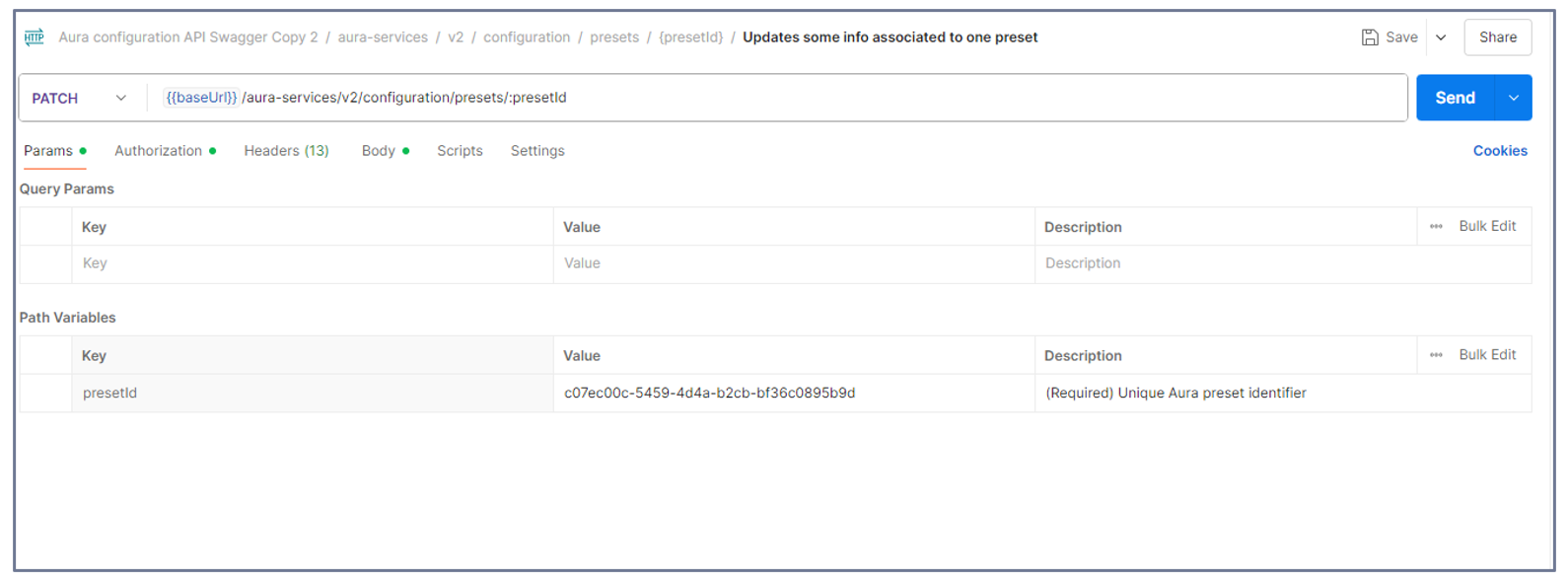
aura-services > v2 > configuration > presets > {presetId} > Updates some info associated to one preset -
Copy and paste the content of your preset (JSON file) with the required updates in the
body.
- Copy and paste the ID of the preset in the
paramsfield.
- Send the
PATCHrequest.
3. Create an application
Once your preset is created, it must be placed on an application to be used by an experience.
An application must always contain at least one preset, it cannot be empty.
-
Configure the application JSON file
1.1. Copy the application template below.
Application template
   ```json
     {
         "brand": "10000",
         "id": "816bdab6-3ea3-4a77-bdea-12945d6d7052",
         "models": {
             "level": "user",
             "presets": [
                 "19c58923-6fc5-4459-8f9e-822af2136ab1"
             ]
         },
         "name": "app"
     }
   ```
1.2. Modify the template below as required by defining the following fields:brand: Identifier of the Telefónica Brand associated to the application. Available values in the document Telefónica brands management.id: Unique identifier of the application in UUID format.name: Unique application name.
1.3. Include the required presets in your application (
presetsfield in the application template above) -
Open the Postman application and select the
POSTcall:
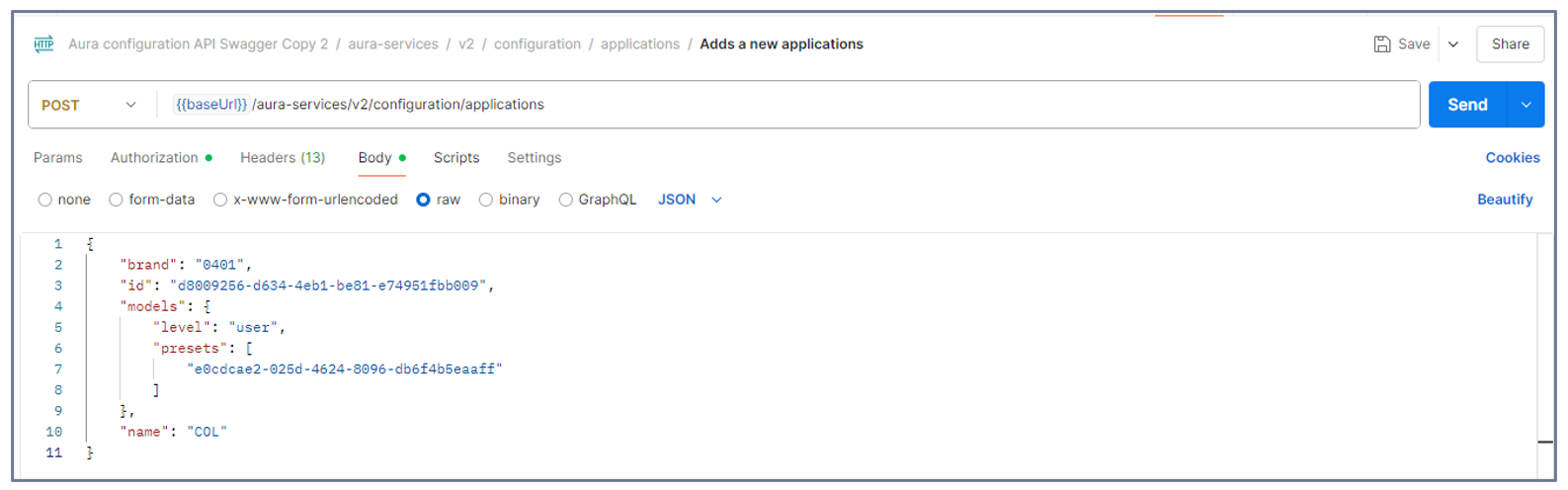
aura-services > v2 > configuration > applications > Adds a new application -
Copy and paste the content of your new application (JSON file) in the body.
-
Send the
POSTrequest.
4. Add a preset to an existing application
- Do you have your application on hand?
- No: Go to step 2.
- Yes: Go directly to step 3.
- Access your intended application
2.1. Open Postman.
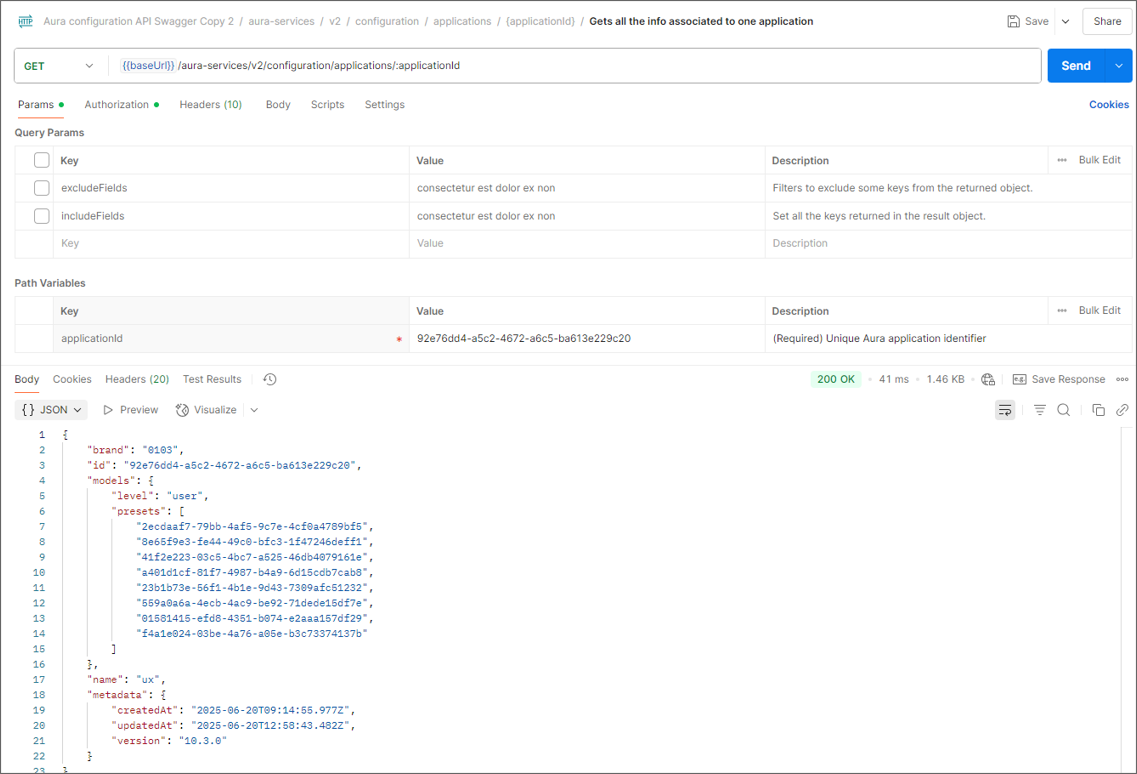
2.2. Make aGETrequest to the API with the application ID:
aura-services > v2 > configuration > applications > {applicationId} > Gets all the info associated to one application
This will show you the entire application to be updated.
-
Select the
PATCHcall:
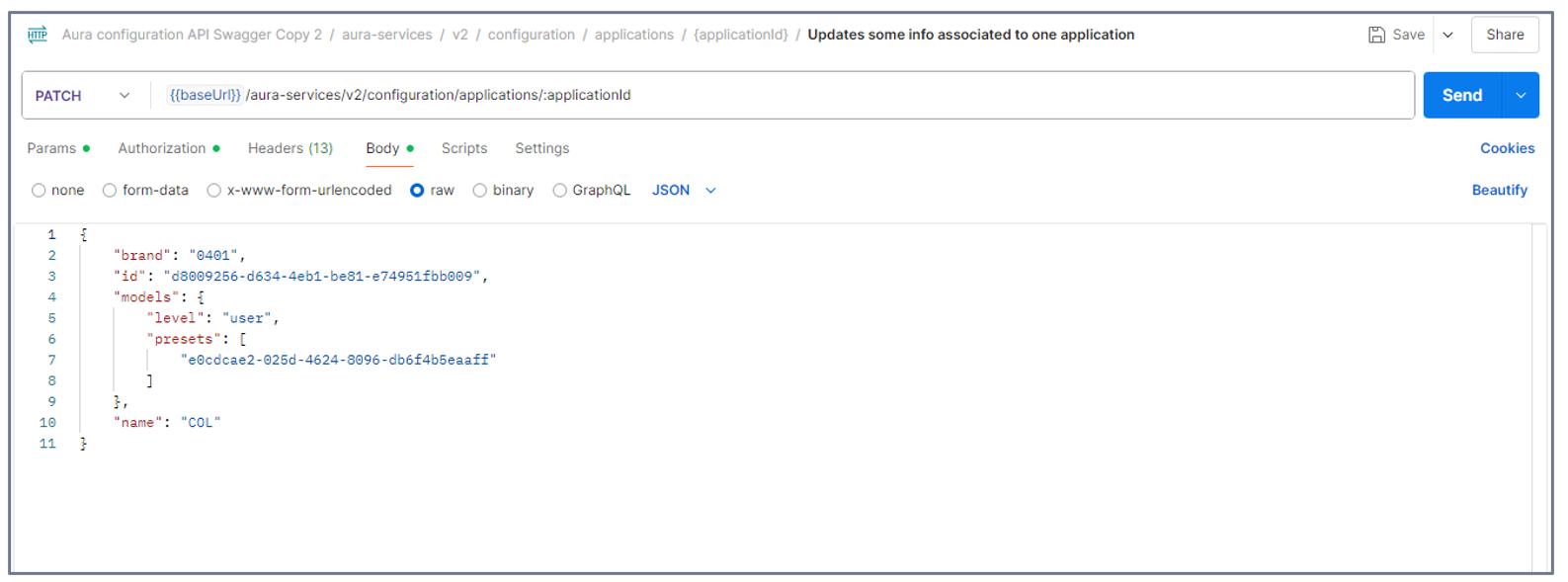
aura-services > v2 > configuration > applications > {applicationId} > Updates some info associated to one application -
Copy and paste the content of your application (JSON file) in the
bodyand add the preset ID to be associated to the application.
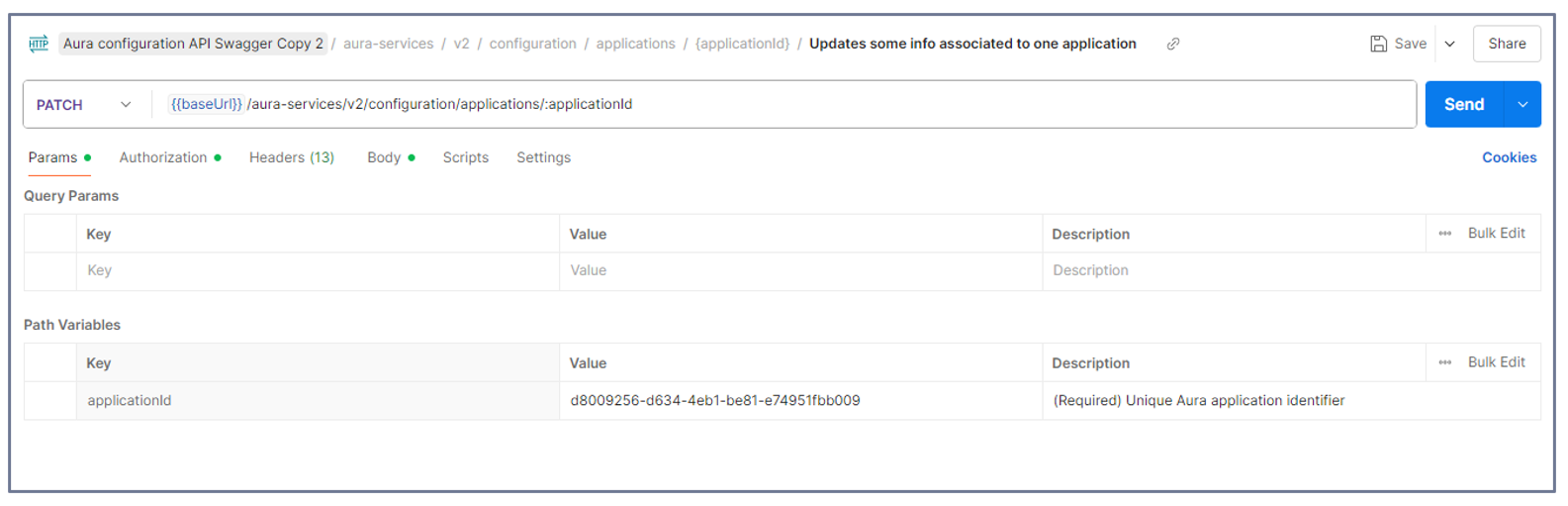
- Copy and paste the ID of the application in the
paramsfield.
- Send the
PATCHrequest.
5. Get info about available presets/applications
If you need to know which presets or applications are available in your environment, follow these steps:
-
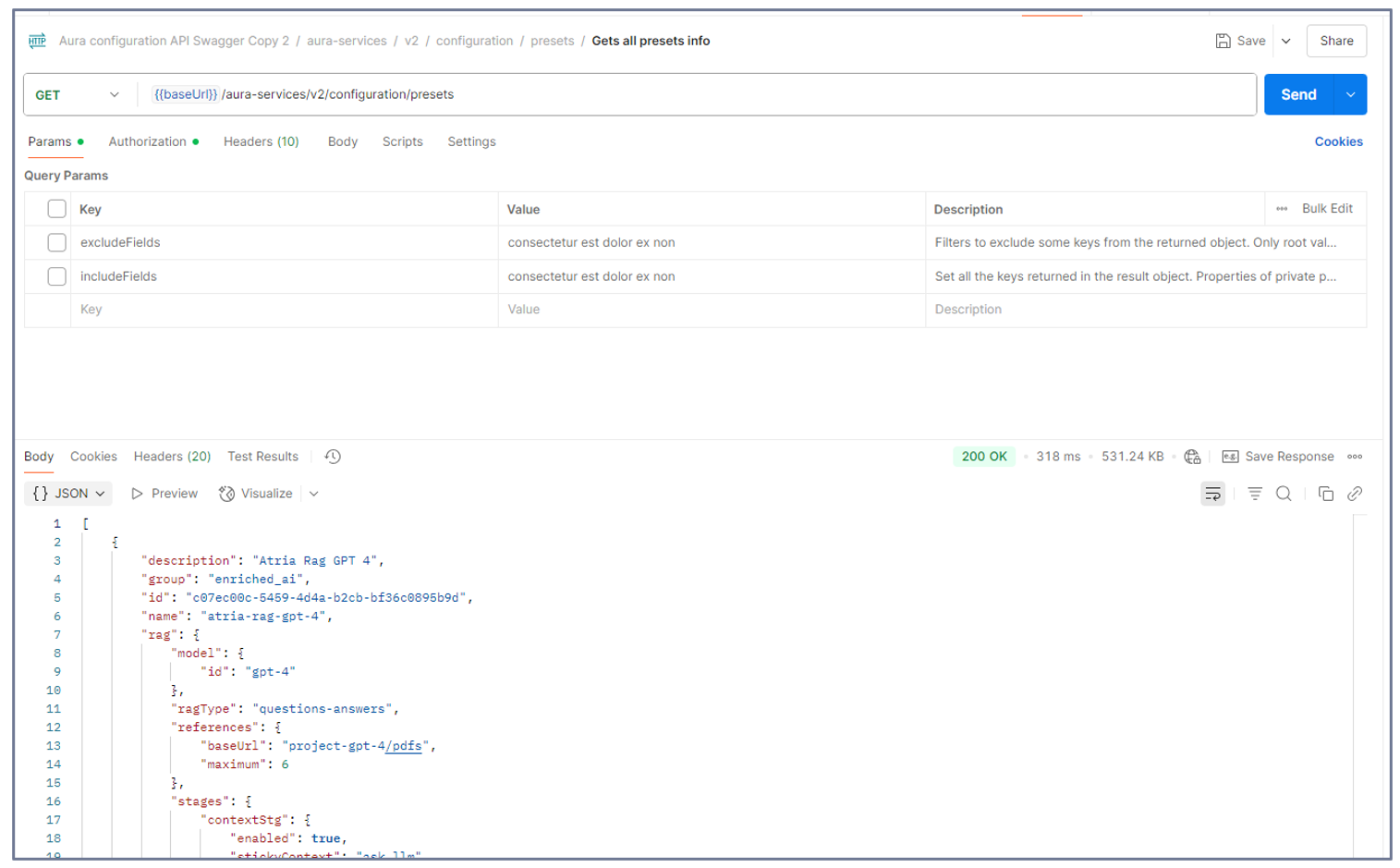
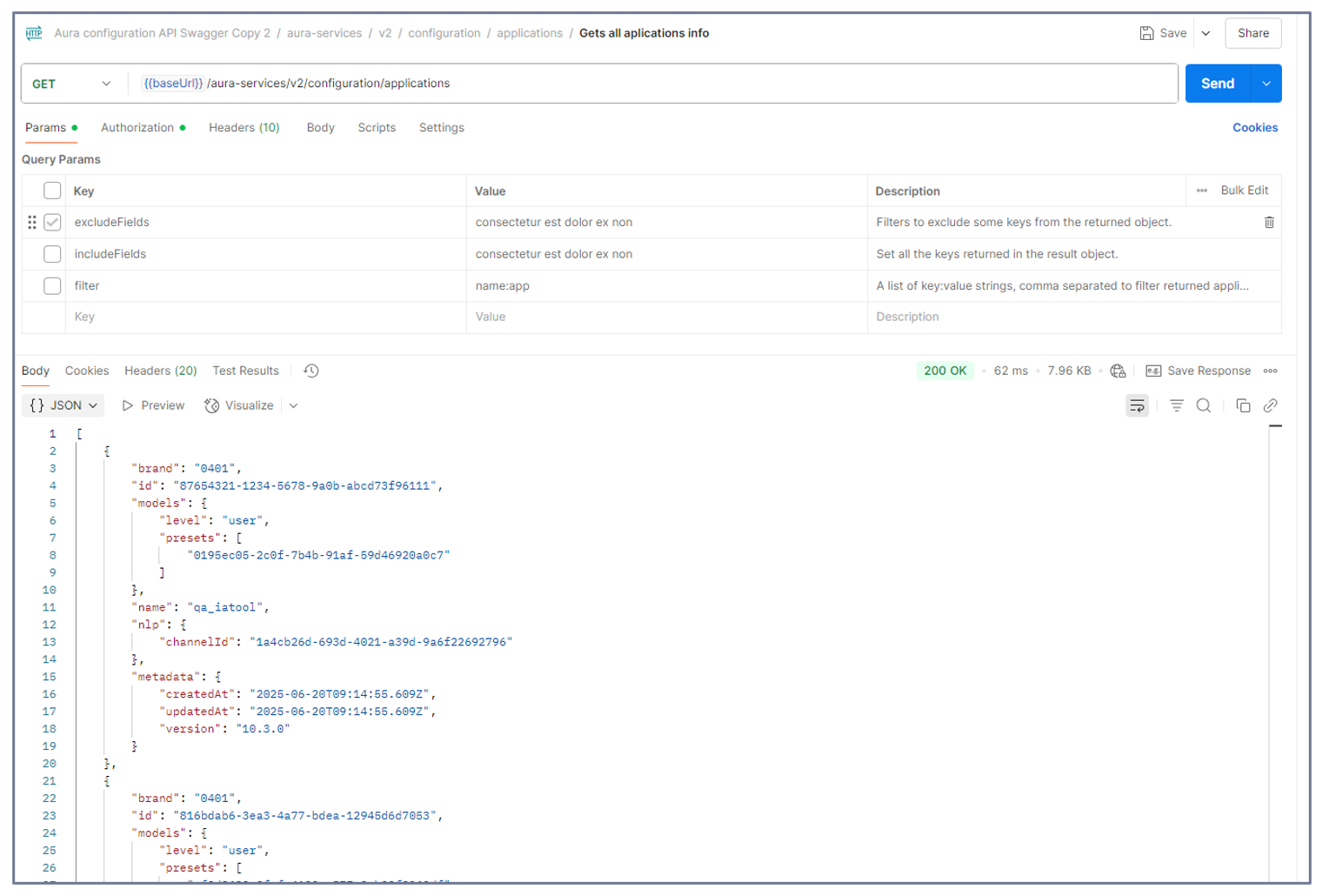
Open Postman and select the following
GETcalls:- For presets:
aura-services > v2 > configuration > presets > Gets all presets info - For applications:
aura-services > v2 > configuration > applications > Gets all application info
- For presets:
-
In order to view all the parameters related to presets or applications, deselect the options
excludeParamsandincludeParams. -
Send the corresponding
GETrequest.
6. Delete a preset/application
-
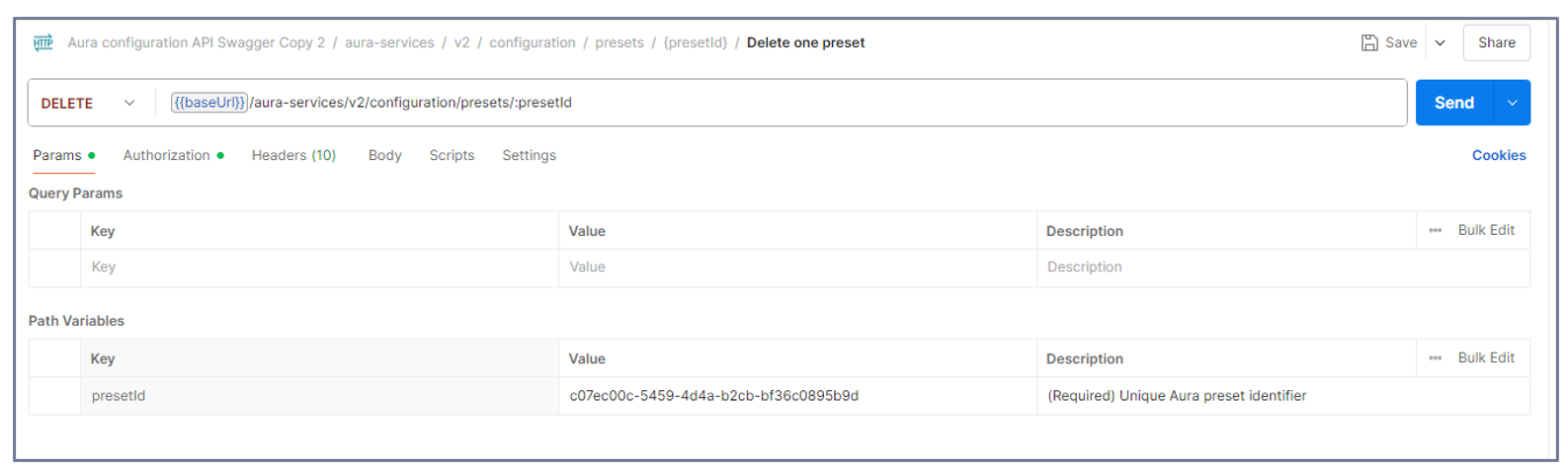
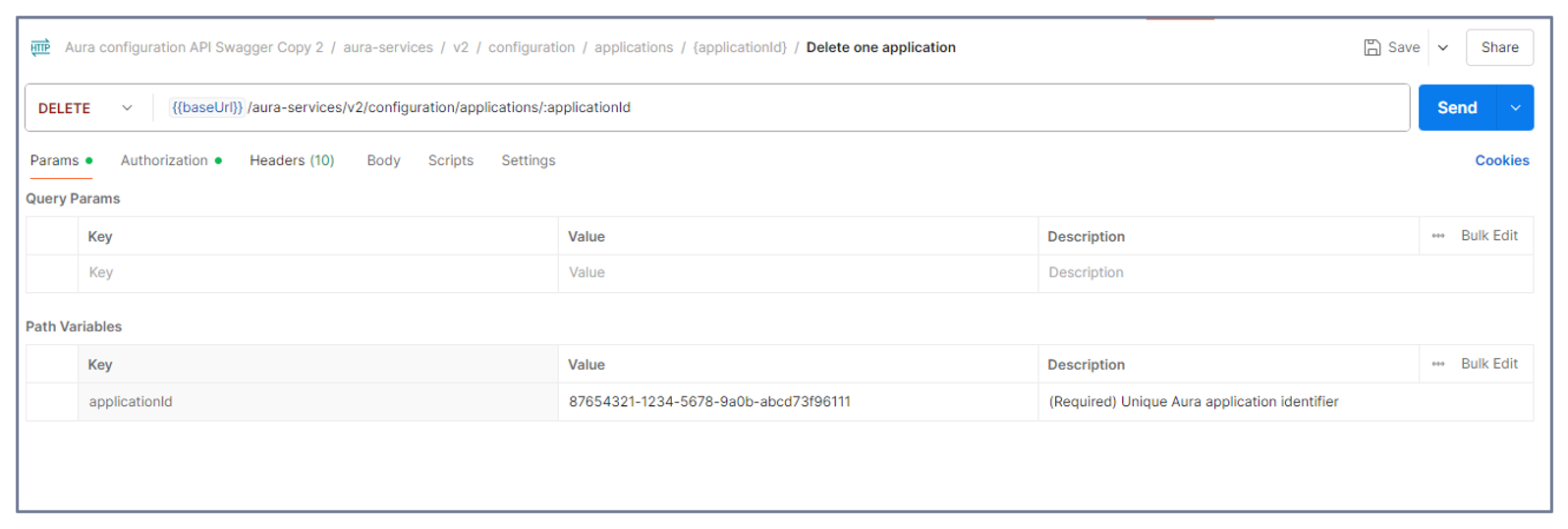
Open Postman and select the following
DELETEcalls:- For presets:
aura-services > v2 > configuration > presets > {presetId} > Delete one preset - For applications:
aura-services > v2 > configuration > applications > {applicationId} > Delete one application
- For presets:
-
Send the corresponding
DELETErequest.