Categories:
Develop experiences through the generic-dialog
Learn how to develop a use case through Aura bot generic-dialog, only by means of a simple configuration and with no code development.
Related documents
📄 generic-dialog descriptive documentation
Introduction
The generic-dialog allows OBs to implement certain local use cases for Movistar Home, Movistar Plus and Set-top Box (STB) channels in an autonomous, agile and simple way with no code development, only by means of configuration.
First, we highly recommend you to read these documents:
-
Description of aura-bot generic-dialog:
- generic-dialog v1 -> compatible with
channelDatav1 - generic-dialog v3 -> compatible with
channelDatav3
- generic-dialog v1 -> compatible with
-
Conditions for a use case in order to be built using the generic-dialog. Check these conditions here.
Use case development flowchart
The following flowchart schematically shows the process for the development of a local use case through the generic-dialog.
This process contains specific stages for the generic-dialog and other stages that are the same as for use cases developed with other uc-specific dialogs.
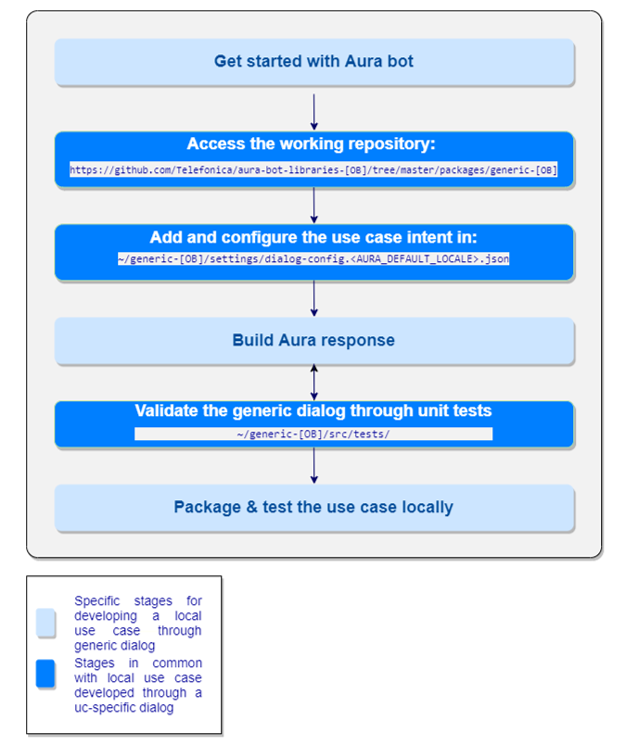
Guidelines for the development of a use case through the generic-dialog v3
1. Meet the generic library and dialog
The OB willing to develop a local use case managed by the generic-dialog will be provided with a Github repository:
https://github.com/Telefonica/aura-bot-libraries-[OB]/tree/master/packages/generic-[OB]
You should copy the global generic-dialog structure:
https://github.com/Telefonica/aura-bot-libraries/tree/master/packages/generic
When developing a local use case through the generic-dialog, OB developers may only modify the file dialog-config.json placed on the settings folder.
The library can contain specific files per language and OB:
/generic-[OB]/settings/dialog-config.<AURA_DEFAULT_LOCALE>.json
Where AURA_DEFAULT_LOCALE is the culture code to be used by default in the current deployment: en-gb, es-es, pt-br, de-de.
The dialog-config.<AURA_DEFAULT_LOCALE>.json contains all the intents that the generic-dialog can trigger for a specific channel, each of them with their associated configuration.
2. Add and configure the new intent in the dialog-config.json file
Developing a local use case through the generic-dialog only requires to include a new intent and its configuration in the dialog-config.json file placed on the settings folder of the generic-[OB] library.
Follow the instructions below:
-
Access to your global library and enter the
dialog-config.jsonfile:
https://github.com/Telefonica/aura-bot-libraries-[OB]/tree/master/packages/generic-[OB]/settings/dialog-config.<AURA_DEFAULT_LOCALE>.json -
Include your use case intent in this file.
To add a new intent only means to include a new configuration managed by the generic-dialog. This extends the configuration of thedialog-configintents to include all the settings. Remember that the intent name must be defined following the format:intent.[DOMAIN].[INTENT]. -
Add the specific configuration for this intent in the
settingsfield. Fields in the configuration belongs to two specific fields in the channel configuration model: -
intentSettingsmodel -
IntentSettingsLocalesmodel
Check the properties in these models and their associated fields and values in Channel model.
3. Specific case: intents/entities that require the application of a function on the dialog’s parameters
ℹ️ This scenario only applies to use cases with intents or entities that require the conversion of certain dialog parameters through a function in order to get the correct payload and the expected output in the channel.
A clear example is a use case that requires a certain conversion of entities, for example, move forwards: NLP recognizes a certain entity but it is required to create a function that converts minutes into hours:

See complete examples for Move forwards and Move backwards.
Just in case it is required to apply a function on any dialog parameter, developers have to define the functions block on the dialog-config.json file. This consists on two fields params and algorithm, which are explained the following sections.
"functions": {
                "params": [
                     …
                 ],
                 "algorithm": "…"
}
The utils folder of the generic library contains the generic-test-utils file for the parameterization of functions. This file includes the functionalities to make modifications to any parameter of the dialog if required due to the fact that the function is too complex to be added in the dialog-config.json
New functionalities must be added in an orderly and commented manner with a JSdoc including a description of the functionality and, at least, an enumeration of the parameters it uses.
 Calculate the value in seconds in case the entity type
 does not come in this format (ent.time_length_sec).
 Right now it only calculates from minutes to second.

 @function calculateSecondLevels
 @param  {Intent} currentIntent
 @return persistentData.dialogData.actionParams.SEND_KEY.levels set to seconds

export function calculateSecondLevels(currentIntent: Intent) {
    currentIntent.entities.map((ent) => {
        if (!isNaN(ent.entity)) {
            persistentData.dialogData.actionParams.SEND_KEY = { levels: ent.type === 'ent.time_length_sec' ? Number(ent.entity) : Number(ent.entity) * 60 };
        }
    });
}
field params
The params attribute contains the parameters needed to execute the modification algorithm. The parameters must be already available in the generic-dialog variable functionVar within the generic-dialog.ts file.
Currently, there are three parameters: currentIntent, persistentData and context, explained below.
- File
generic-dialog.ts
const functionVars = {
    currentIntent: DialogUtils.getDataActiveDialog(stepContext, 'options').intentResult,
    persistentData: await ContextUtils.getAuraPersistentData(stepContext.context),
    context: stepContext.context
};
- File
dialog-config.json
    "functions": {
        "params": [
            "currentIntent"
        ]
The input parameters for functionVars are described below:
currentIntent: it contains an object of typeintentResultwith the intent and entities attributes.intentcontains a string with the name of the intent.entitiesis an array with the values returned by Aura NLP. These values help us evaluate the intent and to be able to interact on the values returned in entities.
{
    "intent": "intent.tv.move_forwards",
    "entities": {
        "entity": "20",
        "type": "tef.time_length_min",
        "score": 1,
        "start_index": 7,
        "end_index": 8,
        "canon": "0"
    }
}
-
persistentData: it contains the dialog’s data developers want to persist. Data is passed as a parameter to thegetMovistarMessagefunction where data is accessed, if necessary, to display in the payload. -
context: it contains theTurnContext. This object is useful for accessing through functionalities most of the data that may be needed in case of parameterization. The utility that includes helper methods to manage Bot FrameworkTurnContextis context-utils.
const correlator = ContextUtils.getCorrelator(context);
 const { userId, phoneNumber }: AuraUserBaseModel<FourthPlatformUserModel> = ContextUtils.getAuraUser(context);
Field algorithm
The algorithm field can be completed in two ways:
- Add the script directly in the
dialog-config.<AURA_DEFAULT_LOCALE>.jsonfile. In this case, developers have to take into account two limits:
- The code must be included in Javascript.
- The script must be on one line, so it cannot be too complex.
See the examples for the use case Move forwards.
- Add the functionality in the
utilitiesfile:
https://github.com/Telefonica/aura-bot-libraries-[OB]/tree/master/packages/generic-[OB]/src/utils/generic-dialog-utils.ts
and referencing the name of the functionality in thedialog-config.jsonfile: The functioncalculateSecondLevelsis declared in the filegeneric-dialog-utils.ts.
export function calculateSecondLevels(currentIntent: Intent) {
    currentIntent.entities.map((ent) => {
        if (!isNaN(ent.entity)) {
            persistentData.dialogData.actionParams.SEND_KEY = { levels: ent.type === 'ent.time_length_sec' ? Number(ent.entity) : Number(ent.entity) * 60 };
        }
    });
}
The file dialog-config.json must reference this functionality: calculateSecondLevels (See the example for Move backwards.
4. Build response
For local use cases, this step is required to generate both the resources and their associated texts for every dialog across all channels in a local POEditor project and to include the new text resources in the corresponding locale file of the generic-[OB] library.
5. Validate the generic-dialog with unit tests
Bot Framework 4 provides a Test Adapter that allows launching unit tests for the validation of the dialog performance and to check that its performance is adequate in terms of the conversational flow between the user and aura-bot.
The tests of each use case included in the generic-dialog are located in the following path:
https://github.com/Telefonica/aura-bot-libraries-[OB]/tree/master/packages/generic-[OB]/src/tests/
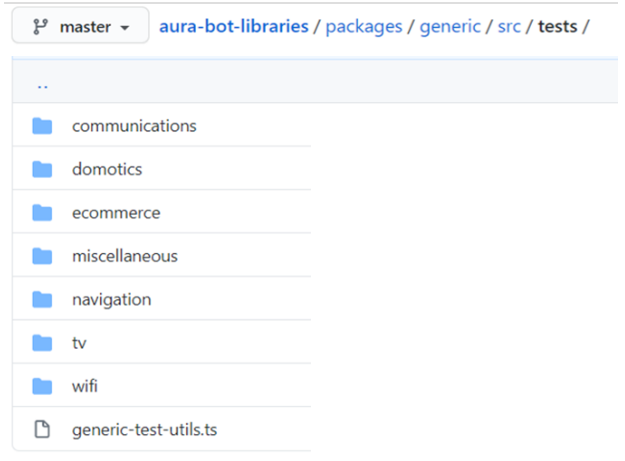
In this folder, tests should be organized by the use case domain, including one folder for each specific library. The library is included in the name of the intent that has this format:
intent.{LIBRAY_NAME}.{INTENT_NAME}
As an example, the figure shows this organization for the global library generic, containing tests for use cases in the domains: communications, domotics, e-commerce, navigation, tv and wifi.
The folder also contains the file generic-test-utils.ts, that includes configurations and functionalities common to all tests. The purpose of this file is to avoid code duplication in each test.
It also contains the getDialogIntentConfig functionality needed to retrieve the settings and mock up the getIntentConfig function.
In case it is necessary to modify any attribute of the configuration, it can be modified in the corresponding test by accessing the attribute to modify its configuration but not creating a new configuration.
import { configuration } from '../generic-test-utils';
configuration.AURA_LOCALE_FORCE_IMPORT: true,
6. Package and test the use case locally
Once the previous stages are finished, now you can package the use case’s library as a .tgz file and test it in local environment.
If the local testing is satisfactory, your use case is ready for its deployment.
How channelData v3 is formatted in responses
IntentResult
intentResult contains fixed values obtained from a map intent-intentResult. intentResult also has information about the default actions associated to this intent.
You can find more info in actions v3.
Actions
Actions are formatted mixing all the information from:
- Default actions by intent in
intentResult - Configuration in the dialog’s
settings - Parameters calculated on runtime by dynamic functions configured in
settings
All this information is mixed in the above-described order. settings will overwrite default values by intent, and runtime parameters will overwrite parameters in settings.
Default actions by intentResult
Certain intents have associated actions in its intentResult.
For example: Volume up intent will have the SEND_KEY action associated to the VOL- key and the rest of the needed parameters. This action will only be added to the response if the volume up intent have configured the SEND_KEY action. If the action by default is not configured in settings, it will not be sent.
Dialog settings
In the settings field of the dialog’s triggerCondition, you can add inside a new field actions including all the actions and parameters needed for this intent.
Only set the action name and all the default params will be returned, for example:
For intent intent.tv.move_forwards, we will add this configuration:
{
  "actions": [
    {
      "name": "SEND_KEY"
    },
    {
      "name": "MAKE_SOUND"
    }
  ]
}
As intent.tv.move_forwards has the default action SEND_KEY associated in its intentResult, these default values will be returned.
However, intent.tv.move_forwards does not have the action MAKE_SOUND associated, so the value returned will be the default for this action (by default, MAKE_SOUND will return a positive sound).
You can check actions associated to every intentResult in actions v3.
In order to overwrite these default values, you only have to configure them as shown below:
{
  "actions": [
    {
      "name": "SEND_KEY",
      "params": {
        "keyCode": "MOVE_FORWARD",
        "levels": "10"
      }
    },
    {
      "name": "MAKE_SOUND",
      "params": {
        "sound": "negative"
      }
    }
  ]
}
With this configuration, the levels of the SEND_KEY action will be overwritten to 10 (default is 60) and keyCode will be overwritten to MOVE_FORWARD (in this case, it is the same value as default).
In the MAKE_SOUND action, the sound value will be overwritten to negative (default is positive). The rest of the values will be the default ones (for example the target field).
The response will be something like this:
{
  "channelData": {
    "actions": [
      {
        "name": "SEND_KEY",
        "target": "stb",
        "params": {
          "keyCode": "MOVE_FORWARD",
          "levels": "10",
          "deviceId": "Mi-29283"
        }
      },
      {
        "name": "MAKE_SOUND",
        "target": "channel",
        "params": {
          "sound": "negative"
        }
      }
    ]
  }
}
Parameters in runtime
In the generic-dialog, it is possible to add functions to change the behavior of the dialog. If you want to modify params from actions in runtime you need to set it in the following variable:
persistentData.dialogData.actionParams.[ACTION_NAME]
For example, if you want to modify the returned sound according to the recognized entities, configure a function like this:
"functions": {
    "params": [
        "currentIntent",
        "persistentData"
    ],
    "algorithm": "currentIntent.entities.map((ent) => { persistentData.dialogData.actionParams.MAKE_SOUND = { sound: ent.type === 'ent.userHappy' && ent.entity ? 'positive' : 'negative'}})"
}
Values stored in runtime in persistentData.dialogData.actionParams.MAKE_SOUND will overwrite default values and configured values in settings.
Special parameters
deviceIdis a special actions parameter that should be set in runtime. All the actions with target =stbwill set this value in the action params by default.
Practical examples
TV remote actions
Use case with a direct transformation intent to action.
        {
            "intent": "intent.tv.channel_down",
            "settings": {
                "locales": {
                    "success": [
                        "tv.channelDown"
                    ]
                },
                "actions": [
                    {
                      "name": "SEND_KEY",
                      "params": {
                        "keyCode": "P-",
                        "Levels": "1"
                      }
                    }
                ],
                "needPlayingContent": true
            }
        }
Move forwards
Use case that requires the generation of a conversion function. This function is applied to the dialog’s parameters in order to get the correct payload.
       {
         "intent": "intent.tv.move_forwards",
         "settings": {
           "needPlayingContent": true,
           "locales": {
             "success": [
               "tv:tv.moveForwards"
             ]
           },
           "actions": [
             {
               "name": "SEND_KEY"
             },
             {
               "name": "MAKE_SOUND"
             }
           ],
           "functions": {
             "params": [
               "currentIntent",
               "persistentData"
             ],
             "algorithm": "currentIntent.entities.map((ent) => { if (!isNaN(ent.entity)) { persistentData.dialogData.actionParams.SEND_KEY = { levels: ent.type === 'ent.time_length_sec' ? Number(ent.entity) : Number(ent.entity) * 60}}})"
           }
         }
       }
Move backwards
Use case that requires the generation of a conversion function. This function is applied to the dialog’s parameters in order to get the correct payload.
In this case, the field algorithm references to the function calculateSecondLevels, described in the file: packages\generic\src\utils\generic-dialog-util.
{
          "intent": "intent.tv.move_backwards",
          "settings": {
            "needPlayingContent": true,
            "locales": {
              "success": [
                "tv:tv.moveBackwards"
              ]
            },
            "actions": [
              {
                "name": "SEND_KEY",
                "params": {
                    "keyCode": "MOVE_BACK",
                    "Levels": "60"
                }
              },
              {
                "name": "MAKE_SOUND",
                "params": {
                    "sound": "positive"
                }
              }
            ],
            "functions": {
              "params": [
                "currentIntent"
              ],
              "algorithm": "calculateSecondLevels"
            }
          }
        }