Categories:
Use ATRIA web interface (aura-manager)
Guidelines for using the ATRIA web interface for testing purposes
The ATRIA web interface (aura-manager) is available for Generative AI and RAG capabilities in ATRIA
Introduction
In the current release, a web interface aura-manager has been provided for internal use to test how ATRIA Generative and RAG capabilities work.
Discover below how to use it.
Guidelines
1. Enable aura-manager
- Enable aura-manager in Aura installer.
2. Access to ATRIA web interface (aura-manager)
-
Web chat URL: https://svc-[country-environment].auracognitive.com/aura-manager
-
Enter the web using Office365 authentication.
If you are interested in the underlying authentication process, access here.
3. Introduce application name
-
Prerequisite: The application must be previously configured using the applications configuration sheet with all the parameters to communicate with aura-gateway-api.
-
Add the exact name of the application to be used.
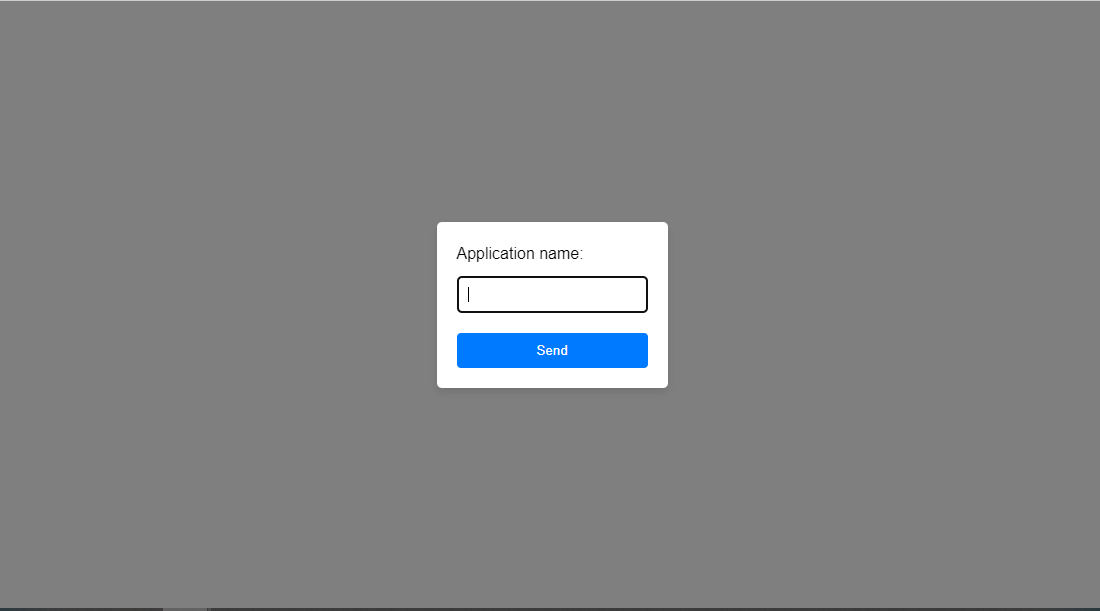
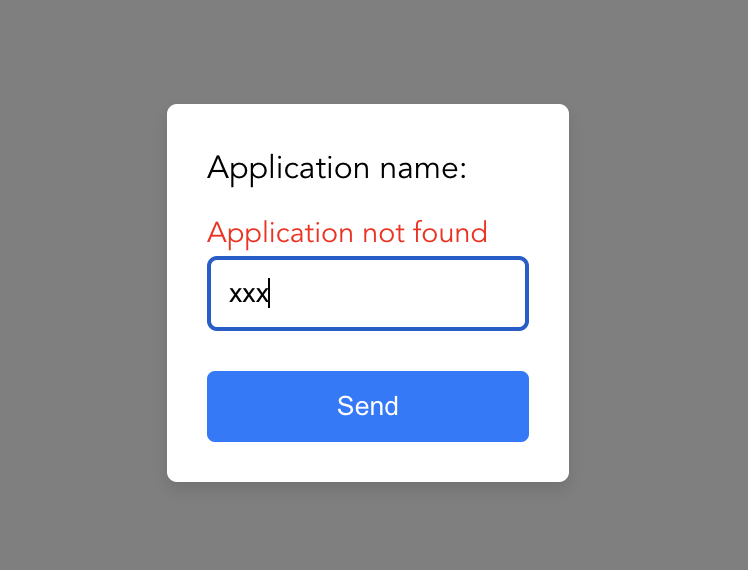
- If the name of the application is wrong, a message as shown below will be displayed:
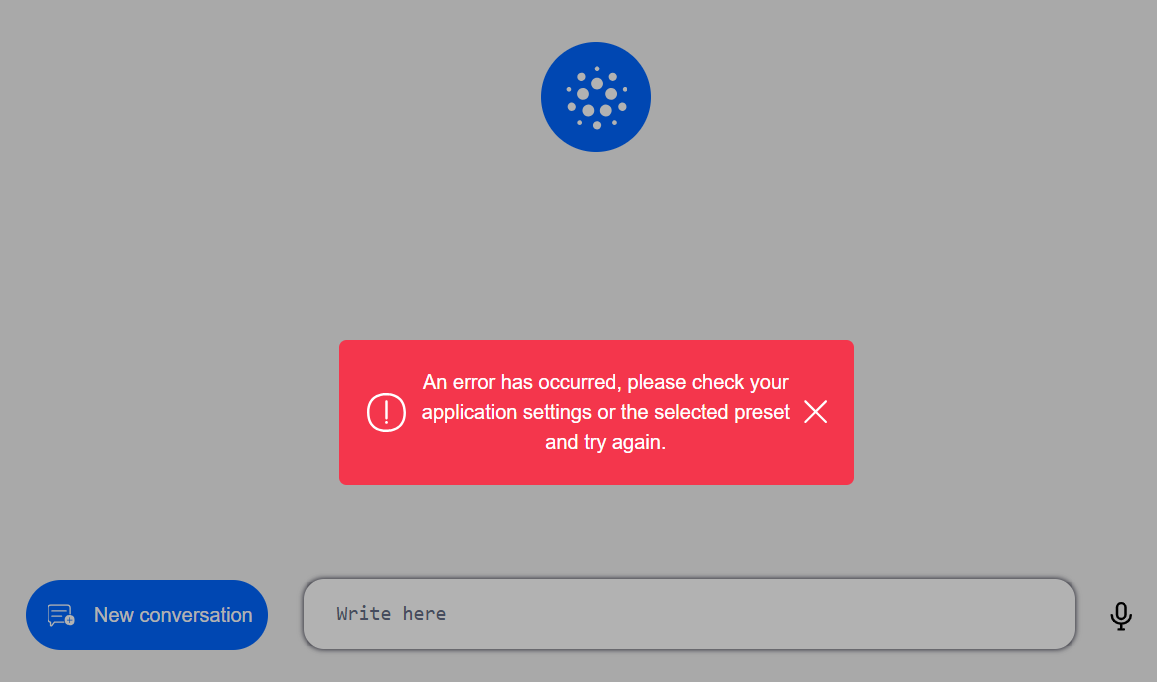
- If the request fails, the following error will be displayed and the website will reload:
4. Select theme (optional)
-
If required, select a theme to change the visualization style.
-
Click on the meatball menu
...and select the preferred theme.
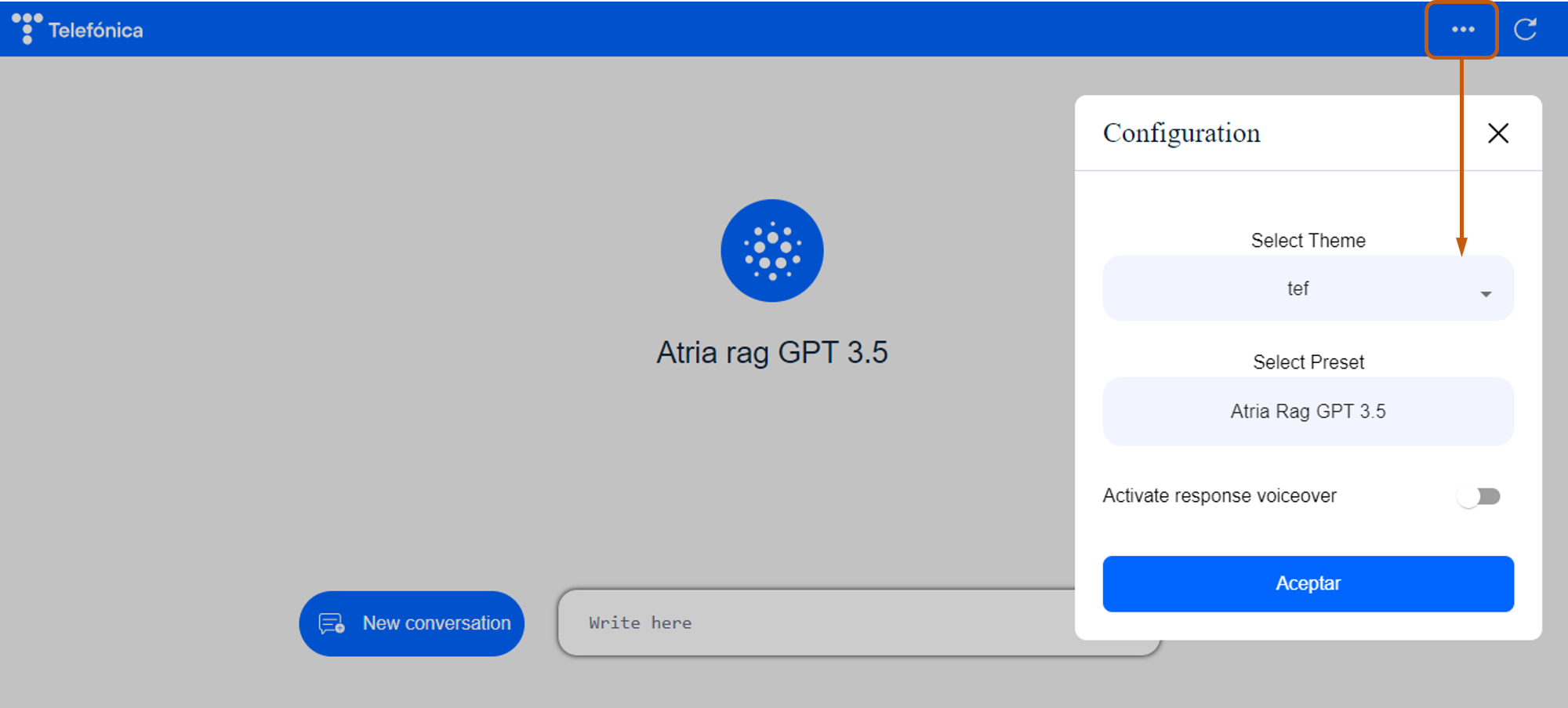
5. Select preset
-
Once the application is selected, all the presets that this application can use are loaded.
-
Click on the meatball menu
...and select the specific preset to be used.
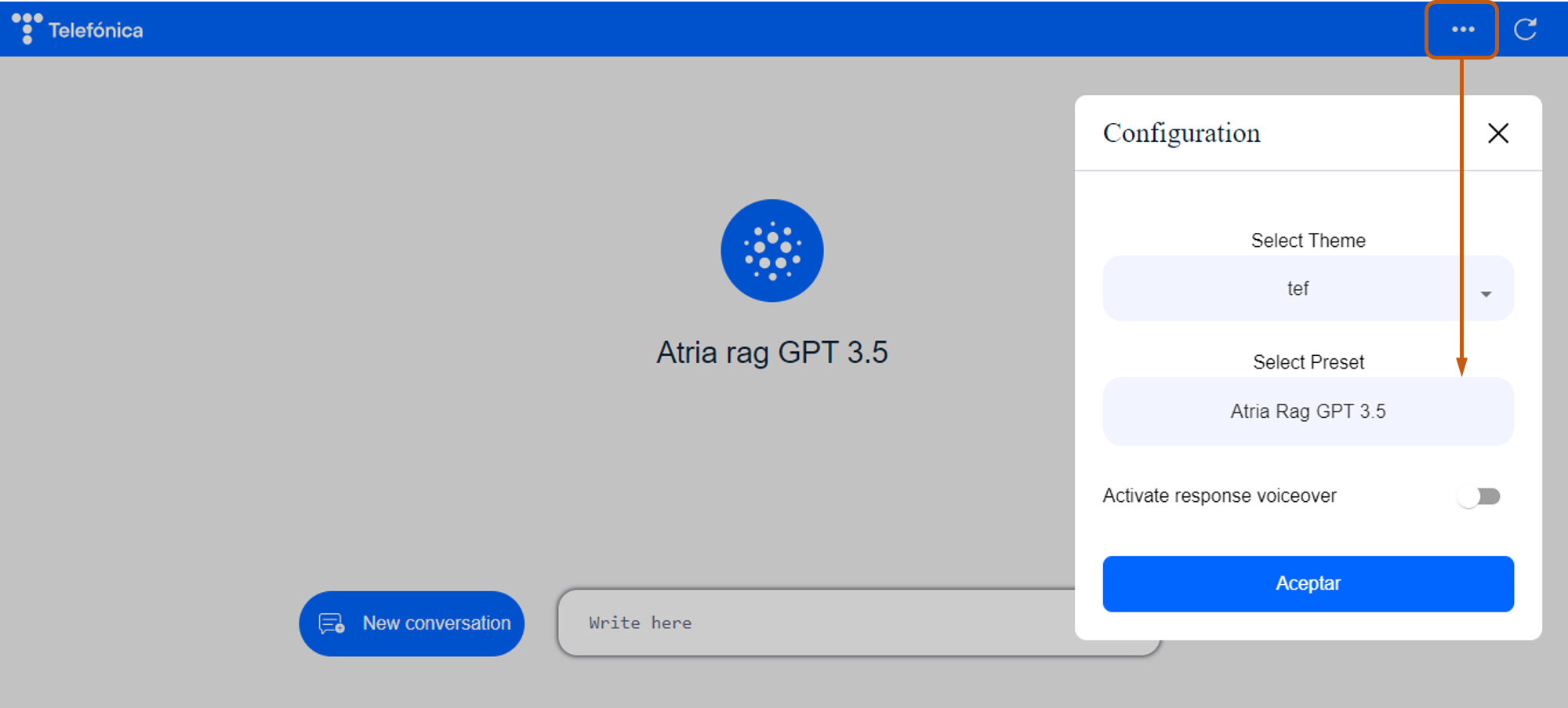
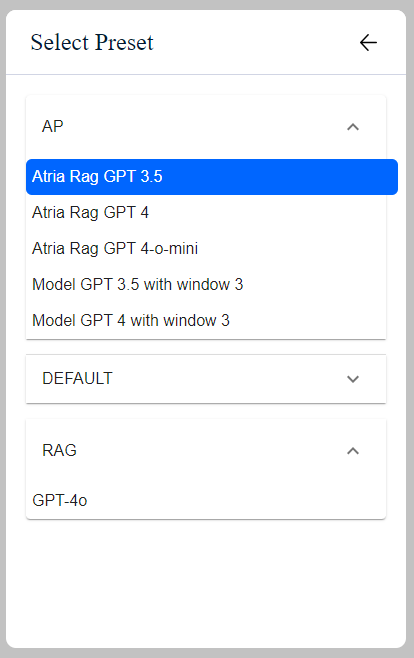
In the current version of the web interface, the option “Activate response voiceover” is deactivated.
6. Send request
-
Send your request:
- Writing it down in the search box
- Or using the microphone by clicking on the microphone icon
NOTE: The microphone is enabled in certain compatible web browsers:- Google Chrome v33 (Windows, macOS, Linux, Android)
- Microsoft Edge v79 (Windows, macOS)
- Firefox 52 (Windows, macOS, Linux, Android). It requires enabling
media.webspeech.synth.enabledinabout:config - Safari 14.1 (macOS, iOS)
-
Now, you can start a conversational flow with ATRIA to get the response you need.
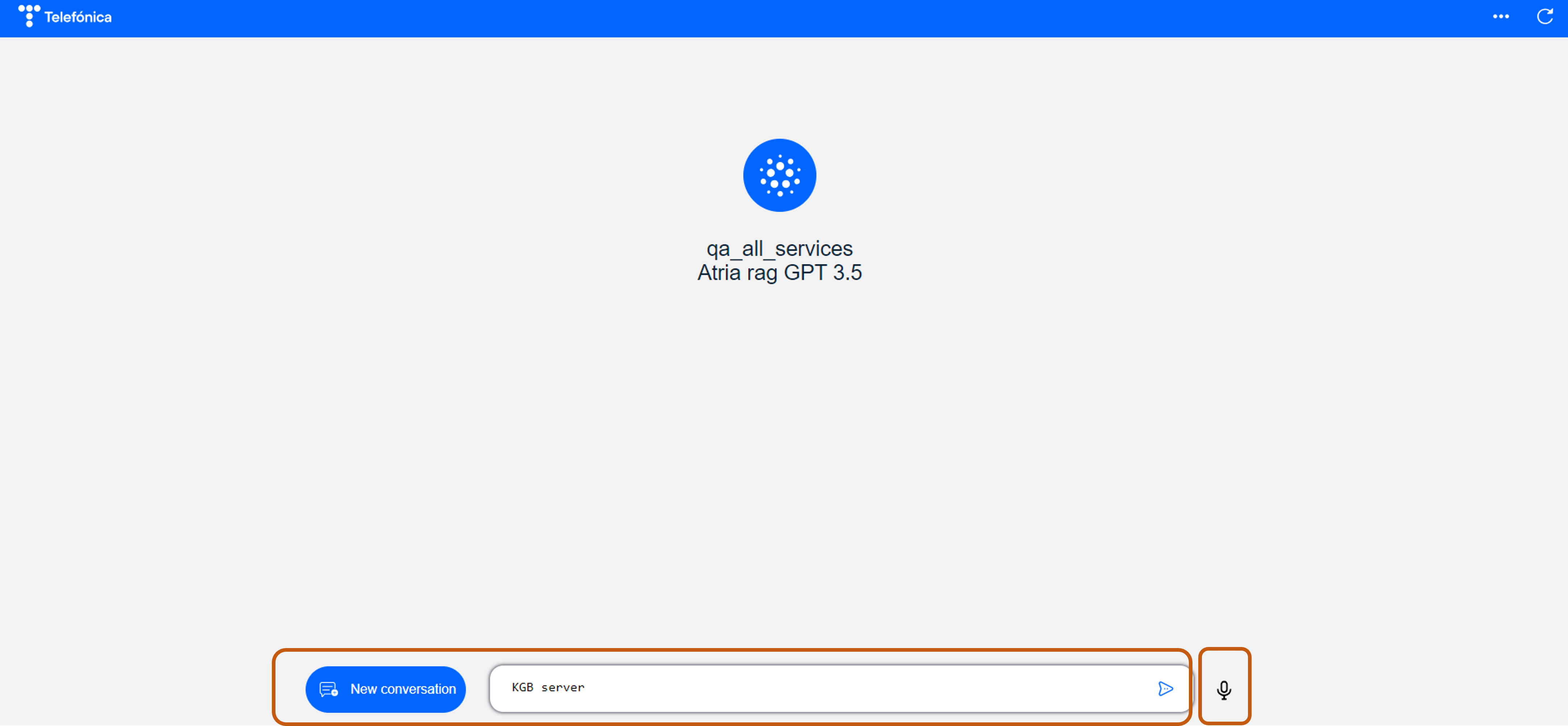
- If the request fails, the following error will be displayed:

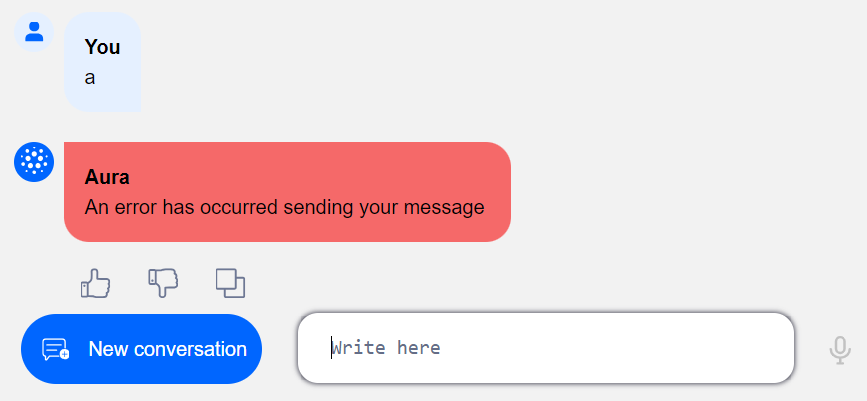
- If this error is displayed, you should enter the request again.
7. Receive response
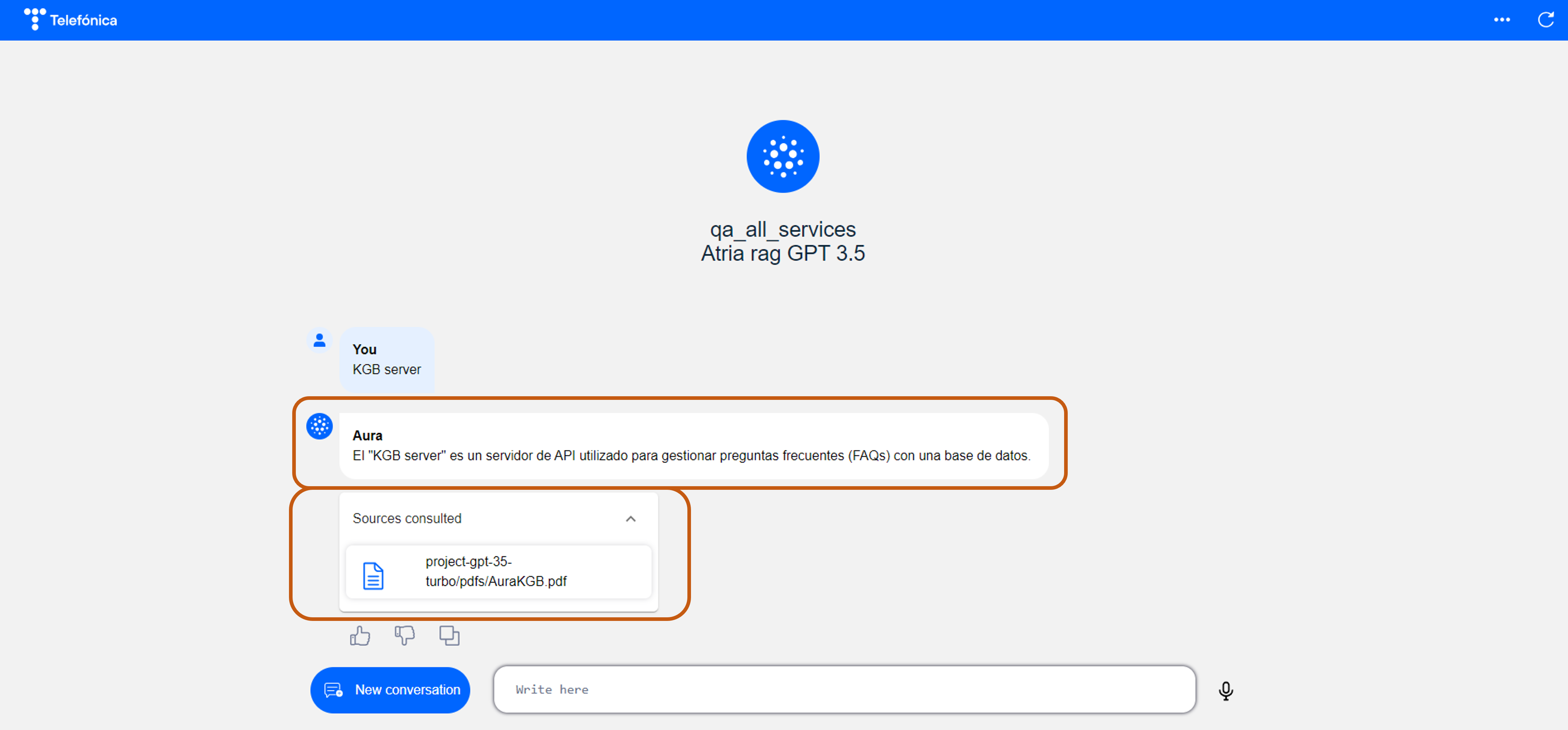
ATRIA will provide you with the most appropriate answer to your request.
Additionally, the information sources used to generate the response are included, so the user can have greater confidence in the answer provided and consult these references afterwards.
- In the current release, the references from public URLs can be consulted directly through their corresponding links.
- If the documents used as references (such as PDF files) are not publicly accessible, only the document names will be displayed. You can upload them for testing purposes before making their content available via a public URL.
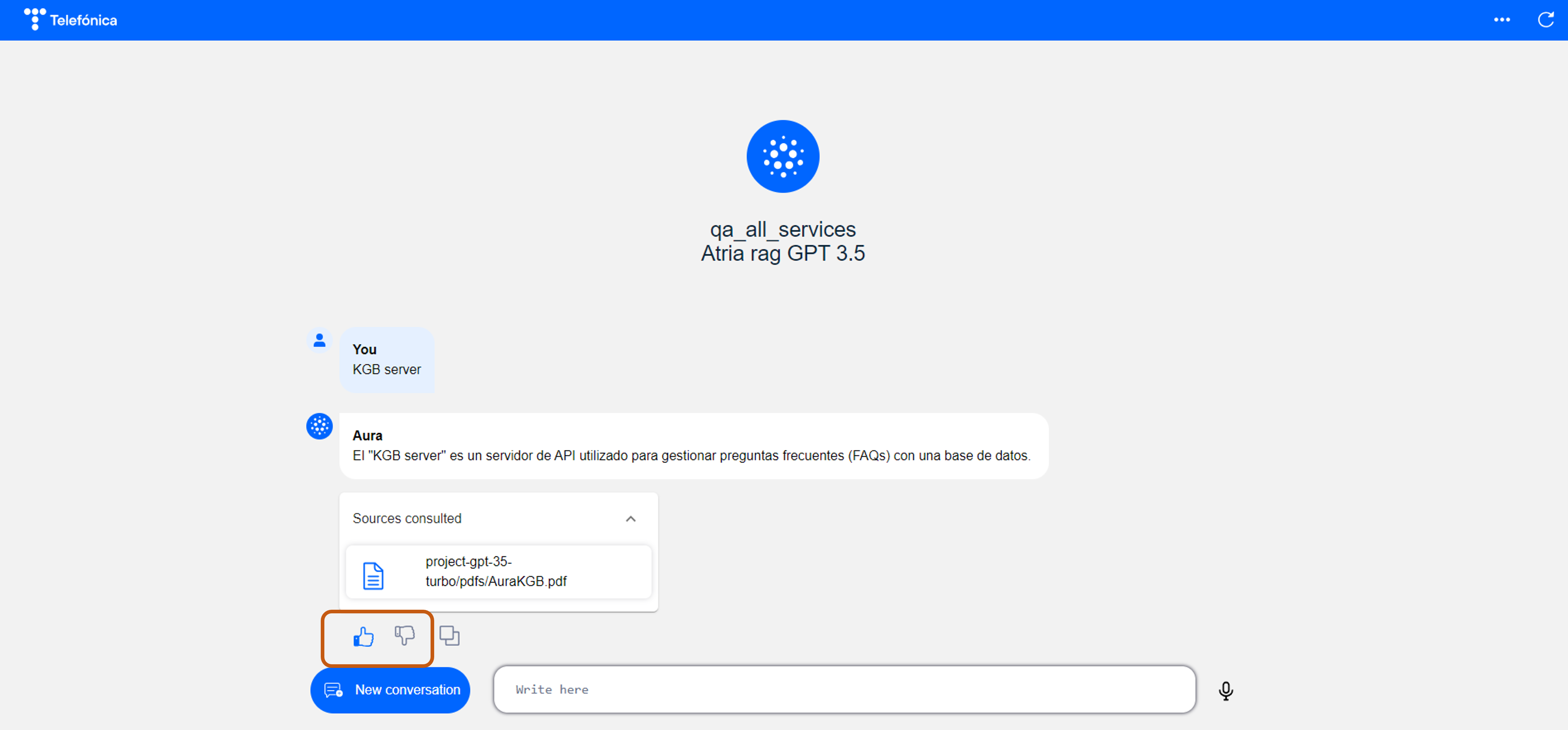
8. Add feedback (Optional)
- Use the thumbs-up and thumbs-down symbols to provide feedback regarding the accuracy of the response.
- If the request fails, the following error will be displayed:
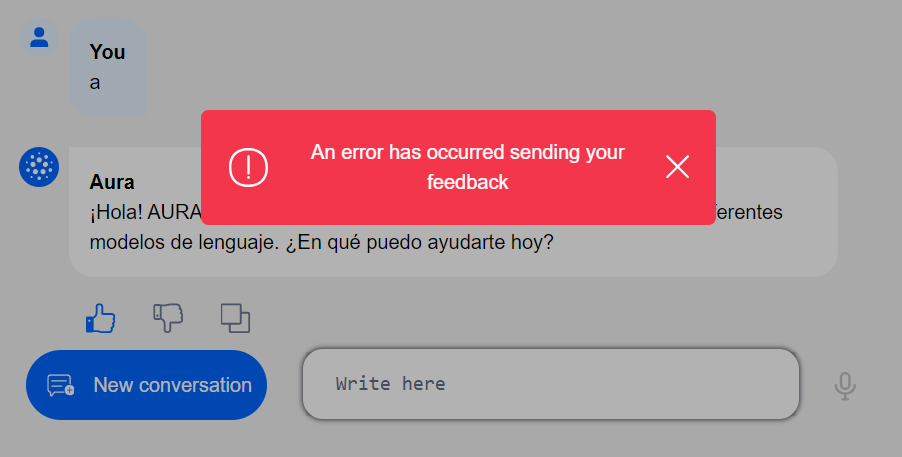
- If this error is displayed, you can continue using the application, trying to send feedback again.
9. Copy response (Optional)
- If required, you can copy the text response.
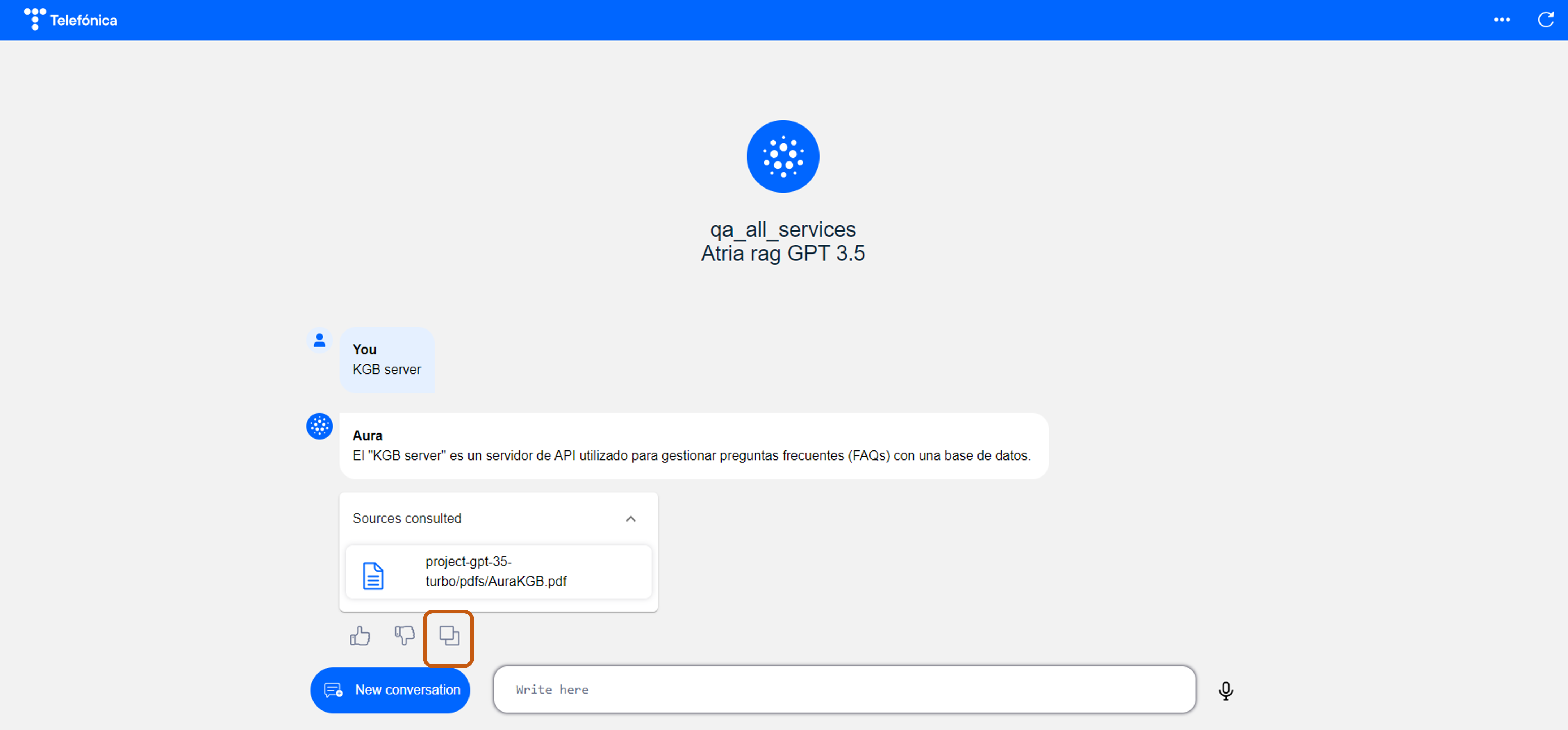
10. Start new conversation
- Click on the “New conversation” button or on the “reload” symbol to start a new conversation.
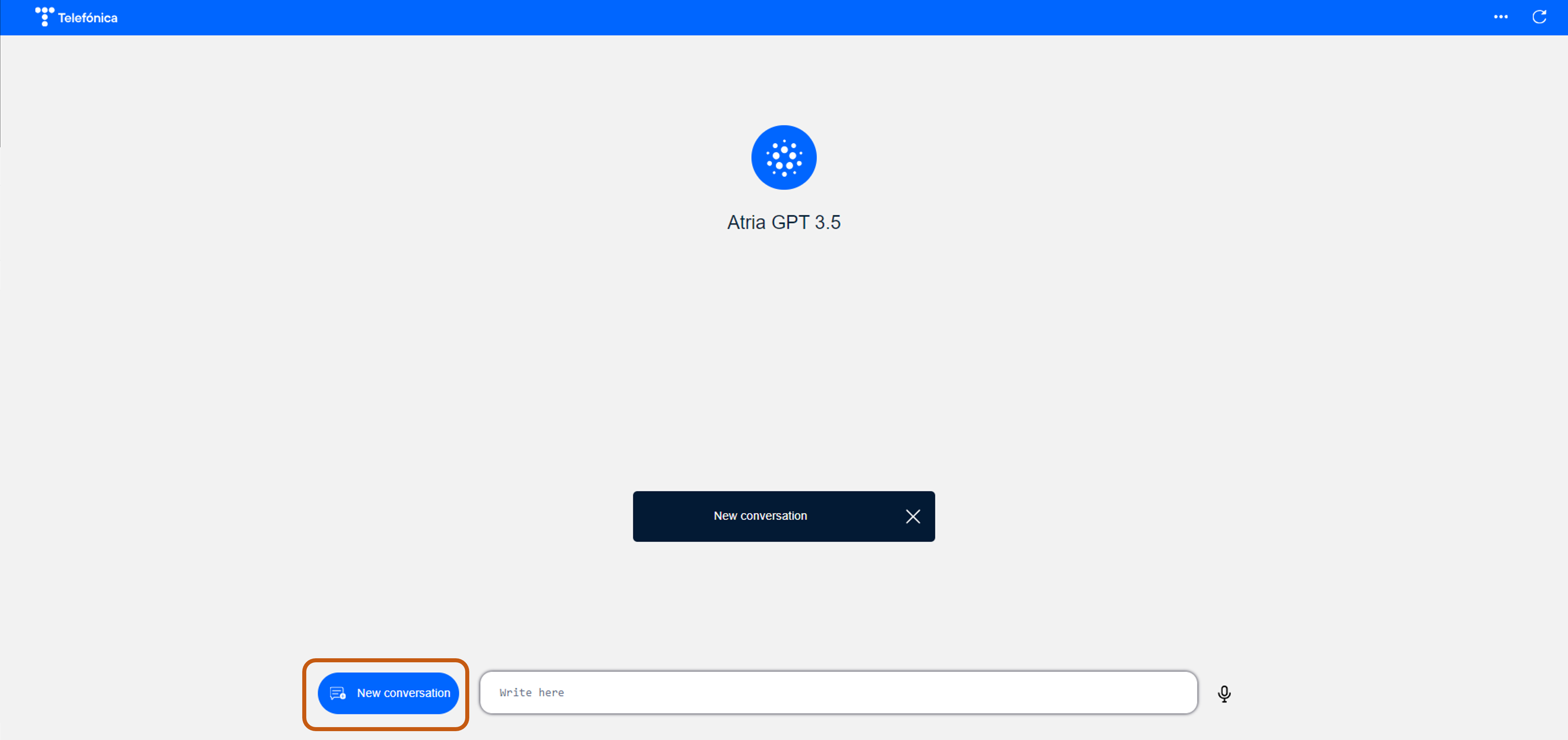
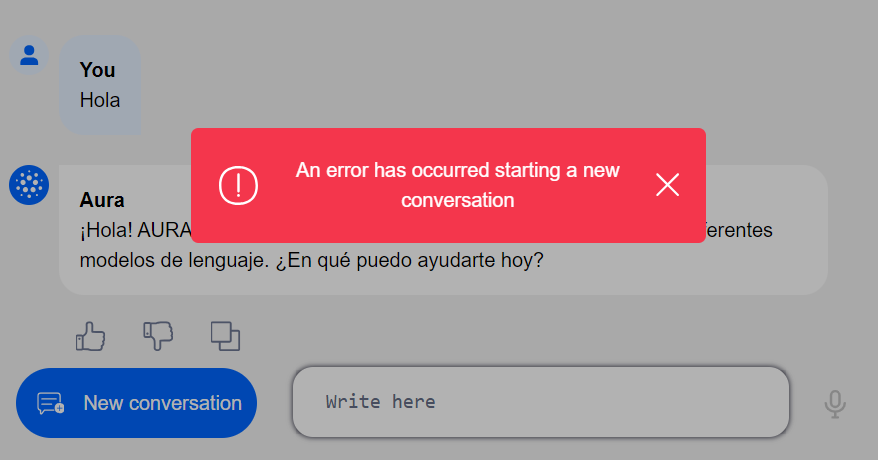
- If the request fails, the following error will be displayed, and you should try to initiate a new conversation again: