Categories:
WhatsApp channel in Aura
Introduction to WhatsApp channel in Aura, architecture and key features. Description of the onboarding, authentication and handover processes in WhatsApp.
Related documents
Activation of WhatsApp channel
Practical guidelines for use cases development in WhatsApp
Introduction to WhatsApp channel in Aura
The use of Aura through a widespread channel such as WhatsApp achieves crucial advantages for our users, that will be able to get what they need through a simple and agile communication via WhatsApp.
Aura is available through a simple, direct and agile channel: WhatsApp
High-speed interaction with the user
Better engagement Aura-user, as WhatsApp channel is widely used by most of our users and always available in the mobile phone
Direct and concise responses to our users
Presently, Aura contains the functionalities listed below in WhatsApp. Moreover, OBs can build their own use cases in this channel.
- Onboarding
- Authentication
- Handover use case, in which the user asks for an agent to solve her request.
- Small Talk (greetings, goodbyes, thankyous, swearwords)
Key functionalities in WhatsApp channel
WhatsApp channel include the following key functionalities:
-
Several WhatsApp phone numbers Aura supports several WhatsApp phone numbers that can be configured independently as different channels, allowing each of them to have different use cases, authentication methods, onboarding, trainings or Terms & Conditions. With this new feature, users will have different numbers at their disposal for an easier access to a service or request. When developing a use case in Whatsapp, constructors can select the intended phone number the same way they select the channel for this use case. Check this functionality in Aura supports several WhatsApp channels.
-
Phone number input WhatsApp accepts different formats for entering the phone number during the users’ SMS-OTP authentication: o Entering the phone number without country prefix > The prefix is automatically included. o Entering the phone number with blank spaces > Spaces will be automatically removed. o Identifying and extracting a phone number from a text written by the user is feasible. With this feature, Aura users can authenticate with their phone number in an easier and quicker way.
-
Interchange of files between a user and Aura Aura integrates in WhatsApp channel the capability of managing files: a WhatsApp use case can send a file to the user and a user can send files to a WhatsApp use case.
-
Interactive messages Aura includes interactive messages in WhatsApp graphical interface: Reply Buttons and List Messages.
-
Configuration of the Markdown type in the response Use cases in WhatsApp can be configured to use standard Markdown or WhatsApp-specific Markdown.
Learn how to take advantage of these features in Use cases in WhatsApp.
Architecture overview
Overview of Aura - WhatsApp communication architecture
The outlines of the communication between Aura and WhatsApp are represented in the following figure:
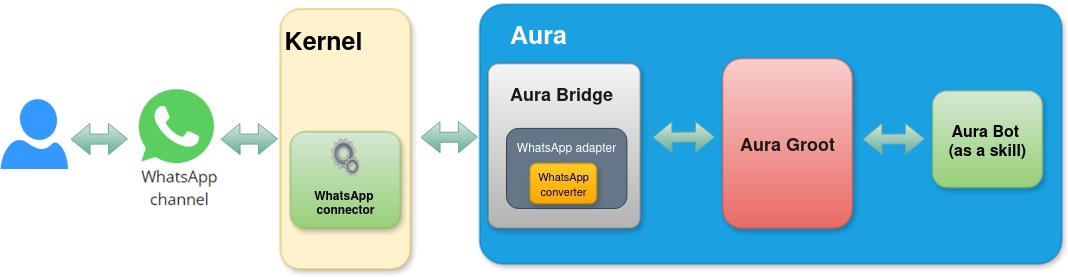
When a user requests a service to Aura through the WhatsApp channel, firstly Kernel summons Aura through a specific WhatsApp connector.
aura-bridge allows the compatibility of the Platform with the WhatsApp channel and acts as a communication layer with aura-groot.
Activation of WhatsApp channels
The use of all the available Aura features in WhatsApp requires the previous activation of the channels. Check the detailed processes in:
Onboarding in WhatsApp
The onboarding dialog for WhatsApp is a simple aura-bot dialog that returns certain personalized messages for WhatsApp with all the necessary information for the user’s onboarding and the Terms and Conditions management, depending on the type of user (authenticated or anonymous).
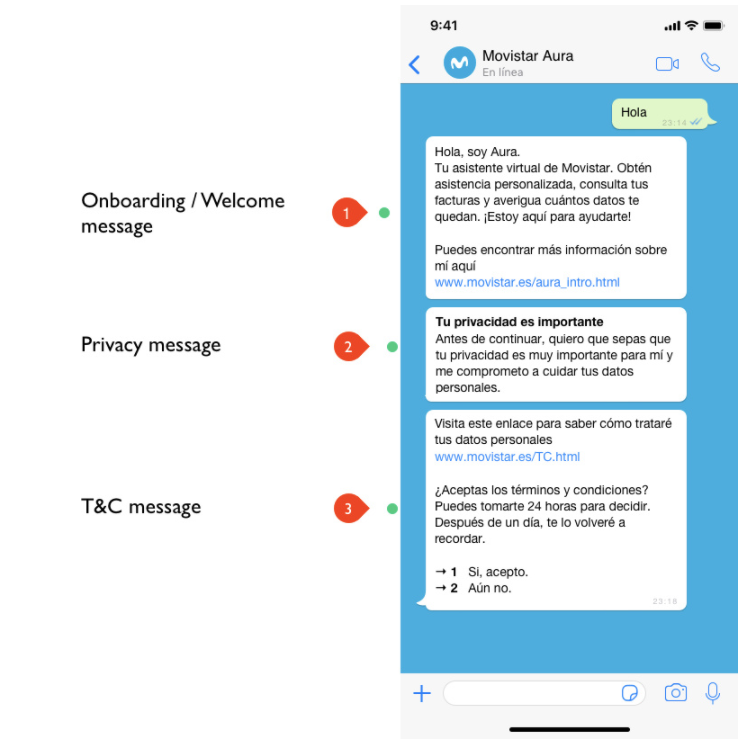
Find additional information regarding the onboarding process in WhatsApp in UC Catalog: Aura Platform capabilities. You can find here the detailed onboarding flowchart and specific POEditor resources for the onboarding conversational flow.
Authentication in WhatsApp channels
WhatsApp type channels support SMS-OTP authentication for “standard” use cases that require a level of assurance LoA2.
SMS-OTP authentication in WhatsApp
The WhatsApp login dialog is the aura-bot dialog in charge of the users’ login and authentication in WhatsApp channels through SMS-OTP authentication. The authentication operates following this process though the WhatsApp login dialog:
- The user requests a service to Aura (use case). If the use case requires authentication, Aura asks the user for it.
- The user is asked for using the current number or entering a new one, and Aura sends an SMS authcode to that number that must be entered back by the user.
- When the authentication finishes successfully, the use case is automatically executed (the user does not have to repeat the request).
The WhatsApp login dialog includes several steps:
- Checking if the user is already authenticated
- Asking the user if she wants to use the current phone number (if corporate) or she wants to enter a new one
- Inserting the phone number
- Inserting SMS OTP code and registering the user.
Find additional information regarding the SMS-OTP authentication process in WhatsApp in UC Catalog: Aura Platform capabilities. You can find here the detailed authentication flowchart and specific POEditor resources for the conversational flow.
The handover dialog in WhatsApp
The handover dialog is an aura-bot dialog that enables the user to initiate a conversation with a human agent in order to solve anything that Aura cannot do. For this purpose, the dialog establishes a direct connection with the call-center software GENESYS.
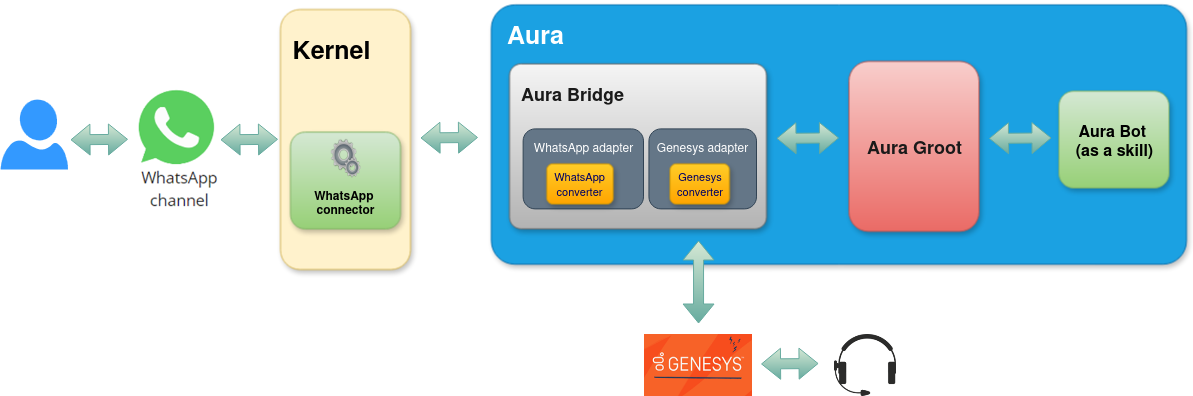
Find additional information regarding handover in WhatsApp in UC Catalog: Aura Platform capabilities. You can find here the detailed handover flowchart and specific POEditor resources for the conversational flow.