Categories:
Use of files in WhatsApp use cases
Aura integrates in WhatsApp channels the capability of managing files. Learn how in the following guidelines
Introduction
Aura integrates in WhatsApp channels the capability of managing files, in a bidirectional way:
- A WhatsApp use case can send a file to the user
- A user can sedn a file to a WhatsApp use case
How to configure a use case to send a file to the user

Constructors can configure a use case to send a file to the user by providing its URL. There are two ways of doing that:
- As a text message.
- As an attached file.
Send a file as a text message
For this purpose, we will send the URL of the file as a text message. When aura-bridge receives this activity, it renders it as a text with preview and the user, depending on her configuration, will show the preview of the sent file.
const fileActivity = {
    type: 'message',
    text: 'https://link.com/file.pdf',
    inputHint: InputHints.AcceptingInput
}  as Activity;
await stepContext.context.sendActivity(fileActivity);
Send a file as an attachment
In order to include a file in use case dialog as an attachment, send an activity with the following template custom type in the field contentType:
'application/vnd.telefonica.aura.file'
This is shown below:
const attachment = {
    contentType: 'application/vnd.telefonica.aura.file',
    content: { url: 'https://link.com/file.pdf', fileName: 'file.pdf', caption: 'My file'  }
};
const fileActivity = {
    type: 'message',
    attachments: [attachment],
    inputHint: InputHints.AcceptingInput
} as Activity;
await stepContext.context.sendActivity(fileActivity);
Types of files and minimum file sizes
The supported file types, together with the maximum size (referred to size after processing and encryption), are shown in the following table.
| Type | Extensions | Maximum size |
|---|---|---|
| image | png, jpg, jpeg | 64 MB |
| audio | aac, m4a, amr, mp3, opus | Check in WhatsApp documentation |
| video | mp4, 3gpp | 64 MB |
| document | pdf, doc, docx, ppt, pptx, xls, xlsx | 100 MB |
Internal process for files reception
⚠️ This section has only descriptive purposes, as it refers to an internal process. Use cases constructors do not have to carry out any aditional task.
The message will arrive to aura-bridge after going through the use case with the following format:
[
   {
    contentType: 'application/vnd.telefonica.aura.file',
    content: { url: 'https://link.com/file.pdf', fileName: 'file.pdf', caption: 'My file' }
}
]
Finally, the message will be received by WhatsApp services after conversion through aura-bridge. Depending on the file extension, the output to WhatsApp will be sent with one type or another.
This is an example of a document:
{
    "recipient_type": "individual",
    "to": "{{phone_number}}",
    "type": "document",
    "document": {
        "link": "https://link.com/file.pdf",
        "filename": "file.pdf",
        "caption": 'My file'
    }
}
The caption tag will only be sent for the types allowed by WhatsApp document, image or video.
How to configure a use case to receive a file from the user
This scenario corresponds to an Aura use case requesting one or several files from the user, so the user sends them back to Aura.

Any dialog that implements a personalized use case in Aura will be able to receive one or more files sent by a user through WhatsApp channels. For this purpose, during the use case development, two main tasks are required:
- Firstly, set the needed pre-requirements for enabling the channel to handle files and set the supported type and size of files.
- Then, configure your use case dialog to support files. In this step, we distinguish among different scenarios, which are summarized in the flowchart below and detailed in the following sections.
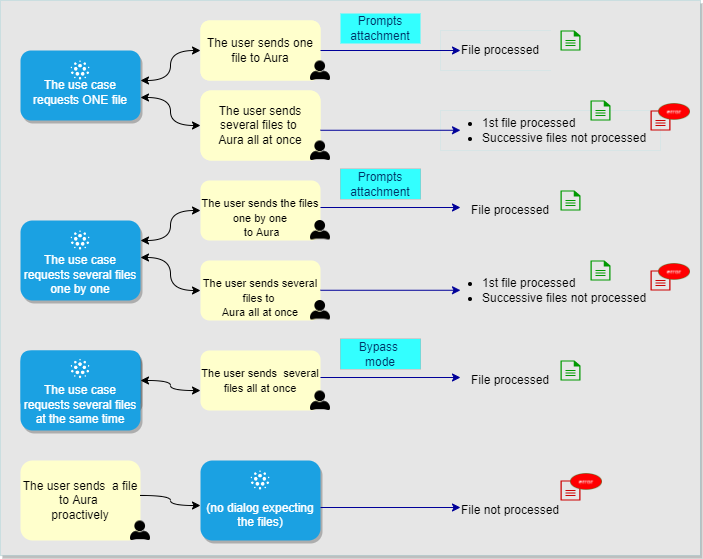
During the use case execution, the process carried out by Aura is as follows:
- The use case asks for file(s) and the user sends it(them) or the user sends a file proactively (See the different scenarios below).
- The dialog receives the files and processes them one by one.
- Once received, the file will be validated to verify that it complies with the predefined requirements regarding file type and size.
- If the validation is successful, the files will be stored in an Azure temporary repository, so the dialog can have them available.
- If case validations are not satisfied, the dialog is informed and sends a message to the user informing about the situation.
- The URL of the files are available during a configurable time set in the File Manager environment variable
AURA_MICROSOFT_AZURE_STORAGE_SAS_URL_VALIDITY. - If any internal error occurs during the files processing, a retry policy is performed and if it fails again, the control will be returned to the dialog.
Pre-requirements
Two tasks must be carried out previous to the use case configuration:
Enable the channel to handle files
The first thing to do is to configure the channel on which we will use dialogs able to handle file management.
For this purpose, it is necessary to enable the option in the channel configuration file through the RequestOptions model, where the enabled property must be set to true.
{
    name: 'nameOfChannel',
    requestOptions: {
        fileAttachments: {
            enabled: true
        }
    }
}
Set the supported type and size for files
Once the channel is enabled to accept files, the type and size of files that can be supported can be configured at three levels:
-
a) Configuration in aura-file-manager API (default configuration)
A default configuration can be set in the aura-file-manager API, through the following environment variables:
AURA_FILE_MANAGER_TYPES: Array with the valid default file types. Default value:[pdf, doc, docx, ppt, pptx, xls, xlsx, aac, m4a, amr, mp3, ogg, mp4, 3gp, jpg, jpeg, png, opus].AURA_MAX_FILE_SIZE_BYTES: Maximum file size in bytes by default,104857600.AURA_MIN_FILE_SIZE_BYTES: Minimum file size in bytes by default,256.
If these values are modified in the aura-file-manager, it will affect to all enabled channels that do not have a specific configuration of files types and sizes.
All these values will be overriden if other supported ones are configured at channel level. Moreover, during deployment, the DevOps Team should configure the Azure container where the files will be temporarily stored and to set the configurable time for its automatic deletion.
-
b) At channel level
If OBs want to configure the supported types and sizes for files per channel, it must be done in the aura-configuration-api, using the properties included in the
RequestOptionsmodel related tofileAttachments:{ name: 'nameOfChannel', requestOptions: { fileAttachments: { enabled: true, enabledExtensions: ['pdf', 'jpg', 'jpeg', 'png'], validations: { 'jpg' :{ min: 1024, max: 5000000 } } } } } -
c) At use case level
The OB constructors can establish their own checks in the use case dialog regarding the type and size of files or set a more restrictive conditions for a specific use case. In this case, they will be responsible of their own specific validations.
ℹ️ TIPS: WhatsApp file management
Sending files through WhatsApp has certain limitations, set directly by Meta API. The main one is that WhatsApp applies a quality reduction and a change in the format of the file, in case the user sends an image:
- WhatsApp works only with JPG files, so no matter what type of file the user tries to send to Aura, WhatsApp will convert it to JPG.
- Besides, its quality will be reduced, to save bandwith and space.
But, both issues can be overcome, following some rules:
- JPG type of files MUST be always configured in the
enabledExtensionsproperty when setting up a channel to receive files from users from WhatsApp. This will allow receiving the images from users, but with a reduced quality. - Aura Global Team recomendation is to inform the users to send the files as documents instead of images, to avoid both format conversion and quality reduction.
Configure a use case to ask the user for one file and receive it
The use case dialog must be configured to request a unique file from the user.
Depending on the behavior of the user, two scenarios can arise:
Scenario 1. The use case asks the user for one file and the user sends one file to Aura
For the management of one file sent by the user, the incoming message must be handled by aura-bot. Therefore, aura-bot must be in normal operation mode.
In this case, Prompt Attachment will be used as a communication tool with the user. Constructors must follow these steps in the use case dialog:
-
Initialise and set the prompt in the constructor:
const attachmentPrompt = new AttachmentPrompt(
    this.promptsConfiguration.attatchmentPrompt, PromptUtils.getAttachmentValidator(
                this.retryMessages,
                this.promptsConfiguration.retries,
                this.promptsConfiguration.duration));
super.addDialog(attachmentPrompt);
Where
PromptUtils.getAttachmentValidator(...)is a function provided by Aura Platform to make it easier for use cases developers to validate the information sent to thePrompt Attachmentlaunched in the previous step.It allows to return the control to the result of the prompt or not, depending on:
- Retries: possibility to control retries until the correct information is received.
- Time: the time taken to process the file sent by the user.
- State: state of processing file or not yet.
- Files no expected: Receipt of new files while a previous file was already being processed.
- Text: it is checked whether the user has written text instead of sending a file.
- Process NO Available: checked if the file could not be processed due to technical problems (Outage of File Manager API service).
prompt.recognized.succeeded = false; maxRetries = maxRetries < 0 ? 0 : maxRetries; const fileStatus: FileStatus = await FileContextUtils.getFileStatus(prompt.context); if (fileStatus?.processing) { // File process in progress // There is a previous file being processed and the user has sent something other than an Attachment. if (prompt.context.activity.text && fileRetryMessages?.textButProcessingAttachment) { prompt.options.retryPrompt = fileRetryMessages.textButProcessingAttachment; } else if (prompt.context.activity.attachments?.[0] && fileRetryMessages?.fileButProcessingAttachment) { prompt.options.retryPrompt = fileRetryMessages.fileButProcessingAttachment; } const timeFinishPrompt = fileStatus.initProcessingTimeStamp + (minutesWaitingFileProcessed * 60 * 1000); if (Date.now() > timeFinishPrompt) { prompt.recognized.succeeded = true; // Force finish prompt } } else { // No file process in progress const attachments = prompt.context.activity.attachments; if (fileStatus?.processingIsNotAvaliable && fileRetryMessages?.noProcessAttachmentAvailable) { prompt.options.retryPrompt = fileRetryMessages.noProcessAttachmentAvailable; } else if (attachments?.[0]) { // Attachments receive // Check all processed prompt.recognized.succeeded = PromptUtils.checkAttachmentsProcessed(attachments); } else if (prompt.context.activity.text && fileRetryMessages?.textAndNoAttachment) { prompt.options.retryPrompt = fileRetryMessages.textAndNoAttachment; } } // Check retries if ((!prompt.recognized.succeeded) && prompt.attemptCount > maxRetries) { // Succeeded needs to be TRUE in order for BF to assign the value assign the recognized.value to result.value prompt.recognized.succeeded = true; } return prompt.recognized.succeeded; -
Once the information has been validated, the function to collect the result will be executed:
// Define the conversation flow using a waterfall model. super.addDialog(new WaterfallDialog(FactotumPromptAttachmentDialog.id, [ this.beginPrompt.bind(this), this.receiveAttachmentProcessed.bind(this) ])); -
In the
beginPromptfunction when setting the Prompt, it is necessary to set thefileTreatmentparameter astrue.On the other hand, if the text handling is already controlled by the validation function,
disableRecognitioncan be specified to disable NLP recognition.const promptOptions: PromptOptions = { prompt: { ...MessageFactory.text('Send a file'), inputHint: InputHints.ExpectingInput }, retryPrompt: 'The files are being processed. We will let you know when they are ready. Thank you.', validations: { fileTreatment: true, disableRecognition: true } }; -
In this case,
receiveAttachmentProcessedwill be executed and appropriate checks can be made to determine whether the file sent by the user meets the requirements in terms of supported type and size.if (content?.typeValidation?.value !== this.promptsConfiguration.type) { //... } if (content?.sizeValidation?.value > this.promptsConfiguration.maxSize) { //... } -
If the channel conditions are met (in terms of supported type and size of the file), now the dialog can do its own checks if included in the code.
⚠️ WARNING
receiveAttachmentProcessedcan also be executed when it has been forced to finish by number of retries, or by time if usingPromptUtils.getAttachmentValidator(...).- In the case of an error in the File API Manager when trying to respond with the information, the only way to unblock the Prompt for the user is to interact with Aura again.
Scenario 2. The use case asks the user for one file and the user sends several files to Aura
If the use case requests one file from the user but she decides to send several files all at one, then:
- The first file is processed.
- Once the dialog receives the validated file and the prompt is closed, the following files sent by the user are not processed. In this case, Aura will trigger a default dialog, the unexpected-file dialog dialog. This dialog will receive the file(s) and will send an error message to the user, informing that the file is unexpected. The text message can be configurable through POEditor.
Configure a use case to ask the user for several files one by one
If the use case needs more than one file from the user, OB constructors can build the dialog so it asks for the files one by one.
⚠️ This is the recommended behavior for the dialog when requesting several files from users
In this scenario, two behaviors from the users are expected, as described in the following sections.
Scenario 1. The use case asks for several files one by one and the user sends them this way
This scenario is similar to the one described in the section Scenario 1. The use case asks the user for one file and the user sends one file to Aura.
Therefore, prompt attachment will be used.
Scenario 2. The use case asks for several files one by one and the user sends more than one file all at once
Although the dialog is requesting the files one by one, the user can decide to send several files at the same time. In this scenario:
-
The first file is processed.
-
Once the dialog receives the validated file and the prompt is closed, the following files sent by the user are not processed. In this case, Aura will trigger a default dialog, the unexpected-file-dialog dialog.
This dialog will receive the file(s) and will send an error message to the user, informing that the file is unexpected.
The text message can be configurable through POEditor.
Configure a use case to ask for several files all at once
If constructors want the dialog to receive more than one file from the user all at one, the dialog must be configured in bypass mode, so it can manage all the files.
Check the general process to Configure Aura Bot in bypass mode.
Moreover, for the management of files in bypass mode, certain extra steps are required, explained below:
- Initialize the Bypass, indicating the attachment support:
await Bypass.initialize (stepContext.context, this.TTL_BYPASS_MIN, { value: '' }, 'test', BypassState.Bypass, ['exit','disconnect','disable'], true);
- When redirecting all message traffic to this dialog (while the bypass is open), it has to check if the information received is an attachment or not.
// Attachment receive directly.
if (attachmentsReceied && await this.checkAttachmentsProcessed(stepContext, attachmentsReceied)) {
    this.receiveAttachment(stepContext, attachmentsReceied);
} else {
    // No attachment or prompt keyword, send the bypass instructions.
    await stepContext.context.sendActivity(
        'Type "prompt" to init a prompt Attachment' +
        ' or you can send an attachment directly' +
        ' type "exit" to finish.');
}
- It is also necessary to check whether the file has been validated or not (Similar to
PromptUtils.getAttachmentValidator(...)in normal case):
if (!attatchment?.content?.processed) {
    if (attatchment?.content?.processingIsNotAvaliable) {
        await stepContext.context.sendActivity('');
    }
    result = false;
    break;
}
- The speed for attachments to arrive to aura-bot depends on how long the system takes to process them. Therefore, a number of considerations need to be taken into account:
- If no service failures have occurred, as many messages will arrive as attachments the user has sent. The order will be determined by the time to process each of them.
- It should be noted that the use of the
bypass.datafield (to store incoming information) does not have atomic mechanisms. A race condition could be produced. However, in order to minimise this situation, it is advisable to mark the use of persistent storage (Mongo) in loading and updating bypass operations.
let bypass = await Bypass.loadBypass(stepContext.context, true);
bypass.data.value = ['SET SOMETHING'];
await bypass.updateBypass(stepContext.context, false, true);
The user sends a file to Aura proactively
This scenario corresponds to the user sending proactively a file or several ones to Aura, although there is no use case requesting them (no dialog running).
In this case, Aura will trigger a default dialog, the unexpected-file-dialog dialog.
This dialog will receive the file(s) and will send an error message to the user, informing that the file is unexpected.
The text message can be configurable through POEditor.