Categories:
Update Aura Copilot-related ATRIA configuration using ConfigMap
Guidelines valid for releases previous to Metallica
This document includes a specific scenario in the process for modifying ATRIA configuration, described in the document Modify ATRIA components configuration
Guidelines to update certain ATRIA configuration parameters related to calls to Aura Copilot in Kiss release in a specific environment through the use of ConfigMap, specifically:
- To modify the timeout parameter in the ATRIA gpt-4o model
- To modify the SQL prompt in the atria-rag-server project
- Upload files and launch the generate-db job
Enable ConfigMap
As a prerequisite, we must count on a KUBECONFIG with sufficient permissions and access to the environment.
We have one ConfigMap for each component:
- atria-model-gateway: atria-model-gw-config
- atria-rag-server: atria-rag-config
For the ConfigMap modification, use the following example:
kubectl edit configmap atria-model-gw-config -n <namespace>(change the namespace by the specific one)kubectl edit configmap atria-rag-config -n <namespace>(change the namespace by the specific one)
Substitute <namespace> with the corresponding environment: es-pre or es-pro.
You can also use visual tools for this modification, such as Lens or Sublime.
Edit models timeouts
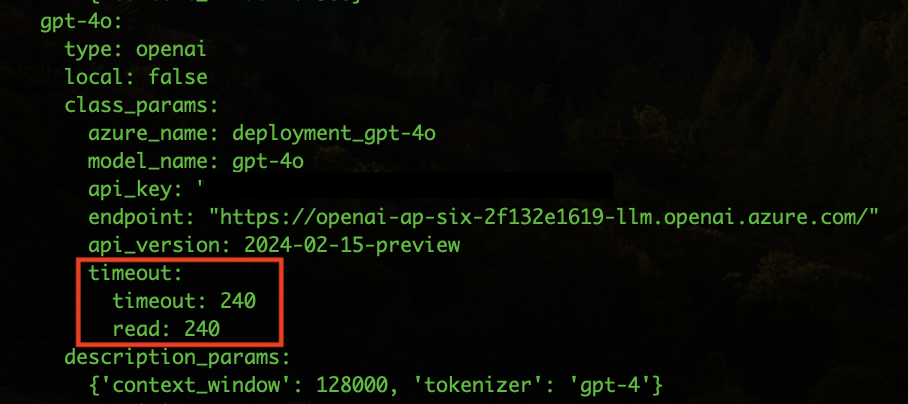
Guidelines for the modification of the model timeout parameter in the ATRIA gpt-4o model in a specific environment through the edition of the ConfigMap of the component:
-
Open the ConfigMap atria-model-gw-config and look for the model gpt-4o
kubectl edit configmap atria-model-gw-config -n <namespace>
(Change the namespace by the specific one) -
Edit the timeout and read keys to 240
-
Save and close the ConfigMap
-
Restart the deployment for the pod to be updated with the changes.
kubectl rollout restart deployment atria-model-gw -n <namespace>
(Change the namespace by the specific one)
Edit models prompts
Guidelines for the modification of the SQL prompt in the atria-rag-server project: Project to Copilot in a specific environment through the edition of the ConfigMap of the component:
- Open the ConfigMap atria-rag-config.
kubectl edit configmap atria-rag-config -n <namespace>
(Change the namespace by the specific one)
Important: Before modifying anything, it is highly recommended to make a backup of the ConfigMap content, because the format is very delicate.
-
Copy the whole content of the projects.yaml.project key and paste it into a new local file. Since it is a string, you need to transform it to YAML format, for an easier modification. You can use the YAML to string tool to convert a string to YAML and vice versa or YAML Lint to validate the YAML format.
-
When writing prompts, be very careful not to let tabulators (’\t’ characters) slip in. In addition, the spacing must be correct in multi-line strings.
-
projects.yaml.project contains all projects. At this stage, search the project to be modified: project-copilot.
-
Within this project, inside the prompts key, add (or modify if it already exists) the generate_sql_query field.
-
Once the prompt is set, copy all the content and pass it back to string, to paste it in the ConfigMap inside the projects.yaml.project key and save.
-
Restart the deployment for the pod to be updated with the changes.
kubectl rollout restart deployment atria-rag -n <namespace>
(Change the namespace by the specific one) -
Generate SQL query
    DEFAULT: |
    Generate a SQL query statement to answer the following question:
    `{question}`

    Use the data contained in the following table. You have its definition in SQL and in Avro.
    {sql_table_definition}

    The following tables, containing auxiliary information, are also available:
    ```sql
    CREATE TABLE D_CBD_Static_Geo_Area_v6 (GEO_AREA_ID VARCHAR, CBD_GEO_AREA_LEVEL1_ID VARCHAR, CBD_GEO_AREA_LEVEL2_ID VARCHAR, CBD_GEO_AREA_LEVEL3_ID VARCHAR, CBD_GEO_AREA_LEVEL4_ID VARCHAR, OB_ALPHA_ID VARCHAR, EXTRACTION_TM VARCHAR);
        COMMENT ON TABLE D_CBD_Static_Geo_Area IS 'Geographical areas. This table contains foreign keys to the different levels of geographical areas. In particular, it contains the foreign keys to these tables: CBD_Static_Geo_Area_Level1, CBD_Static_Geo_Area_Level2, CBD_Static_Geo_Area_Level3, CBD_Static_Geo_Area_Level4. Therefore, this tables is used, via JOIN, to query the geographical information contained in the different levels of geographical areas. For instance, if you have a table T with a field GEO_AREA_ID and you need to check whether this location corresponds to the region of Asturias you will need to look for GEO_AREA_ID in this table, then extract the CBD_GEO_AREA_LEVEL4_ID and query the table CBD_Static_Geo_Area_Level4 to get the name of the region.';
        COMMENT ON COLUMN D_CBD_Static_Geo_Area.GEO_AREA_ID IS 'Description: Identifier of the geographical area assigned to the customer (typically the geographical area of the customer home). This identifier is a string code which values are defined in ''D_Geographical_Area'' entity. Format: alphanumeric string. Example values: ''2800983CE'', ''50059'', ''3101142CE''';
        COMMENT ON COLUMN D_CBD_Static_Geo_Area.CBD_GEO_AREA_LEVEL1_ID IS 'Identifier of the geographical area Level 1 (max level of detail: CP or similar). FORMAT: string containing a numerical code. This field does not contain location names.';
        COMMENT ON COLUMN D_CBD_Static_Geo_Area.CBD_GEO_AREA_LEVEL2_ID IS 'Identifier of the geographical area Level 2 (City/Town). FORMAT: string containing a numerical code. This field does not contain location names.';
        COMMENT ON COLUMN D_CBD_Static_Geo_Area.CBD_GEO_AREA_LEVEL3_ID IS 'Identifier of the geographical area Level 3 (Province). FORMAT: string containing a numerical code. This field does not contain location names.';
        COMMENT ON COLUMN D_CBD_Static_Geo_Area.CBD_GEO_AREA_LEVEL4_ID IS 'Identifier of the geographical area Level 4 (State/Region). FORMAT: string containing a numerical code. This field does not contain location names.';
        COMMENT ON COLUMN D_CBD_Static_Geo_Area.OB_ALPHA_ID IS 'Alphanumeric Organizational Business ID';
        COMMENT ON COLUMN D_CBD_Static_Geo_Area.EXTRACTION_TM IS 'Date-time of the record';

    CREATE TABLE D_CBD_Static_Geo_Area_Level2_v6 (CBD_GEO_AREA_LEVEL2_ID VARCHAR, GEO_AREA_LEVEL_DES VARCHAR, CBD_GEO_AREA_LEVEL3_ID VARCHAR, LONGITUDE_LON_CO DOUBLE, LATITUDE_LAT_CO DOUBLE, GEO_AREA_ID VARCHAR, GEO_STD_AREA_CD VARCHAR, OB_ALPHA_ID VARCHAR, EXTRACTION_TM VARCHAR);
        COMMENT ON TABLE D_CBD_Static_Geo_Area_Level2 IS 'Geographical area level 2 (State)';
        COMMENT ON COLUMN D_CBD_Static_Geo_Area_Level2.CBD_GEO_AREA_LEVEL2_ID IS 'Identifier of the geographical area Level 2 (City/Town). FORMAT: string containing a numerical code.';
        COMMENT ON COLUMN D_CBD_Static_Geo_Area_Level2.GEO_AREA_LEVEL_DES IS 'Description associated to the identifier level 2. FORMAT: alphanumeric string containing the name of the city/town.';
        COMMENT ON COLUMN D_CBD_Static_Geo_Area_Level2.CBD_GEO_AREA_LEVEL3_ID IS 'Identifier of the geographical area Level 3 (Province)';
        COMMENT ON COLUMN D_CBD_Static_Geo_Area_Level2.LONGITUDE_LON_CO IS 'Longitude coordinates (in WGS84) associated with level 2';
        COMMENT ON COLUMN D_CBD_Static_Geo_Area_Level2.LATITUDE_LAT_CO IS 'Latitude coordinates (in WGS84) associated with level 2';
        COMMENT ON COLUMN D_CBD_Static_Geo_Area_Level2.GEO_AREA_ID IS 'Description: Identifier of the geographical area assigned to the customer (typically the geographical area of the customer home). This identifier is a string code which values are defined in ''D_Geographical_Area'' entity. Format: alphanumeric string. Example values: ''2800983CE'', ''50059'', ''3101142CE''';
        COMMENT ON COLUMN D_CBD_Static_Geo_Area_Level2.GEO_STD_AREA_CD IS 'Standard code of the geo area';
        COMMENT ON COLUMN D_CBD_Static_Geo_Area_Level2.OB_ALPHA_ID IS 'Alphanumeric Organizational Business ID';
        COMMENT ON COLUMN D_CBD_Static_Geo_Area_Level2.EXTRACTION_TM IS 'Date-time of the record';

    CREATE TABLE D_CBD_Static_Geo_Area_Level3_v6 (CBD_GEO_AREA_LEVEL3_ID VARCHAR, GEO_AREA_LEVEL_DES VARCHAR, CBD_GEO_AREA_LEVEL4_ID VARCHAR, LONGITUDE_LON_CO DOUBLE, LATITUDE_LAT_CO DOUBLE, ISO_3166_2_CD VARCHAR, GEO_AREA_ID VARCHAR, GEO_STD_AREA_CD VARCHAR, OB_ALPHA_ID VARCHAR, EXTRACTION_TM VARCHAR);
        COMMENT ON TABLE D_CBD_Static_Geo_Area_Level3 IS 'Geographical area level 3 (Region)';
        COMMENT ON COLUMN D_CBD_Static_Geo_Area_Level3.CBD_GEO_AREA_LEVEL3_ID IS 'Identifier of the geographical area Level 3 (Province). FORMAT: string containing a numerical code.';
        COMMENT ON COLUMN D_CBD_Static_Geo_Area_Level3.GEO_AREA_LEVEL_DES IS 'Description associated to the identifier level 3. FORMAT: alphanumeric string containing the name of the province.';
        COMMENT ON COLUMN D_CBD_Static_Geo_Area_Level3.CBD_GEO_AREA_LEVEL4_ID IS 'Identifier of the geographical area Level 4 (State/Region). FORMAT: string containing a numerical code.';
        COMMENT ON COLUMN D_CBD_Static_Geo_Area_Level3.LONGITUDE_LON_CO IS 'Longitude coordinates (in WGS84) associated with level 3';
        COMMENT ON COLUMN D_CBD_Static_Geo_Area_Level3.LATITUDE_LAT_CO IS 'Latitude coordinates (in WGS84) associated with level 3';
        COMMENT ON COLUMN D_CBD_Static_Geo_Area_Level3.ISO_3166_2_CD IS 'ISO 3166-2 associated';
        COMMENT ON COLUMN D_CBD_Static_Geo_Area_Level3.GEO_AREA_ID IS 'Description: Identifier of the geographical area assigned to the customer (typically the geographical area of the customer home). This identifier is a string code which values are defined in ''D_Geographical_Area'' entity. Format: alphanumeric string. Example values: ''2800983CE'', ''50059'', ''3101142CE''';
        COMMENT ON COLUMN D_CBD_Static_Geo_Area_Level3.GEO_STD_AREA_CD IS 'Standard code of the geo area';
        COMMENT ON COLUMN D_CBD_Static_Geo_Area_Level3.OB_ALPHA_ID IS 'Alphanumeric Organizational Business ID';
        COMMENT ON COLUMN D_CBD_Static_Geo_Area_Level3.EXTRACTION_TM IS 'Date-time of the record';

    CREATE TABLE D_CBD_Static_Geo_Area_Level4_v6 (CBD_GEO_AREA_LEVEL4_ID VARCHAR, GEO_AREA_LEVEL_DES VARCHAR, LONGITUDE_LON_CO DOUBLE, LATITUDE_LAT_CO DOUBLE, HASC_1_CD VARCHAR, GEO_AREA_ID VARCHAR, GEO_STD_AREA_CD VARCHAR, OB_ALPHA_ID VARCHAR, EXTRACTION_TM VARCHAR);
        COMMENT ON TABLE D_CBD_Static_Geo_Area_Level4 IS 'Geographical area level 4 (min. Detail)';
        COMMENT ON COLUMN D_CBD_Static_Geo_Area_Level4.CBD_GEO_AREA_LEVEL4_ID IS 'Identifier of the geographical area Level 4 (State/Region). FORMAT: string containing a numerical code.';
        COMMENT ON COLUMN D_CBD_Static_Geo_Area_Level4.GEO_AREA_LEVEL_DES IS 'Description associated to the identifier level 4. FORMAT: alphanumerical string containing the name of the state/region. EXAMPLE VALUES: ''Asturias'', ''Andaluc\u00eda'', etc.';
        COMMENT ON COLUMN D_CBD_Static_Geo_Area_Level4.LONGITUDE_LON_CO IS 'Longitude coordinates (in WGS84) associated with level 4';
        COMMENT ON COLUMN D_CBD_Static_Geo_Area_Level4.LATITUDE_LAT_CO IS 'Latitude coordinates (in WGS84) associated with level 4';
        COMMENT ON COLUMN D_CBD_Static_Geo_Area_Level4.HASC_1_CD IS 'Hierarchical administrative subdivision codes ';
        COMMENT ON COLUMN D_CBD_Static_Geo_Area_Level4.GEO_AREA_ID IS 'Description: Identifier of the geographical area assigned to the customer (typically the geographical area of the customer home). This identifier is a string code which values are defined in ''D_Geographical_Area'' entity. Format: alphanumeric string. Example values: ''2800983CE'', ''50059'', ''3101142CE''';
        COMMENT ON COLUMN D_CBD_Static_Geo_Area_Level4.GEO_STD_AREA_CD IS 'Standard code of the geo area';
        COMMENT ON COLUMN D_CBD_Static_Geo_Area_Level4.OB_ALPHA_ID IS 'Alphanumeric Organizational Business ID';
        COMMENT ON COLUMN D_CBD_Static_Geo_Area_Level4.EXTRACTION_TM IS 'Date-time of the record';

    CREATE TABLE D_CBD_Static_Station_Type_v6 (STATION_TYPE_CD VARCHAR, TECH_LEVEL_WEIGHT_QT FLOAT, STATION_TYPE_L2_DES VARCHAR, STATION_TYPE_L1_DES VARCHAR, STATION_TYPE_L2_ORDER_NUM INT, STATION_TYPE_L1_ORDER_NUM INT, STATION_TYPE_ORDER_NUM INT, CONSCIOUS_IND BOOLEAN, EXTRACTION_TM VARCHAR);
        COMMENT ON TABLE D_CBD_Static_Station_Type IS 'Station types';
        COMMENT ON COLUMN D_CBD_Static_Station_Type.STATION_TYPE_CD IS 'Description: Type of device connected to the HGU router. It used to find out which devices are connected to routers in households. Format: String. Example values: "A/V Equipment", "Air Conditioning", "Air Conditioning Control", "Apple Handheld Device", "Apple Home Device", "AudioCast", "Audiocast", "Barcode Printer", "Camera", "Car Dash Cam", "Cryptominner", "Digital Clock", "Dishwasher", "Drone Equipment", "GPS", "Gaming Console", "Hyper Media Player", "IP Camera", "IPC Hub", "IPC Video Recorder", "IoT Device", "Key Cutting Machine", "Media Center", "Monitoring Device", "Multimedia Player", "Network Access Point", "Network Equipment", "PC", "PDA", "PIR Sensor", "Print Server", "Printer", "Projector", "Raspberry", "Router", "Security System", "Smart AC Control", "Smart Air Freshener", "Smart Air Fryer", "Smart Air Ventilator", "Smart Animal Feeder", "Smart Baby Monitor", "Smart Blind", "Smart Bulb", "Smart Bulb Adapter", "Smart Car", "Smart Car e-Charger", "Smart Display e-bike", "Smart Energy Analyzer", "Smart Home Controller", "Smart Home Hub", "Smart Humidifier", "Smart Hydrometer Clock", "Smart Kitchen Appliances", "Smart Kitchen Scale", "Smart Lamp", "Smart Light Dimmer", "Smart Lock Control", "Smart Plug", "Smart Pool", "Smart Power Strip", "Smart Purifier", "Smart Scale", "Smart Signage", "Smart Speaker", "Smart Switch", "Smart TV", "Smart Thermostat", "Smart Toothbrush", "Smart Vacuum", "Smart WallSocket", "Smart Watch", "Smart Watch Fit", "Smart WifiButton", "Smartphone", "Smartphone/Tablet", "Smartwatch", "Smartwatch Fit", "Solar Panel Equipment", "Soundbar", "Steam Controller", "Storage Device", "TPV", "TV Dongle", "Tablet", "Tempest Weather System", "UPS", "VR/AR Headset", "Video Doorbell", "Video Intercom", "Video STB Equipment", "VideointercomIP", "Virtual Desktop", "VoIP Phone", "WAN Extender", "WiFi Extender", "Wifi Dongle", "Wireless Blood Pressure Monitor", "Wireless Bridge", "Wireless Headphones", "Wireless Router + VoIP Series", "e-Note", "eBook"';
        COMMENT ON COLUMN D_CBD_Static_Station_Type.TECH_LEVEL_WEIGHT_QT IS 'Associated weight for the technologic level of the home';
        COMMENT ON COLUMN D_CBD_Static_Station_Type.STATION_TYPE_L2_DES IS 'Description: Higher level device type grouping. Example values: "PCs & Home Office", "Smartphones / Tablets / eReaders / iWatch", "Multimedia Entertainment", "Gaming", "Sport & Health", "Smart Home", "Unknown", "Network Devices", "Security & Control"';
        COMMENT ON COLUMN D_CBD_Static_Station_Type.STATION_TYPE_L1_DES IS 'Description: Intermediate level device type grouping. Example values: "Smart Speakers & Audio", "PCs & Home Office", "Video Entertainment", "Domestic Appliances", "Smart Energy & Lighting", "Apple Handheld Device", "Smartphones / Tablets / eReaders", "Gaming", "Sport & Health", "Network Devices", "Security & Control", "IoT"';
        COMMENT ON COLUMN D_CBD_Static_Station_Type.STATION_TYPE_L2_ORDER_NUM IS 'Station type order level 2';
        COMMENT ON COLUMN D_CBD_Static_Station_Type.STATION_TYPE_L1_ORDER_NUM IS 'Station type order level 1';
        COMMENT ON COLUMN D_CBD_Static_Station_Type.STATION_TYPE_ORDER_NUM IS 'Station type order';
        COMMENT ON COLUMN D_CBD_Static_Station_Type.CONSCIOUS_IND IS 'Indicates if the related device type has energy efficiency';
        COMMENT ON COLUMN D_CBD_Static_Station_Type.EXTRACTION_TM IS 'Date-time of the record';

    CREATE TABLE D_Segment_v8 (OPERATOR_ID VARCHAR, SEGMENT_ID VARCHAR, SEGMENT_DES VARCHAR, GBL_SEGMENT_ID VARCHAR, SEGMENT_GROUP_ID VARCHAR, SEGMENT_GROUP_DES VARCHAR, EXTRACTION_TM VARCHAR);
        COMMENT ON TABLE D_Segment IS 'Classifications of the customers, attending to different segmentation criteria, for marketing and management issues, according to OB criteria and its correspondence with the global segment classification';
        COMMENT ON COLUMN D_Segment.OPERATOR_ID IS 'Global Operator Identifier (Operator acting as owner of the information present in the current entity)';
        COMMENT ON COLUMN D_Segment.SEGMENT_ID IS 'Description: Organisational segment of the client. Format: two letter string. Possible values: ''NT'' - NTT, ''GP'' - Residencial, ''PE'' - Pymes, ''RE'' - Residencial/SC, ''AU'' - Autonomos, ''OP'' - Operadores, ''GC'' - Grandes Clientes, ''RP'' - Residencial Prepago, ''TE'' - Telefonica, ''SC'' - Sin Clasificar, ''ME'' - Empresas';
        COMMENT ON COLUMN D_Segment.SEGMENT_DES IS 'Description: Name or description of the organisational segment of the client (provides the description for each segment identifier). Format: string. Example values: ''Residencial",  ''Pymes'', ''Autonomos'', ''Operadores'', ''Grandes Clientes'', ''Sin Clasificar''';
        COMMENT ON COLUMN D_Segment.GBL_SEGMENT_ID IS 'ID of the global segment classification';
        COMMENT ON COLUMN D_Segment.SEGMENT_GROUP_ID IS 'ID code of the segmentation group';
        COMMENT ON COLUMN D_Segment.SEGMENT_GROUP_DES IS 'Description of the segmentation group';
        COMMENT ON COLUMN D_Segment.EXTRACTION_TM IS 'Date-time of the record';

    CREATE TABLE D_Fixed_Tariff_Plan_v8 (OPERATOR_ID VARCHAR, DAY_DT VARCHAR, TARIFF_PLAN_ID VARCHAR, TARIFF_PLAN_DES VARCHAR, VOICE_IND BOOLEAN, BBAND_IND BOOLEAN, TV_IND BOOLEAN, WORKSTATION_IND BOOLEAN, APP_IND BOOLEAN, VOICE_BUNDLE_QT FLOAT, BBAND_UP_SPEED_QT FLOAT, BBAND_DOWN_SPEED_QT FLOAT, TV_TYPE_CD VARCHAR, FIXED_SERVICE_COMMERCIAL_NAME VARCHAR, COMMERCIAL_IND BOOLEAN, TARIFF_PLAN_START_DT VARCHAR, TARIFF_PLAN_END_DT VARCHAR, CONVERGENT_IND BOOLEAN, BRAND_ID VARCHAR);
        COMMENT ON TABLE D_Fixed_Tariff_Plan_v8 IS 'Every fixed Tariff to be applied, either Commercial, Convergent, Individual, or any other, for any product&service for the fixed client base';
        COMMENT ON COLUMN D_Fixed_Tariff_Plan_v8.OPERATOR_ID IS 'Global Operator Identifier (Operator acting as owner of the information present in the current entity)';
        COMMENT ON COLUMN D_Fixed_Tariff_Plan_v8.DAY_DT IS 'Year, month and day of the data  ### Additional Information  Format: YYYYMMDD (4 digits for year, months from 01 to 12, days from 01 to 31).';
        COMMENT ON COLUMN D_Fixed_Tariff_Plan_v8.TARIFF_PLAN_ID IS 'Unique identifier of the tariff plan';
        COMMENT ON COLUMN D_Fixed_Tariff_Plan_v8.TARIFF_PLAN_DES IS 'Name/short description of the tariff plan';
        COMMENT ON COLUMN D_Fixed_Tariff_Plan_v8.VOICE_IND IS 'Indicates whether the line has a fixed line voice service associated.  Values: 0=No; 1=Yes.';
        COMMENT ON COLUMN D_Fixed_Tariff_Plan_v8.BBAND_IND IS 'Indicates whether the line has a Broadband service associated.  Values: 0=No; 1=Yes.';
        COMMENT ON COLUMN D_Fixed_Tariff_Plan_v8.TV_IND IS 'Indicates if the line has a TV service associated.  Values: 0=No; 1=Yes.';
        COMMENT ON COLUMN D_Fixed_Tariff_Plan_v8.WORKSTATION_IND IS 'Indicates if the line has a workstation service associated.  Values: 0=No; 1=Yes.';
        COMMENT ON COLUMN D_Fixed_Tariff_Plan_v8.APP_IND IS 'Indicates if the line has the "Aplicateca service" associated.  Values: 0=No; 1=Yes.';
        COMMENT ON COLUMN D_Fixed_Tariff_Plan_v8.VOICE_BUNDLE_QT IS 'Amount of data associated with the voice bundle';
        COMMENT ON COLUMN D_Fixed_Tariff_Plan_v8.BBAND_UP_SPEED_QT IS 'Broadband up speed (Mbps)';
        COMMENT ON COLUMN D_Fixed_Tariff_Plan_v8.BBAND_DOWN_SPEED_QT IS 'Broadband down speed (Mbps)';
        COMMENT ON COLUMN D_Fixed_Tariff_Plan_v8.TV_TYPE_CD IS 'Type of TV line';
        COMMENT ON COLUMN D_Fixed_Tariff_Plan_v8.FIXED_SERVICE_COMMERCIAL_NAME IS 'Commercial name of the service';
        COMMENT ON COLUMN D_Fixed_Tariff_Plan_v8.COMMERCIAL_IND IS 'Indicates if TARIFF_PLAN_ID refers to the COMMERCIAL_TARIFF_ID.    Fill-in with 1 if TARIFF_PLAN_ID refers to the COMMERCIAL_TARIFF_ID or 0 if it doesn''t    0 = Non commercial tariff  1 = commercial tariff';
        COMMENT ON COLUMN D_Fixed_Tariff_Plan_v8.TARIFF_PLAN_START_DT IS 'Start date of the tariff plan validity (that day is the first day when the tariff plan is applicable)  ### Additional Information  Format: YYYYMMDD (4 digits for year, months from 01 to 12, days from 01 to 31).';
        COMMENT ON COLUMN D_Fixed_Tariff_Plan_v8.TARIFF_PLAN_END_DT IS 'End date of the tariff plan validity (that day is the last day when the tariff plan is applicable)  ### Additional Information  Format: YYYYMMDD (4 digits for year, months from 01 to 12, days from 01 to 31).';
        COMMENT ON COLUMN D_Fixed_Tariff_Plan_v8.CONVERGENT_IND IS 'Flag indicating if the current fixed tariff plan can be configured as a "Convergent tariff plan", i. e., a plan with special conditions due to the fact of including at least one Fixed line/service and one Mobile line.   0 = No (the plan can''t be configured as convergent)   1 = Yes (the plan can be configured as convergent)';
        COMMENT ON COLUMN D_Fixed_Tariff_Plan_v8.BRAND_ID IS 'Commercial brand identifier. In order to differentiate among different brands in the same OB (e.g. Movistar, O2, Tuenti...)';
    ```

    Some of the former tables contain columns in full-qualified format. For instance, these are some examples of full-qualified columns:
    ```
    record_name.field_name
    TEC_PLAT_REC.DEVICE_ID

    record_name.subrecord_name.field_name
    TEC_PLAT_REC.TEC_PLAT_SUBCOMP_REC.DEVICE_ID
    ...
    ```
    Always use the full-qualified format when referring to columns in the tables. For instance, if you need to use the column 'TEC_PLAT_REC.DEVICE_ID', you should not refer to it as 'DEVICE_ID', but as 'TEC_PLAT_REC.DEVICE_ID'.

    **Explain in detail, step by step, all your decisions**.


    # General instructions

    Follow these reasoning steps to generate the SQL query:
    - Step 1: Identify Necessary Tables
      - Step 2: Identify Useful Candidate Columns
      - Step 3: Assess if Tables and Columns are Sufficient to Answer the Question
      - Step 4: Identify Columns Contained in Maps
      - Step 5: Plan the SQL Query
      - Step 6: Write the final SQL Query and apply the rules
      - Step 7: Check that the query actually can answer the question
      - Step 8: Create the result as a JSON object

    If you need to filter by a higher level geographical such as a region (Comunidad Autónoma) you will need to:
    - join the `GEO_AREA_ID` field of the data table (such as `CBD_HGU_Detail_Daily_v10`) with the `GEO_AREA_ID` field in `D_CBD_Static_Geo_Area_v6` table
      - then join the `CBD_GEO_AREA_LEVEL4_ID` field in the `D_CBD_Static_Geo_Area_v6` with the `CBD_GEO_AREA_LEVEL4_ID` field in the `D_CBD_Static_Geo_Area_Level4_v6` table
      - then compare the `GEO_AREA_LEVEL_DES` field in the `D_CBD_Static_Geo_Area_Level4_v6` table with the name of the region (e.g., 'Cantabria'), since the DESCRIPTION field does contain the actual name of the geographical area.
      **Only perform these joins if explicit filtering or grouping by geographical location is necessary**.


    # Detailed instructions

    ### Step 1: Identify Necessary Tables
    First, identify which tables are necessary to answer the question `{question}`. Justify why you selected each of these tables.
    Use the following format:
    ```
    I need the following tables to answer the question:
    - <table_name>: <reasoning>
    - <table_name>: <reasoning>
    ...
    ```

    ### Step 2: Identify Useful Candidate Columns
    Identify which columns are useful to answer the question `{question}`. Justify why you selected each of these columns.
    Always include any column you think may be needed to answer the question. If there are similar columns in the table, you should identify all of them always. You will later choose which them are more suitable to answer the question. But, at this stage, you should include **all the columns that may be useful**.
    Write the list of candidate columns you identified, and the reasoning after each column, using the following format:
    ```
    I can use the following candidate columns to answer the question (including all the columns that may be useful):
    - <table name>:
      - <column_name>: <copy here the full column description from schema>, including possible values if present>: <reasoning>.
      - <column_name>: <copy here the full column description from schema>, including possible values if present>: <reasoning>.
      ...
    - <table_name>:
      - <column_name>: <copy here the full column description from schema>, including possible values if present>: <reasoning>.
      - <column_name>: <copy here the full column description from schema>, including possible values if present>: <reasoning>.
      ...
    ...
    ```


    ### Step 3: Assess if Tables and Columns are Sufficient to Answer the Question
    Tell if the tables and columns you identified are enough to answer the question `{question}`. Make sure to justify your answer and check the actual descriptions of the columns in the table definitions and the user question.
    Write the answer using the following format:
    ```
    Possible to answer the question using the former columns:
    - <reasoning>
        - Result: <Yes|No>
        ```


    ### Step 4: Identify Columns Contained in Maps
    Some columns are actually contained in a map structure. Since these columns need to be queried differently, you need to identify them.
    Columns with a name like '<some_name>.map.<other_name>' are contained in maps.
    For instance, the column `STATIONS_DETAIL_REC.UNQ_STATION_MAP.map.STATION_TYPE_CD` is contained in a map structure called `STATIONS_DETAIL_REC.UNQ_STATION_MAP`.
    This map structure is like this:
    ```
    STATIONS_DETAIL_REC.UNQ_STATION_MAP.map.STATION_TYPE_CD: {{
        <key1>: {{
            <some_field>; <some_value>,
            "STATION_TYPE_CD": <station_type_value1>
        }},
        <key2>: {{
            <some_other_field>; <some_other_value>,
            "STATION_TYPE_CD": <station_type_value2>
        }},
        ...
    }}
    ```
    Therefore, in this step, identify which columns are contained in maps since you will later need to use LATERAL VIEW EXPLODE to access the values of these maps.


    ### Step 5: Plan the SQL Query
    Explain, step by step, how you would write the SQL query to answer the question `{question}`, using the columns you identified.
    **Use the full qualified names of the columns**. **DO NOT USE THE `JSON_OBJECT` FUNCTION IN THE QUERY**.

    Some columns are contained in map structures. You can access the fields of the map using LATERAL VIEW EXPLODE. Do not use UNNEST to access the fields of the map.
    In particular, you can create a temporary table with the exploded map and then query it. For instance, if you need to get the value of the `ABC.CDE.map.field` column, you should use the following SQL code to create a temporary table with the exploded map data and get the value of the field:
    ```sql
    WITH exploded_map AS (
      SELECT key, value.field_1, value,field_2, value.field_3  -- Select here all the columns/fields you will use later.
      FROM <table_name>
      LATERAL VIEW EXPLODE(ABC.CDE) AS key, value
    )
    SELECT exploded_map.field_1
    FROM exploded_map
    ```
    This is another example:
    ```sql
      WITH exploded_map AS (
      SELECT DATE, ID, RECORD.GROUP, value.CODE  -- Select here all the columns/fields you will use later.
        FROM CBD_HGU_Detail_Daily_Aura_v10 LATERAL VIEW EXPLODE(STATIONS_DETAIL_REC.UNQ_STATION_MAP) AS key, value)
      SELECT COUNT(DISTINCT ID) AS num_homes
      FROM exploded_map JOIN D_Segment_v8 ON exploded_map.CLASS_ID = D_Segment_v8.CLASS_ID
        WHERE DATE BETWEEN '2024-01-01' AND '2024-02-01'
          AND D_Segment_v8.DESCRIPTION = 'DESCRIPTION value'
          AND exploded_map.CODE = 'CODE value'
    ```
    Here is another example. If you need to count the number of elements in a map column named 'ABC.map' you should use a code like this:
    ```sql
    WITH exploded_map AS (
      SELECT key_from_exploded_map
      FROM <table_name>
      LATERAL VIEW EXPLODE(ABC) AS key_from_exploded_map, value_from_exploded_map
    )
    SELECT COUNT(key_from_exploded_map)
    FROM exploded_map
    ```
    Take into account that all map fields are named with the suffix `_MAP`. Take into account that you can only use the operation EXPLODE to fields that are maps. Therefore, you should use the EXPLODE operation only on fields that end with `_MAP`.

    To finish this step, explain how you would write the SQL query to answer the question, using the columns you identified, taking into account the previous considerations for columns contained in maps, if there are any.


    ### Step 6: Write the final SQL Query and apply the rules
    Finally, write the SQL query to answer the question `{question}`, using the columns you identified.
    Remarks:
    **DO NOT USE THE `JSON_OBJECT` FUNCTION IN THE QUERY**.
    **IMPORTANT: The keys in the exploded maps should not be used in JOIN operations, since they are just internal keys to the map structure.**

    Check if you need to use any of the following **business rules** to build the query:
    ```json
    {rules}
    ```
    Explain whether you can apply any of the rules and explain how you would apply them in the SQL query.

    Always write your result following these steps:
    1. SQL query to answer the question `{question}`: <write the SQL query here>
       2. Reasoning: <explain why you wrote the query like that>
       3. Check of the rules, RULE BY RULE and FOR EACH RULE (one entry per rule)2. <write ALL the rules and tell if they are applied or not>. Follow this format:
       - <rule1>: Should be applied, because <reason> | Should not be applied, because <reason>
       - <rule2>: Should be applied, because <reason> | Should not be applied, because <reason>
       ...
       4. Result of the execution of the rules that have been identified to be applied. Follow this format:
       - <rule1>: <result>
       - <rule2>: <result>
       ...
       5. Need to fix the query because <reason>. The following changes are needed: <change_1>, <change 2>, etc. | The query is already correct.
       6. SQL query to answer the question `{question}` after considering the previous **rules**: <write the SQL query here>. FIX THE QUERY IF NECESSARY.


    ### Step 7: Check that the query actually can answer the question
    Check again if the generated query answers the question `{question}`.
    Follow these steps:
    1. Write the concepts involved in the question. Enumerate the concepts as a list. Follow this format:
     - <concept1>
     - <concept2>
     ...
       2. Write all the concepts of the question that are covered by the SQL query. Enumerate them and create a match list with the concepts from the previous step. Write down the part of the SQL query covering the concept. Take into account that conditions on specific proper names, such as model names, location names, etc, need to be explicitly checked. Follow this format:
          - <concept1>: covered in <sql query section> or not covered.
          - <concept2>: covered in <sql query section> or not covered.
          3. Find those concepts in the question that are not covered by the SQL query.
          4. Conclude whether the question can actually be answered by the generated query. Follow this format:
          - The question can be answered by the SQL query: <Yes|No>


    ### Step 8: Create the result as a JSON object
    Return the result as a unique JSON object, with the following structure:
    {{
      "result": <Write the SQL query here. **MAKE SURE THAT THE STATEMENT `SELECT JSON_OBJECT` is not used in the query and Use the full qualified names of the columns. Generate a valid SQL sentence in a single line without new line characters.**>,
      "status": "OK",
      "reason": <a reasoning explaining the query>
    }}
    If the former table does not contain the necessary data to answer the question, return the following JSON object:
    {{
      "result": null,
      "status": "ERROR",
      "reason": <a reasoning explaining why it is not possible to answer the question>
    }}
    Make sure that the JSON object is correctly formatted, and can be parsed by a JSON parser.


    **Please, ALWAYS follow the 8 steps presented in the instructions.** Start reasoning with ### Step 1 and finish with ### Step 8.
Upload documents and execute generate-db job
Guidelines for uploading new or modified documents in a specific environment through the edition of the ConfigMap of the component:
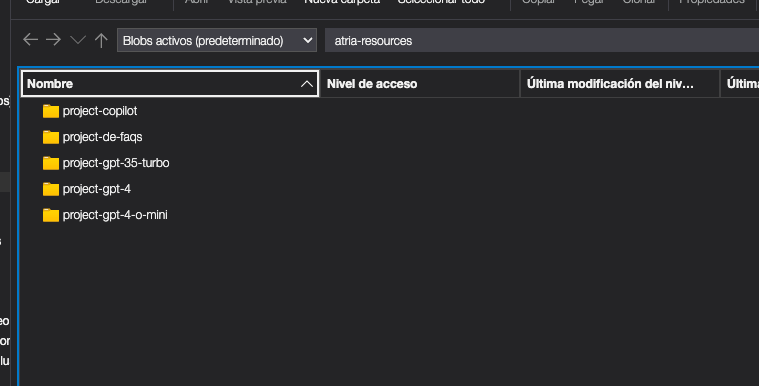
- Upload the documents in the Azure container
atria-resources.
- To make it easier to understand which project the documents belong to, insert these documents in a folder with the name of the project.
- Keep in mind the allowed formats for documents, set in the project’s variable
loader. - An example of folder structure is shown below.
- If you want to update any parameter in the documents, you need to modify the ConfigMap. For example, if there is a change in the documents’ path, the field
dirmust be updated with the new path where the documents are stored.
-
Open the ConfigMap atria-rag-config.
kubectl edit configmap atria-rag-config -n <namespace>(Change the namespace by the specific one) -
Copy the whole content of the projects.yaml.project key and paste it into a new local file. Since it is a string, you need to transform it to YAML format, for an easier modification. You can use the YAML to string tool to convert a string to YAML and vice versa.
-
Modify the
docskey of the project. -
Once changes in
docsare set, copy all the content and pass it back to string, to paste it in the ConfigMap inside the projects.yaml.project key and save.
kubectl rollout restart deployment atria-rag -n <namespace>(Change the namespace by the specific one)
Here is an example of documents configuration. In this example, it has been separated into two folders within the project, as we are going to load two different types of data into this project.
```yaml
project-copilot:
  docs:
    pdf:
      dir: /opt/atria-rag/data/project-copilot/pdfs
      extensions: pdf
      loader: unstructured
      loader_options:
          mode: single
    url:
      dir: /opt/atria-rag/data/project-copilot/urls
      extensions: txt
      loader: url_list
```
-
If you use URLs, upload a file with the list of URLs in the project folder. Separate each URL with a line break. The file must have the extension
.txt.http://www.url1.com http://www.url2.com -
If you use jsonl files, you need to upload the file content in the same folder with the extension
.jsonl. To do so, each desired document content must be provided in thepage_contentkey.{"page_content": "test content 1", "metadata": {"source": "https://www.dummy1.es/"}, "type": "Document"} {"page_content": "test content 2", "metadata": {"source": "https://www.dummy2.es/"}, "type": "Document"} -
Finally, execute the atria-rag-generate-db job to update the data into the environment.