1 - Configure users expiration
Guidelines for the activation and configuration of the users expiration feature in Aura.
Introduction
If needed for security reasons, auraId can expire in Aura before the authorizationId expires in Kernel. The time to expire a user can be configured by channel with the configuration variable authorizationIdExpiration.
Furthermore, when the time has expired, the user’s authorizationId in the Kernel will also expire. For this reason, it is necessary to previously configure the specific scope to be able to invalidate it.
The guidelines for both processes are detailed below:
As explained above, it is required to configure the scope to allow the deletion of the user’s authorizationId in Kernel.
First of all, we must ensure that the app has the correct permissions, specifically the scope: single-access-sessions-write. If not, it will be necessary to configure it in the app and also to specify it in the channel configuration, following these instructions:
- Get the Kernel app name or
client_id.
To obtain it, execute the following command:
# substitute {{aura-environment}} with the environment you're configuring
export AURA_ENVIRONMENT={{aura-environment}}

$ kubectl -n $AURA_ENVIRONMENT get cm aura-bot -o json | jq -r ".data.AURA_FP_CLIENT_ID"

aura-bot
-
Request the change to the Kernel operators of your environment: add the scope single-access-sessions-write in aura-bot.
-
Configure the scope or purpose in the channel configuration of aura-configuration-api, within the security field and changing the value of the properties authPurposes or authScopes.
You can also do it through a hot swapping process, following the guidelines in update channels configuration.
Example:
[
    {
        "id": "45494a5b-835a-4fff-a813-b3d2be529dbe",
        "name": "novum-mytelco",
        "prefix": "nov",
        "security": {
            "authorizationIdExpiration": 259200,
            "authPurposes": "customer-self-service identify-customer aura-technical-problems-purpose",
            "authScopes": "",
            "channelId": "novum-mytelco"
        },
        "metadata": {
            "updatedAt": "2022-09-06T09:58:19.543Z",
            "version": "7.4.0",
            "createdAt": "2022-09-06T09:58:19.543Z"
        }
    }
]
Configure the time to expire a user in the configuration variable authorizationIdExpiration of aura-configuration-api.
You can also do it through a hot swapping process, following the guidelines in update channels configuration.
Response example:
[
    {
        "id": "45494a5b-835a-4fff-a813-b3d2be529dbe",
        "name": "novum-mytelco",
        "prefix": "nov",
        "security": {
            "authorizationIdExpiration": 259200,
            "authPurposes": "customer-self-service identify-customer aura-technical-problems-purpose",
            "authScopes": "",
            "channelId": "novum-mytelco"
        }
    }
]
In the previous example, the authenticated users of this channel will expire in 3 hours (259200 seconds). After this time, the user will be deleted from aura-authentication-api database and the bot cache will be discarded.
2 - Google RCS Business Messaging channel activation
Google RCS Business Messaging channel activation
Guidelines for the activation of Google RCS Business Messaging in Aura
Create an RBM account
-
First, fill the following form to create an RBM (RCS Business Messaging) account.
-
After that, wait until Google answers your request or contact them to speed up the process.
-
Once you receive the confirmation, you will be sent an email with another form to create your partner account.
-
Following the previous instructions, you will be able to create and configure new agents.
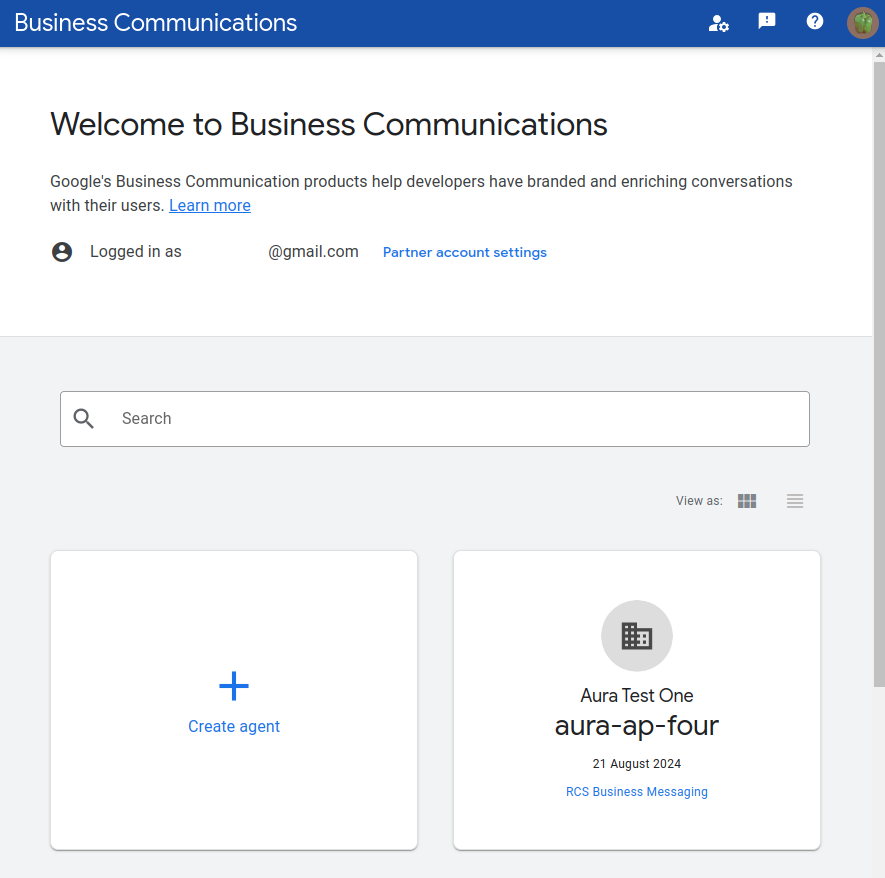
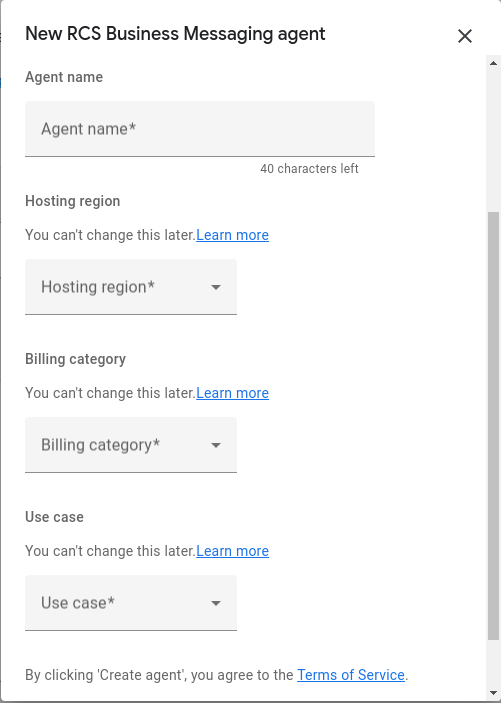
- To create a new agent, go to the RBM console and configure your agent with the desired parameters.
- After that, configure your channel to handle all the messages. First, create your channel with a configuration similar to this:
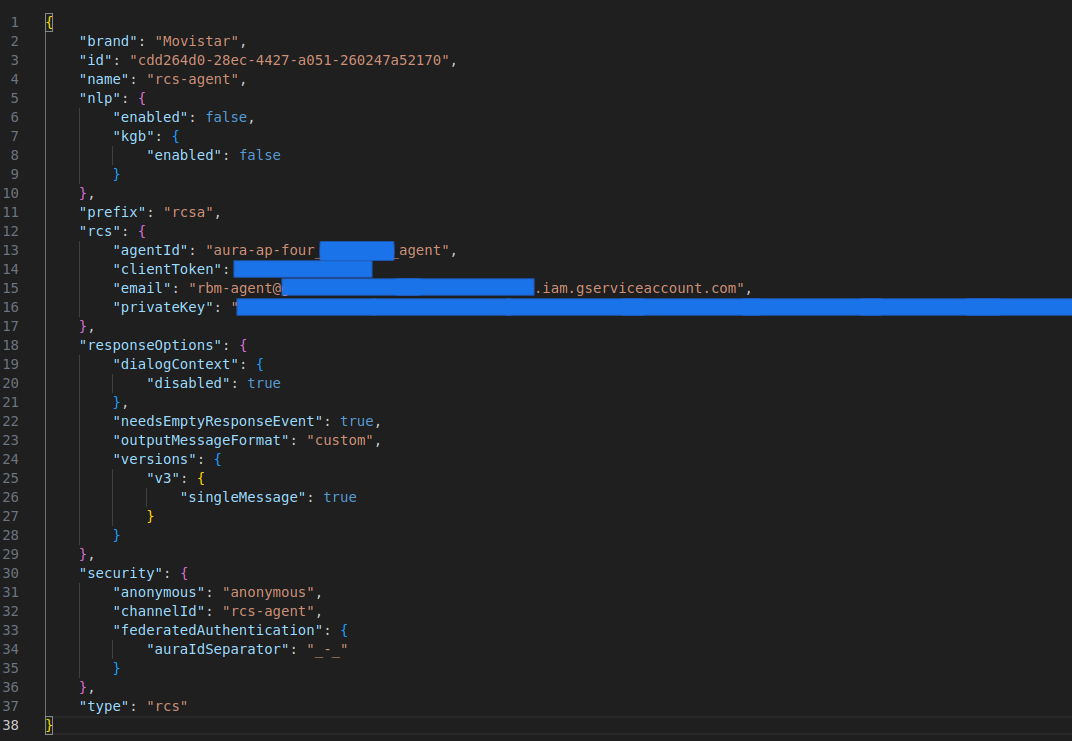
- If your channel is already created in aura-config-provision, you should configure the missing values for your environment.
There are some fields in the rcs configuration that must be obtained from the RBM console:
-
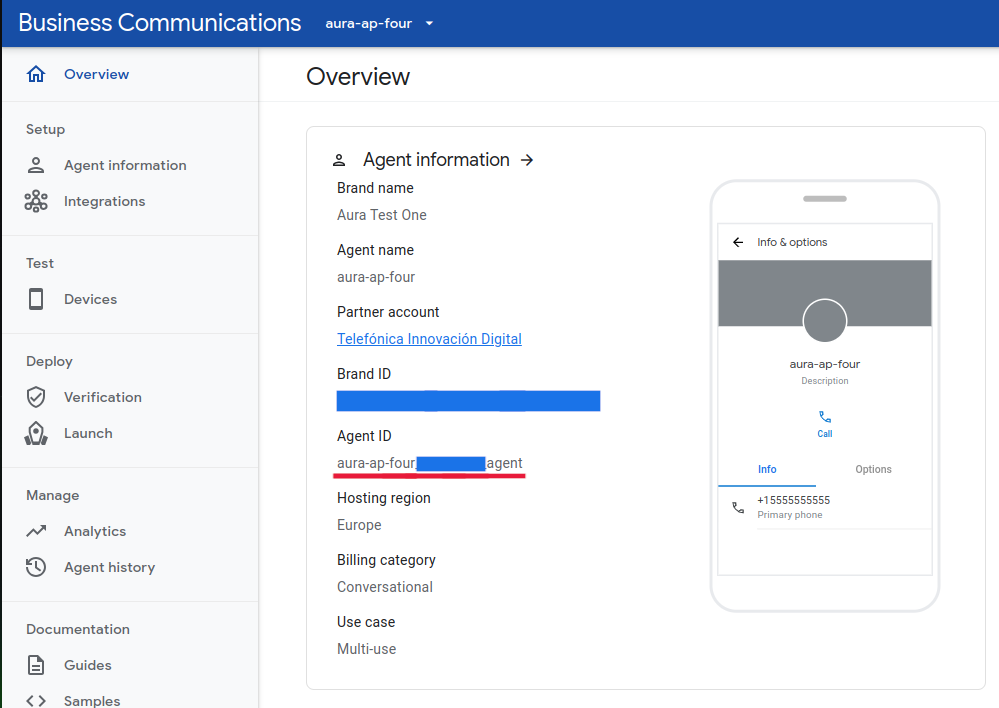
The agentId value can be found in the overview section in your agent configuration:
-
The clientToken can be a custom value or a generated one in the web. It will be used later when the webhook is configured.
-
The email and privateKey can be obtained in the RBM console, creating a new private key inside the partner account settings:
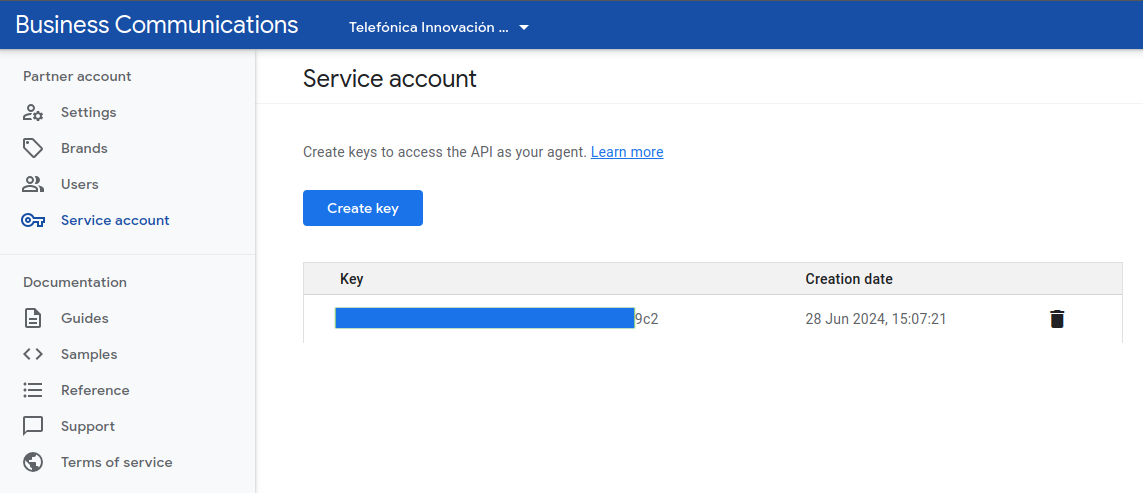
This action will return a json file with all the information, including email and privateKey
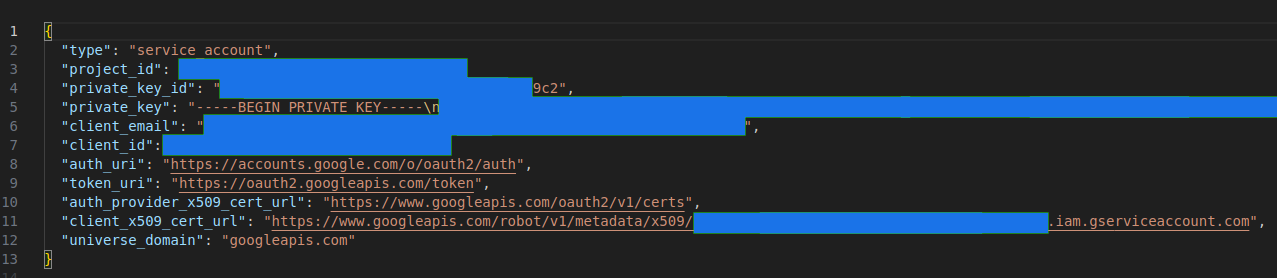
Important: the field privateKey must be stored in aura-configuration-api in a base64 format.
-
With the channel configured, add your endpoint to the webhook agent configuration:
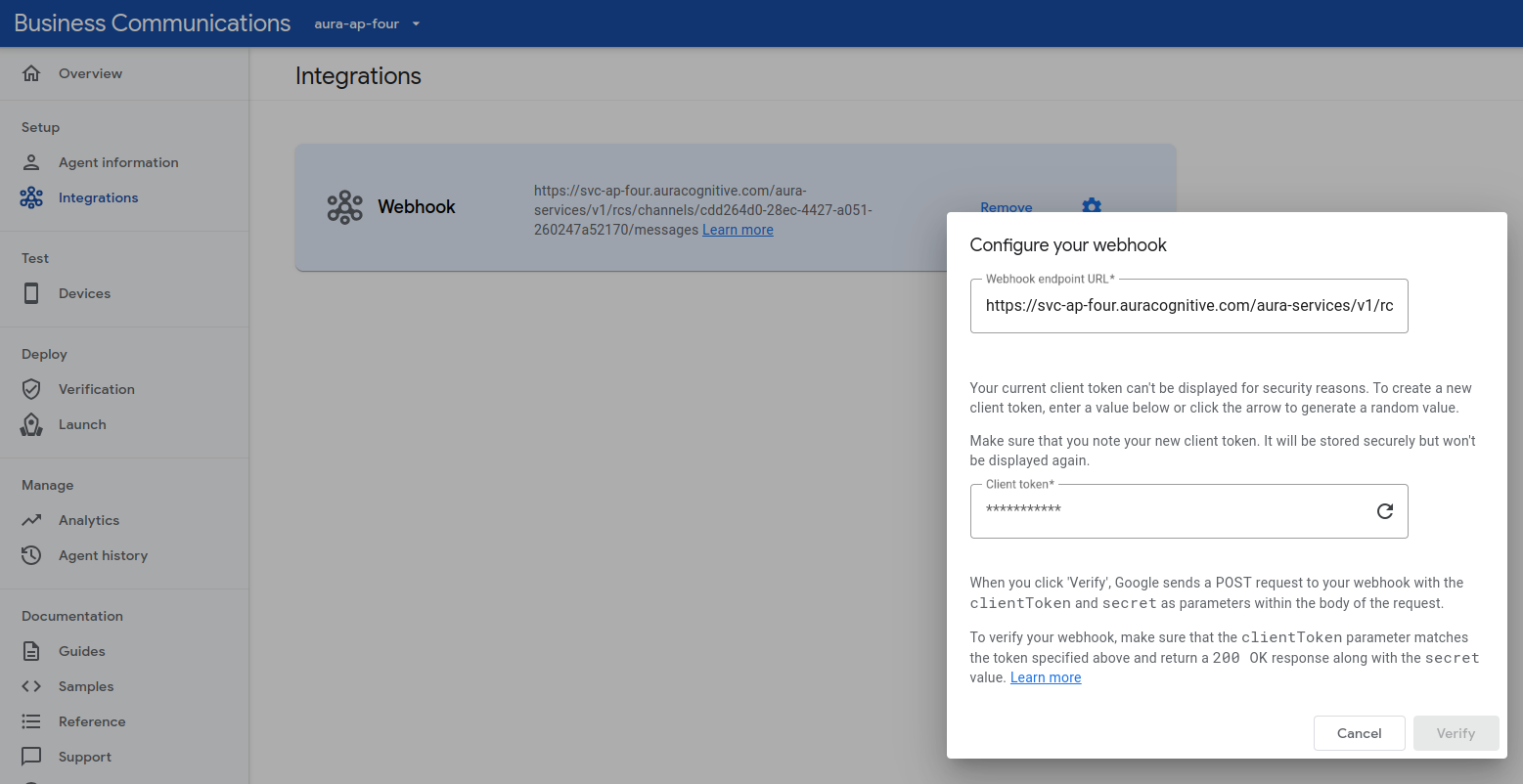
To configure the webhook, set the public endpoint of your bridge:
https://svc-{{ENVIRONMENT}}.auracognitive.com/aura-services/v1/rcs/channels/{{CHANNELID}}/messages
And set the client token with the value configured in the field rcs.clientToken within the channel configuration.
If the values are properly configured, the web will return a success message. All these values stored in aura-configuration-api must be consolidated in the aura-config-provision repository.
3 - WhatsApp activation
WhatsApp channel activation
Guidelines for the activation and deactivation of WhatsApp features in Aura
Prerequirements
-
This step must be only executed if the environment counts on a channel of whatsapp type.
-
It must be executed only once, when setting up each channel. Afterwards, the configuration just has to be reviewed.
Moreover, the following pre-requirements must be met:
-
WhatsApp channel is already configured in the aura-configuration-api and its uses cases are already configured and its configuration included:
-
Kernel client_id for aura-bot
-
Kernel client_secret for aura-bot
-
There is a valid and active MSISDN to be configured as WhatsApp contact for the company phone number.
-
There is an URL where the whatsapp callback of aura-bridge will be listening to once activated.
- Usually, something like:
https://{{aura-services-domain}}.auracognitive.com/aura-services/v1/whatsapp/messages?apikey={{api_key}}
Where:
{{aura-services-domain}} should be svc-[country]-[environment], for instance svc-es-pre{{api_key}} is an specific APIKey created for Kernel to access this endpoint.
-
There is a Kernel environment to which Aura environment is connected. Recommended:
kubectl installed in your local host.curl installed in your local host.jq installed in your local host.
Register WhatsApp in Kernel and FacebookManager
Before activating WhatsApp in Aura, WhatsApp API must be configured in the corresponding Kernel environment.
⚠️ If the APIs are already configured for your aura-bot application, please skip this section.
This whole procedure is fully dependant of the Kernel Operations Team and it is defined in the Kernel documentation: WhatsApp channel API.
As a summary, follow the steps below.
Add WhatsApp scopes in your application
-
First of all, we must get the Kernel app name or client_id in which WhatsApp APIs must be available.
To obtain it, just execute the following command:
# substitute {{aura-environment}} with the environment you're configuring
export AURA_ENVIRONMENT={{aura-environment}}

$ kubectl -n $AURA_ENVIRONMENT get cm aura-bot -o json | jq -r ".data.AURA_FP_CLIENT_ID"

aura-bot
-
Now, request the change to the Kernel operators of your environment: add the scope whatsapp:app-admin in aura-bot.
Get a valid access_token to start the registering process
-
To use the Kernel WhatsApp API, you must first authenticate with client credentials specifying the required purpose (whatsapp:app-admin).
To obtain the real secret of your app, just run the following command, as an example of using app “aura-bot” in Kernel “global-int-current” with a fake password.
$ kubectl -n $AURA_ENVIRONMENT get secret aura-bot -o json | jq -r ".data.AURA_FP_CLIENT_SECRET|@base64d"
-
Now you are able to request the access_token:
# generate a valid UUID as correlator
# subsitute {{correlator}} with the generated UUID
export CORRELATOR={{correlator}}
# substitute aura-bot:secret with the specific information for your Kernel client.

$ curl -i -X POST -u aura-bot:secret -H 'Content-Type: application/x-www-form-urlencoded' -H 'Cache-Control: no-cache' -H 'x-correlator: $CORRELATOR' 'https://auth.global-int-current.baikalplatform.com/token' -d 'scope=whatsapp:app-admin&grant_type=client_credentials'

HTTP/2 200
{"access_token":"<token>","token_type":"Bearer","expires_in":3599,"scope":"whatsapp:app-admin","purpose":""}

export TOKEN=<token>
As can be seen, we get a token, that we will use as bearer authorization when registering the phone number.
Register the phone number in Facebook Manager
⚠️ This step must be done by Kernel Operations Team
Request a registration code
-
For this step, you need the previously generated access_token and the base64 encoded certificate associated to your phone number.
-
To execute the request, just launch the following command.
# substitute <phone-number> with your own one without the country code
# substitute <base64_cert> with the certificate that Kernel handed to you
# set sms or voice in the method field. SMS recommended.

$ curl -i -X POST -H "Authorization: Bearer $TOKEN" -H 'Content-Type: application/json' -H 'x-correlator: $CORRELATOR' 'https://api.global-int-current.baikalplatform.com/whatsapp/v1/account' -d '{"cc": "34", "phone_number": "<phone-number>", "method": "sms", "cert":"<base64_cert>"}'

HTTP/2 202
{"account":[{"vname":"Entorno Aura Movistar Espa\u00f1a"}],"meta":{"api_status":"stable","version":"2.29.3"}}
-
The outcome of this request is a registration code and can be received via SMS or voice call, so your SIM must be deployed in a device.
Find further information in Kernel documentation: Request code
Behind the scenes, it will call https://developers.facebook.com/docs/whatsapp/api/account#regcode
Verify registration
Find further information in Kernel documentation: Register account
Behind the scenes, it will call https://developers.facebook.com/docs/whatsapp/api/account#verify
Set the webhook
-
Tell Kernel which is the callback of the service where Aura will process the WhatsApp requests.
So, in this case, we must set as webhook the WhatsApp messages endpoint of aura-bridge.
An example request is shown below:
# substitute <aura-services-domain> with the domain of your environment, usually something like svc-es-pro
# substitute <api-key> with an apikey generated
# substitute <channelId> with a whatsapp channel identifier

$ curl -i -X PATCH -H "Authorization: Bearer $TOKEN" -H 'content-type: application/json' -H 'x-correlator: $CORRELATOR' 'https://api.global-int-current.baikalplatform.com/whatsapp/v1/settings/webhook' -d '{"webhooks": {"url": "https://<aura-services-domain>.auracognitive.com/aura-services/v1/whatsapp/messages?apikey=<api_key>&channelId=<channelId>"}}'

HTTP/2 201
{"webhooks": {"url": "https://<aura-services-domain>.auracognitive.com/aura-services/v1/whatsapp/messages?apikey=<api_key>&channelId=<channelId>"}}
⚠️ It is not needed that the endpoint is up and running to set it as webhook.
Find further information in Kernel documentation: Update webhooks
Enabling WhatsApp controller in Aura Bridge
-
Get sure that all the necessary WhatsApp plugins are set in aura-bridge plugin configuration file:
[
    "./lib/plugins/directline-service",
    "./lib/plugins/directline-whatsapp-processor",
    "./lib/plugins/directline-whatsapp-service",
    "./lib/plugins/whatsapp-incoming-processor",
    "./lib/plugins/whatsapp-service"
]
-
Review the already configured values in these aura-bridge environment variables:
# `<4p-environment>` must contain the proper Kernel environment value.
aura_bridge:
  config:
    AURA_FP_WHATSAPP_ENDPOINT: https://api.<4p-environment>.baikalplatform.com/whatsapp
    AURA_FP_AUTHSERVER_ENDPOINT: https://auth.<4p-environment>.baikalplatform.com/whatsapp/v1
    AURA_FP_CLIENT_ID: <aura-bot-4p-client-id>
    AURA_FP_CLIENT_SECRET: <aura-bot-4p-client-secret>
-
To assure that everything is configured as expected:
- Kernel authserver endpoint must belong to the same Kernel environment than
AURA_FP_WHATSAPP_ENDPOINT.
- The
AURA_FP_CLIENT_ID must be the one that has been configured with the WhatsApp APIs settings.
-
Follow the instructions in the current document in order to apply the updated configuration.
-
Once the configuration is applied, validate that the WhatsApp controller is working properly:
# substitute <aura-services-domain> with the domain of your environment, usually something like svc-es-pro
# substitute <api-key> with an apikey generated
# substitute <channelId> with a whatsapp channel identifier

$ curl -i -X POST -H 'Content-Type: application/json' -H 'x-correlator: $CORRELATOR' 'https://<aura-services-domain>.auracognitive.com/aura-services/v1/whatsapp/messages?apikey=<api-key>&channelId=<channelId>'
- It everything is working properly, it should return a response with a
400 statusCode.
- If the endpoint was not configured, it should return
404.
Enabling WhatsApp login and logout dialogs
The objective of this step is to enable the whatsapp-otp-login dialog and whatsapp-logout dialog dialogs.
-
Set the following environment variables in the aura-bot section of your Aura installer configuration, as explained in the document Aura installer aurak8s.
# substitute `<4p-environment>` with the proper Kernel environment value.
aura_bot:
  config:
    LINKING_FP_WHATSAPP_ENDPOINT: https://api.<4p-environment>.baikalplatform.com/whatsapp # must be the same as AURA_FP_WHATSAPP_ENDPOINT of ***aura-bridge***
-
Review the plugins-config.json file to set the proper libraries configuration. This file can be found in this path of Aura installer, where you have to choose the country for your installation: br, de, es, uk:
deploy/files/containers/bot/plugin-config-[country].json
-
At this point, two scenarios can arise:
Scenario 1. Linking library is already enabled for any channel
If the linking library is configured but the whatsapp dialogs are disabled, the file would contain the following lines:
{
  "packagePath": "@telefonica/aura-bot-linking-library",
  "exclude": [
    "./whatsapp/whatsapp-logout-dialog",
    "./whatsapp/whatsapp-otp-login-dialog",
    "./whatsapp/otp-phone-number-dialog",
    "./whatsapp/otp-sms-auth-code-dialog"
  ]
},
To enable all whatsapp dialogs, just remove all those lines and add the following one:
"@telefonica/aura-bot-linking-library",
Now, follow the instructions in the current document in order to apply the updated configuration.
Scenario 2. Linking library is not enabled for any channel
If the linking library is not enabled and you want to enable only whatsapp dialogs, just add the following lines:
{
  "packagePath": "@telefonica/aura-bot-linking-library",
  "exclude": [
    "./account-linking/account-get-oauth-url-dialog",
    "./account-linking/account-linking-dialog",
    "./account-linking/account-remove-dialog",
    "./seamless-account-remove/seamless-account-remove-dialog"
  ]
},
This enables all the dialogs within the handover library.
Now, follow the instructions in the current document in order to apply the updated configuration.
Apply the updated configuration
Once the configuration changes are applied:
-
If the environment has local use cases:
- First, run again the
deploy_local command, once the configuration changes and plugins file modifications are done.
- Then, run
deploy_core including -t aura-bridge parameter to deploy config changes to aura-bridge
-
If the environment is not using local use cases, just run deploy_core including -t aura-bridge aura-bot parameter to deploy config changes to aura-bridge and aura-bot components.
5 - Update channels configuration
Update channels configuration
Guidelines to update channels configuration
Prerequirements
Access Aura Configuration API
Get the APIKey
First of all, we must get the APIKey, AURA_AUTHORIZATION_HEADER, of aura-configuration-api. For this purpose, follow these steps:
Update channels configuration
To update the configuration of a channel, we must make a patch to the aura-configuration-api indicating the channel that we want to modify and the new value.
- Execute the next curl to update configuration:
# generate a valid UUID as correlator
# substitute {{correlator}} with the generated UUID
# substitute aura-services-domain with the specific information for environment, svc-[country]-[environment].
# substitute {{channelId}} with the value of channel to change
# substitute {{apikey}} with the value of apikey get in the previous step
$ curl --location --request PATCH 'https://{{aura-services-domain}}.auracognitive.com/aura-services/v2/configuration/channels/{{channelId}}' \
--header 'correlator: {{correlator}}' \
--header 'Content-Type: application/json' \
--header 'Accept: application/json' \
--header 'Authorization: {{apikey}}' \
--data-raw '{
    "id": "{{channelId}}",
     // Send the object to update
    }
}'
- Check the change doing the following request:
# generate a valid UUID as correlator
# substitute {{correlator}} with the generated UUID
# substitute aura-services-domain with the specific information for environment svc-[country]-[environment].
# substitute {{channelId}} with the value of channel to change
# substitute {{apikey}} with the value of apikey get in the previous step
# The response will be the channel configuration.
$ curl --location --request GET 'https://{{aura-services-domain}}.auracognitive.com/aura-services/v2/configuration/channels/{{channelId}}' \
--header 'correlator: {{correlator}}' \
--header 'Accept: application/json' \
--header 'Authorization: {{apikey}}'

{"id":"{{channelId}}",.....}
ℹ️ NOTE: The config-watcher runs periodically (every 5 minutes) and when it detects that the channel configuration has been modified it will restart the pods.
Update dialogContext configuration
To update dialogContext configuration of a channel, we must make a patch to the aura-configuration-api indicating the channel that we want to modify and the new value of responseOptions.
Below, you can see how to update dialogContext configuration for channels STB, MH and MP, in order to disable numeric suggestions.
Update STB channel configuration
-
Execute the next curl to update dialogContext channel configuration:
# generate a valid UUID as correlator
# substitute {{correlator}} with the generated UUID
# substitute aura-services-domain with the specific information for environment, svc-[country]-[environment].
# substitute {{apikey}} with the value of apikey get in the previous step
$ curl --location --request PATCH 'https://{{aura-services-domain}}.auracognitive.com/aura-services/v2/configuration/channels/814bc401-7743-47d3-957b-7f1b2dafe398' \
--header 'correlator: {{correlator}}' \
--header 'Content-Type: application/json' \
--header 'Accept: application/json' \
--header 'Authorization: {{apikey}}' \
--data-raw '{
    "id": "814bc401-7743-47d3-957b-7f1b2dafe398",
    "responseOptions": {
        "sendSpeak": true,
        "disambiguationFormat": "disabled",
        "outputMessageFormat": "simple",
        "dialogContext": {
            "cardActions": {
                "generate": "always",
                "generateList": true
            },
            "defaultListType": "none",
            "disabled": false,
            "normalizeTerms": true,
            "processFromClient": true,
            "promptChoice": {
                "generate": "always",
                "generateList": true
            },
            "returnToClient": true
        },
        "suggestionType": "attachment"
    }
}'
The important value to avoid numeric suggestions is defaultListType: none
-
You can check the change doing the following request:
# generate a valid UUID as correlator
# substitute {{correlator}} with the generated UUID
# substitute aura-services-domain with the specific information for environment svc-[country]-[environment].
# substitute {{apikey}} with the value of apikey get in the previous step
$ curl --location --request GET 'https://{{aura-services-domain}}.auracognitive.com/aura-services/v2/configuration/channels/814bc401-7743-47d3-957b-7f1b2dafe398?includeFields=responseOptions' \
--header 'correlator: {{correlator}}' \
--header 'Accept: application/json' \
--header 'Authorization: {{apikey}}'

{"id":"814bc401-7743-47d3-957b-7f1b2dafe398","responseOptions":{"sendSpeak":true,"disambiguationFormat":"disabled","outputMessageFormat":"simple","dialogContext":{"cardActions":{"generate":"always","generateList":true},"defaultListType":"none","disabled":false,"normalizeTerms":true,"processFromClient":true,"promptChoice":{"generate":"always","generateList":true},"returnToClient":true},"suggestionType":"attachment"}
Update Movistar Home channel configuration
-
Execute the next curl to update dialogContext configuration:
# generate a valid UUID as correlator
# substitute {{correlator}} with the generated UUID
# substitute aura-services-domain with the specific information for environment, svc-[country]-[environment].
# substitute {{apikey}} with the value of apikey get in the previous step
$ curl --location --request PATCH 'https://{{aura-services-domain}}.auracognitive.com/aura-services/v2/configuration/channels/60f0ffda-e58a-4a96-aad9-d42be70b7b42' \
--header 'correlator: {{correlator}}' \
--header 'Content-Type: application/json' \
--header 'Accept: application/json' \
--header 'Authorization: {{apikey}}' \
--data-raw '{
    "id": "60f0ffda-e58a-4a96-aad9-d42be70b7b42",
    "responseOptions": {
        "sendSpeak": true,
        "disambiguationFormat": "disabled",
        "outputMessageFormat": "simple",
        "dialogContext": {
            "cardActions": {
                "generate": "always",
                "generateList": true
            },
            "defaultListType": "none",
            "disabled": false,
            "normalizeTerms": true,
            "processFromClient": true,
            "promptChoice": {
                "generate": "always",
                "generateList": true
            },
            "returnToClient": true
        },
        "suggestionType": "attachment"
    }
}'
The important value to avoid numeric suggestions is defaultListType: none
-
You can check the change doing the following request:
# generate a valid UUID as correlator
# substitute {{correlator}} with the generated UUID
# substitute aura-services-domain with the specific information for environment svc-[country]-[environment].
# substitute {{apikey}} with the value of apikey get in the previous step
$ curl --location --request GET 'https://{{aura-services-domain}}.auracognitive.com/aura-services/v2/configuration/channels/60f0ffda-e58a-4a96-aad9-d42be70b7b42?includeFields=responseOptions' \
--header 'correlator: {{correlator}}' \
--header 'Accept: application/json' \
--header 'Authorization: {{apikey}}'

{"id":"60f0ffda-e58a-4a96-aad9-d42be70b7b42","responseOptions":{"sendSpeak":true,"disambiguationFormat":"disabled","outputMessageFormat":"simple","dialogContext":{"cardActions":{"generate":"always","generateList":true},"defaultListType":"none","disabled":false,"normalizeTerms":true,"processFromClient":true,"promptChoice":{"generate":"always","generateList":true},"returnToClient":true},"suggestionType":"attachment"}}
Update Movistar+ channel configuration
-
Execute the next curl to update dialogContext configuration:
# generate a valid UUID as correlator
# substitute {{correlator}} with the generated UUID
# substitute aura-services-domain with the specific information for environment, svc-[country]-[environment].
# substitute {{apikey}} with the value of apikey get in the previous step
$ curl --location --request PATCH 'https://{{aura-services-domain}}.auracognitive.com/aura-services/v2/configuration/channels/60f0ffda-e58a-4a96-aad9-d42be70b7b42' \
--header 'correlator: {{correlator}}' \
--header 'Content-Type: application/json' \
--header 'Accept: application/json' \
--header 'Authorization: {{apikey}}' \
--data-raw '{
    "id": "60f0ffda-e58a-4a96-aad9-d42be70b7b42",
    "responseOptions": {
        "sendSpeak": true,
        "disambiguationFormat": "suggestions",
        "outputMessageFormat": "simple",
        "dialogContext": {
            "cardActions": {
                "generate": "always",
                "generateList": true
            },
            "defaultListType": "none",
            "disabled": false,
            "normalizeTerms": true,
            "processFromClient": true,
            "promptChoice": {
                "generate": "always",
                "generateList": true
            },
            "returnToClient": true
        },
        "suggestionType": "actions"
    }
}'
The important value to avoid numeric suggestions is defaultListType: none
-
Check the change doing the following request:
# generate a valid UUID as correlator
# substitute {{correlator}} with the generated UUID
# substitute aura-services-domain with the specific information for environment svc-[country]-[environment].
# substitute {{apikey}} with the value of apikey get in the previous step
$ curl --location --request GET 'https://{{aura-services-domain}}.auracognitive.com/aura-services/v2/configuration/channels/60f0ffda-e58a-4a96-aad9-d42be70b7b42?includeFields=responseOptions' \
--header 'correlator: {{correlator}}' \
--header 'Accept: application/json' \
--header 'Authorization: {{apikey}}'

{"id":"60f0ffda-e58a-4a96-aad9-d42be70b7b42","responseOptions":{"sendSpeak":true,"disambiguationFormat":"suggestions","outputMessageFormat":"simple","dialogContext":{"cardActions":{"generate":"always","generateList":true},"defaultListType":"none","disabled":false,"normalizeTerms":true,"processFromClient":true,"promptChoice":{"generate":"always","generateList":true},"returnToClient":true},"suggestionType":"actions"}}
6 - Connect a channel to Auraline
Connect a channel to Auraline
Guidelines for the connection of a channel to Auraline communication protocol
These guidelines are valid both for the scenario of an individual channel connecting to Auraline and for the connection of a channel aggregation platform to Auraline, although they are firstly conceived for the second scenario (Specific scenario for the use of Auraline communication protocol: CCaaS).
Introduction
Aura Platform Team has developed a new communication protocol: Auraline. It is based on Direct Line but with significant advantages as it is a proprietary one and, consequently, eliminates the dependency on Microsoft.
Channels can use this protocol through the Aura Request – Response Semantic Model, within the version v3 of the channelData property.
Find detailed information regarding Auraline communication protocol.
Prerequisites
For sending messages from a channel through Auraline, there are certain mandatory pre-requirements described below:
-
The channel must have a callback endpoint exposed to receive the responses.
- It must include an authorization type: Bearer, APIKey, etc. Only APIKey authentication will be supported for this initial phase, due to its simple approach.
- The value for this endpoint and header will be included in the configuration of each channel in Aura.
- This callback endpoint might be the same for all channels, but it also can be different, and so the required authorization.
-
Before sending messages, a new conversation must be generated.
- To generate a new conversation, an APIKey is required.
- This APIKey expires, so it is the channel’s responsibility to refresh it before the expiration date.
- The conversation provides back a
conversationId and a token.
- This token also expires, so it is required to refresh it or to obtain a new one.
- Once the previous steps are completed, you can start sending messages through Auraline.
Data to be used
-
aura-root needs a different userId per user and channel (individual application):
- If it exists, we usually use the identifier of the channel (i.e., the
whatsapp_id or the phone_number in a call)
- If it does not exist, as in a web chat for this first phase, we recommend generating an identifier per session opened by the user. We normally generate a
UUIDv4, but aura-root allows any string in the from.id field.
-
aura-root will set up the selected channels. In the first phase, we will set up the selected Web Chat and provide the channel identifier to the channel, so it can be used in the requests.
- Certain information is required to set up the channel, such as the already mentioned callback URL and its authorization/credentials.
Integration scenario
The following figures show two different scenarios for the connection of a channel to Auraline:
- Connection of an individual channel to Auraline
- Connection of a channel aggregation platform to Auraline (for example, a call-center as a service (CCaaS) that aggregates several channels)
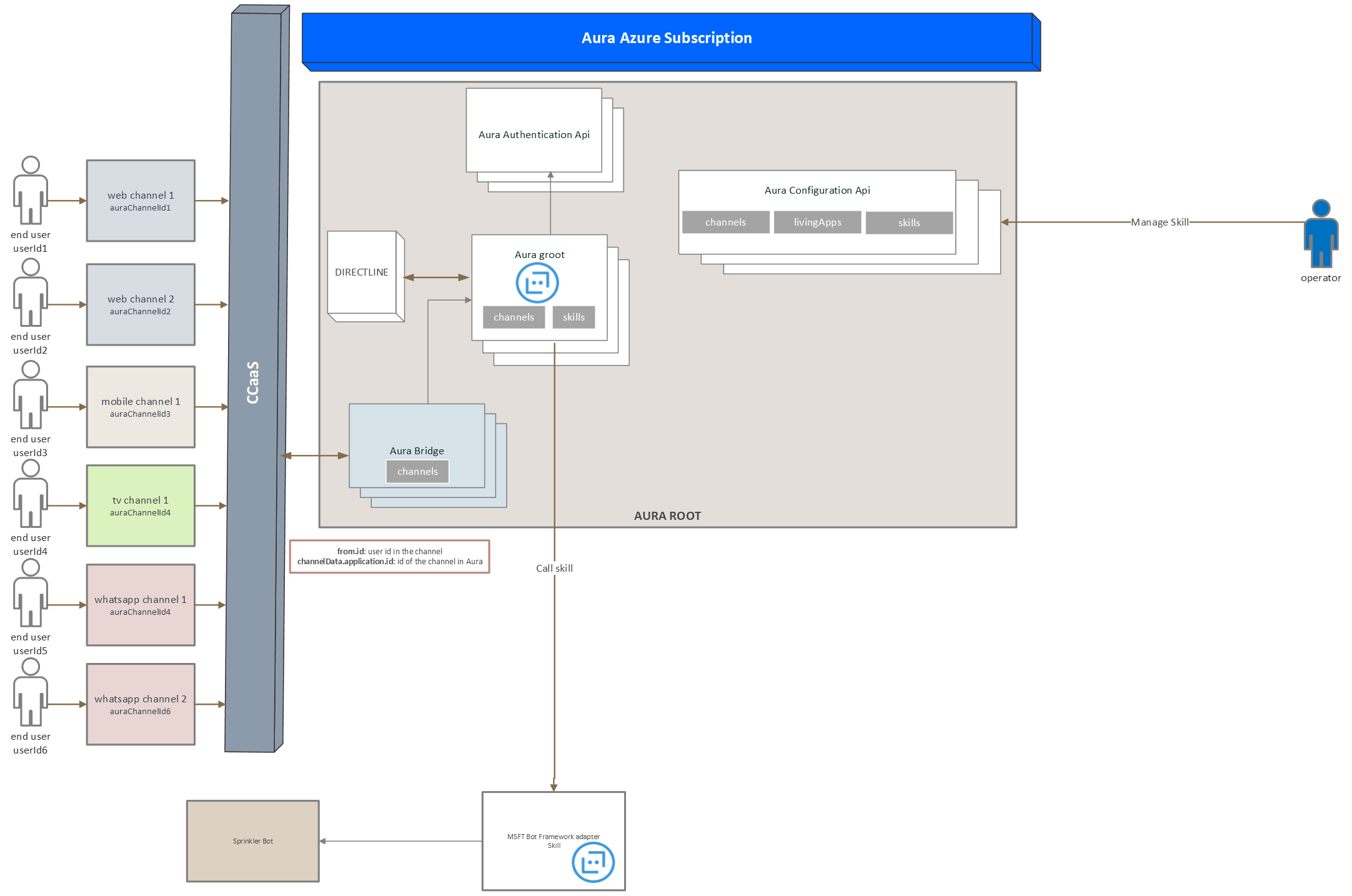
Communication protocol
The following sections describe Auraline communication protocol, that includes three main tasks: handling conversations, sending messages within a conversation and sending answers to the channel. Each of them is managed by an aura-bridge API:
Handling conversations
- If the channel does not count on a valid conversationId/token for the user/channel pair, then a new conversation MUST be created.
- An APIKey will be provided to the channel per environment that will allow access to this endpoint.
Create a conversation
The following snippets provide an example of the start conversation request and response.
It is recommended to count on a dedicated BE service that is in charge of creating conversations, so the semi-permanent APIKey is not included in the user’s apps. The app should only handle the temporary token created for each conversation.
Request
POST https://svc-[ENV].auracognitive.com/aura-services/v1/auraline/conversations
Authorization: APIKEY iaJrC8xpy8qbOF5xnR2vtCX7CZj0LdjAPGfiCpg4Fv0y8qbOF5xPGfiCpg4Fv0y8qqbOF5x8qbOF5xn
Response
HTTP/1.1 201 Created
[other headers]
{
  "conversationId": "X7CZj0LdjAPGfiCpg4Fv",
  "token": "RCurR_XV9ZA.cwA.BKA.iaJrC8xpy8qbOF5xnR2vtCX7CZj0LdjAPGfiCpg4Fv0y8qbOF5xPGfiCpg4Fv0y8qqbOF5x8qbOF5xn",
  "expires_in": 1800,
}
Example
A real example with development environment ap-one is shown below:
Parameters:
- URL to get conversation Id: https://svc-de-dev.auracognitive.com/aura-services/v1/auraline/conversations
- Method: Post
- APIKey: 5498fc14aec4d4f0d1d2db588ce0ef1023630c9bbb299af2af88bc873002b60fdbe9ff9bdc7538dfd5bf5afd94795f7ce38b71793daa8f41447c15c638c1b81550c762ccc6e6c5ab4cabc8d26290943a7dd6a853d776ad8cc301b06ba8c3a62dc23a3e2a5a33ae2616c0bc5a969232e214c1235dd05ffe40c2df85859637faeeef2a71997380a68e61a5cef317dc97148137105214945fbd96b9e56f85a90797e659b35008ed3ed355c741af4c3f015b
curl --location --request POST 'https://svc-de-dev.auracognitive.com/aura-services/v1/auraline/conversations' \
--header 'Authorization: APIKEY 5498fc14aec4d4f0d1d2db588ce0ef1023630c9bbb299af2af88bc873002b60fdbe9ff9bdc7538dfd5bf5afd94795f7ce38b71793daa8f41447c15c638c1b81550c762ccc6e6c5ab4cabc8d26290943a7dd6a853d776ad8cc301b06ba8c3a62dc23a3e2a5a33ae2616c0bc5a969232e214c1235dd05ffe40c2df85859637faeeef2a71997380a68e61a5cef317dc97148137105214945fbd96b9e56f85a90797e659b35008ed3ed355c741af4c3f015b' \
--data ''
Refresh a conversation token
If the channel (CCaaS) counts on a previously requested conversationId/token, it must be refreshed before it expires.
Request
POST https://svc-[ENV].auracognitive.com/aura-services/v1/auraline/conversations/X7CZj0LdjAPGfiCpg4Fv0y8xpy8qbOF5xnR2vtCX7CZj0Ldj/refresh
Authorization: APIKEY RCurR_XV9ZA.cwA.BKA.iaJrC8xpy8qbOF5xnR2vtCX7CZj0LdjAPGfiCpg4Fv0y8qbOF5xPGfiCpg4Fv0y8qqbOF5x8qbOF5xn
Response
HTTP/1.1 200 OK
[other headers]
{
  "conversationId": "X7CZj0LdjAPGfiCpg4Fv",
  "token": "RCurR_XV9ZA.cwA.BKA.y8qbOF5xPGfiCpg4Fv0y8qqbOF5x8qbOF5xniaJrC8xpy8qbOF5xnR2vtCX7CZj0LdjAPGfiCpg4Fv0",
  "expires_in": 1800
}
Example
A real example with development environment ap-one is shown below:
- ConversationId: ddlu65ft
- URL to get conversation Id: https://svc-de-dev.auracognitive.com/aura-services/v1/auraline/conversations/ddlu65ft/refresh/
- Method: Post
- APIKey: 005c4dae31a660fb7435034ded7790b843e139afc8d7512b973d2073b9be16172b69fe8952e1590c282bb7cb6a7fce362db5218b84dc960dec9c2dee8654d45def1c184e7a73988c3db67f62eb656ac2e646cc266942c016e32e048a13ee52ea0980a65f21dc119aff57af07cf5d3cb1320e4c52c5d964cabf0e4fb06ba38667861b5943fd59f6f7525151014776181e04f47033e99e3cd38810fc0d0470881c4aacc7f5b60c3f46a8a65f2c37a4dc00
curl --location --request POST 'https://svc-de-dev.auracognitive.com/aura-services/v1/auraline/conversations/ddlu65ft/refresh' \
--header 'Authorization: APIKEY RCurR_XV9ZA.cwA.BKA.y8qbOF5xPGfiCpg4Fv0y8qqbOF5x8qbOF5xniaJrC8xpy8qbOF5xnR2vtCX7CZj0LdjAPGfiCpg4Fv0' \
--data ''
This example uses a temporary token. You must generate your own conversationId to test it.
Sending messages within a conversation
In order to send an activity to aura-bridge, the client must create an Activity object to define the activity and then issue a POST request to https://svc-de-dev.auracognitive.com/aura-services/v1/auraline/conversations/{conversationId}/activities, specifying the Activity object in the body of the request.
The following snippets provide an example of the Send Activity request and response.
This is only an example without full integration with aura-bridge.
Request
POST https://svc-de-dev.auracognitive.com/aura-services/v1/auraline/conversations/X7CZj0LdjAPGfiCpg4Fv/activities
Authorization: APIKEY TOKEN-GENERATED-FOR-CONVERSATION
Content-Type: application/json
[other headers]
{
    "locale": "en-EN",
    "type": "message",
    "from": {
        "id": "user1"
    },
    "text": "hallo",
    "channelData": {
       "version": "3",
       "correlator": "a9db4c4f-3ad5-6331-b34a-8ffb0254aaea3",
       "appContext": {
          "channel": {
             "id": "f69f5766-9386-169d-c386-34463b99a956",
             "modality": "text"
          }
      }
    }
}
Response
When the activity is delivered, the service responds with an HTTP status code that reflects the status code.
If the POST is successful, the response contains a JSON payload that specifies the ID of the Activity that was sent to the bot.
HTTP/1.1 200 OK
[other headers]
{
    "id": "nR2vtCX7"
}
Sending answers to the channel
Activities are returned by Aura to the channel in the callback configured for each channel.
The activityId will be a composition of the incoming activityId and the order of the response, separated by |. This follows Direct Line identifiers approach.
In any case, the order can also be inferred from the array direct order. We just added the pipe and the number to mimic Direct Line ids.
Request
Send messages from Aura to a specific channel.
# https://ccaas-callback-url/auraline/v1/conversations/{conversationId}/activities/{messageId}
POST https://ccaas-callback-url/auraline/v1/conversations/j0LdjAPGfiCpg/activities/nR2vtCX7
Authorization: CALLBACK-TOKEN-PROVIDED-BY-SPRINKLER
{
"activities": [
{
"type": "message",
"channelId": "channelId",
"conversation": {
"id": "j0LdjAPGfiCpg"
},
"id": "nR2vtCX7|0001",
"from": {
"id": "bot1"
},
"text": "hello"
},
{
"type": "message",
"channelId": "channelId",
"conversation": {
"id": "j0LdjAPGfiCpg"
},
"id": "nR2vtCX7|0002",
"from": {
"id": "bot1"
},
"text": "How are you?"
}
]
}
Response
When the activity is posted to the configured callback, the channel or CCaaS callback responds with an HTTP status code that reflects the status of the reception.
If the POST is successful, a 204 OK is expected. In this scenario Aura does not need anything, apart from the status code.
HTTP/1.1 204 OK
[other headers]
Answer status
aura-root needs that the channel or CCaaS informs about the status of the response delivered to the user.
Request
POST https://svc-de-dev.auracognitive.com/aura-services/v1/auraline/conversations/j0LdjAPGfiCpg/activities/nR2vtCX7/status
Authorization: APIKEY TOKEN-GENERATED-FOR-CONVERSATION

[{
    "id": "nR2vtCX7|0001",
    "status": "delivered"
},
{
    "id": "nR2vtCX7|0002",
    "status": "failed",
    "description": "Internal Error"
}]
Where:
status: Possible values delivered or failed.description: Optional field intended for describing what happened with all the responses of each incoming message.
Response
HTTP/1.1 204 OK
[other headers]
7 - Channels configuration in Spain
Channels configuration in Spain
The aim of this document is to describe how to configure a channel to access to all the needed Kernel APIs in Spain
Security Channel ES OB
Spain Security Team has included a validation in the generated tokens, in order to validate both which application is consuming the APIs and which application authenticated the user.
The affected APIs are UserProfile, Consents and all Telco related APIs, such as billing or balance, for instance.
To validate which and on _whose behalf _ the requests are done, they will use:
- The app credentials that generated the
accessToken that is consuming the API.
- The
channel_id that was included when the authorization_id was created.
- If no
channel_id was included, then the one sent during the accessToken as param will be used.
This is evaluated in a step called token_exchange, executed before letting a request accessing one of the protected APIs.
The nomenclature used by the OB is:
- consumer_id: name of the application that has generated the accesstoken of the API call. Example: ‘aura-bot’ (
client-id of Kernel. No further modification of this field is necessary).
- channel_Id field is an optional channel identifier, readable and created for security. This
channel_Id must be sent in the generation of the authorization_id or the one sent in the generation of the accessToken. If the first one is present, this one will always be used.
This pair builds what is called a provinience, meaning that access to an API is granted or not.
channel_Id will be configured in the security object in the main root of the channel definition:
{
    "channel_id": "45494a5b-835a-4fff-a813-b3d2be529dbe",
    "fpa_auth_purposes": "customer-self-service identify-customer aura-technical-problems-purpose",
    "fpa_auth_scopes": "",
    "name": "novum-mytelco",
    "nlp": {
      "enabled": true,
        "enabled": true
      }
    },
    "prefix": "nov",
    "security": {
      "channelId": "novum-mytelco"
    },
    "dialogLibraries": [...]
}
This change affects to ES as a matter of priority for now.
Scopes and purposes
In order to access the APIs that the use cases require, it is necessary to indicate the scopes and purposes at channel level, with fpa_auth_purposes and fpa_auth_scopes fields:
{
    ...
    "channel_id": "60f0ffda-e58a-4a96-aad9-d42be70b7b42",
    "fpa_auth_purposes": "wifi-management video-personalized video-usage aura-send-bot-events customer-self-service",
    "fpa_auth_scopes": "video:search-read video:browse-read video:related-read video:content-details-read video:content-highlighted-read video:epg-read video:channels-read video:now-showing-read",
    "name": "movistar-plus"
    ...
}