This is the multi-page printable view of this section.
Click here to print.
Return to the regular view of this page.
Activate features
Activate features in Aura
Guidelines for the activation / deactivation of different features in Aura
Introduction
In order to customize your Aura system and adapt it to your requirements, it is possible to activate or deactivate certain features listed below:
1 - Handover activation
Handover activation
Guidelines for the activation and deactivation of direct handover-genesys feature in Aura
Prerequirements
-
This step must be only executed if the environment counts on a channel which integration with the customer center system in done via an aura-bot dialog and only if the customer center system is Genesys.
-
It must be executed only once, when setting up the dialog. Afterwards, the configuration must just be reviewed.
Moreover, the following pre-requirements must be met:
-
A kubeconfig of the Aura environment to be configured is available.
-
Request to Genesys team the data to access the service:
- The URL of Genesys service endpoint. For instance, in
PRE environment in Spain is: https://www.movistar.es/atcliente/Chat_PRE/ReActivo
- This endpoint must use basic HTTP authorization, so please, request also the credentials to access it.
-
There is an URL where the genesys callback of aura-bridge will be listening to once activated.
Usually, something like:
https://{{aura-services-domain}}.auracognitive.com/aura-services/v1/genesys/messages?apikey={{api_key}}
Where:
{{aura-services-domain}} should svc-[country]-[environment], for instance svc-es-pre{{api_key}} is a specific APIKey created for genesys to access this endpoint.
-
Send the aura-bridge Genesys callback to Genesys team, so it can be configured as callback to send the push notifications. They have to update the callback related to GCTI_GMS_PushProvider: Aura to this URL.
-
There is a Kernel environment to which Aura environment is connected. Recommended:
kubectl installed in your local host.curl installed in your local host.jq installed in your local host.
Enabling Genesys controller in Aura bridge
-
Ensure that all Genesys necessary plugins are set in aura-bridge plugin configuration file:
[
  "./lib/plugins/async-callback-directline-processor",
  "./lib/plugins/directline-service"
]
-
Once the configuration is applied, validate that the Genesys controller is working properly:
# substitute <aura-services-domain> with the domain of your environment, usually something like svc-es-pro
# substitute <api-key> with an apikey generated
# generate a valid UUID as correlator
# substitute {{correlator}} with the generated UUID
export CORRELATOR={{correlator}}

$ curl -i -X POST -H 'Content-Type: application/json' -H 'x-correlator: $CORRELATOR' 'https://<aura-services-domain>.auracognitive.com/aura-services/v1/whatsapp/messages?apikey=<api-key>'
-
It should return a response with a 401 statusCode.
-
If the endpoint is not configured, it should return a 404.
Enabling Genesys use case in Aura Bot
-
Set the following environment variables in the aura-bot section of your Aura installer configuration, as explained in the document Aura installer aurak8s.
aura_bot:
  config:
    HANDOVER_CLIENT_BASE_PATH_URL: '<genesys-api-endpoint>' # URL to access genesys system
    HANDOVER_CLIENT_BASIC_AUTH_NAME: '<aura-user-name>' # user for the basic authorization of genesys endpoint
    HANDOVER_CLIENT_BASIC_AUTH_PASSWORD: '<aura-user-secret>' # password for the basic authorization of genesys endpoint
    HANDOVER_CHAT_SERVICE_NAME: 'XXXX' # base chat name configured in genesys, by default, request-whatsapp-aura`
    HANDOVER_CHECK_STATUS_CHAT_SERVICE_NAME: 'XXX' #chat service to validate communication, by default request-whatsapp-testaura
    HANDOVER_USERDATA_GCTI_GMS_NODEGROUP: 'XXX' # in genesys PRE environments GMS_Cluster, in pro TELF_GMS_Cluster
    HANDOVER_ALWAYS_USE_REMOTE_CACHE: false # cache to get the bypass data. By default, false.
-
Review the plugins-config.json file to set the proper libraries configuration. This file can be found in this path of Aura installer, where you have to choose the country for your installation: br, de, es, uk:
deploy/files/containers/bot/plugin-config-[country].json
-
If the handover library is configured but the genesys use case is disabled, the file would contain the following lines:
{
    "packagePath": "@telefonica/aura-bot-handover-library",
    "exclude": [
        "./handover-genesys/handover-bypass-dialog",
        "./handover-genesys/handover-status-dialog"
    ]
},
-
To enable the use case, just remove all those lines and add the following one:
"@telefonica/aura-bot-handover-library",
-
If handover library was not previously configured in your environment, just add the last line. This enables all the dialogs within the handover library.
-
Now, follow the instructions in the current document in order to apply the updated configuration.
Apply the updated configuration
Once the configuration changes are applied:
-
If the environment has local use cases:
- First, run again the
deploy_local command, once the configuration changes and plugins file modifications are done.
- Then, run
deploy_core including -t aura-bridge parameter to deploy config changes to aura-bridge
-
If the environment is not using local use cases, just run deploy_core including -t aura-bridge aura-bot parameter to deploy config changes to aura-bridge and aura-bot components.
2 - Aura File Manager activation
Aura File Manager activation
Guidelines for the activation and deactivation of the Aura File Manager module
Related documents
📃Aura File Manager description
Prerequirements
-
This step must be only executed if the environment counts on a channel of whatsapp type (WhatsApp channel).
-
It must be executed once, when setting up each channel. Afterwards, the configuration must just be reviewed.
Steps for File Manager enabling
In order to enable Aura File Manager component to deploy it in environment, follow these steps:
-
Add to the environment config file the following command:
file_manager_enabled: true
-
Only for ES environments, it is also required to set the lines below, as the Whatsapp channel is already configured to accept this configuration in the environment config file:
clients:
  wa:
    file_attachments:
      enabled: true
-
If the clients structure already exists in the config file, merge this configuration with the current one:
-
WhatsApp channels need to have enabled attachments:
{
    name: 'nameOfChannel',
    requestOptions: {
        fileAttachments: {
            enabled: true
        }
    }
}
Find here detailed information regarding the requestOptions model within Aura channel model, that includes the configuration of the allowed files.
-
In order to process the files, aura-bot must set the Aura File Manager API URL in the environment variable AURA_FILE_ENDPOINT.
-
On the other hand, the variables of the File Manager must be configured.
-
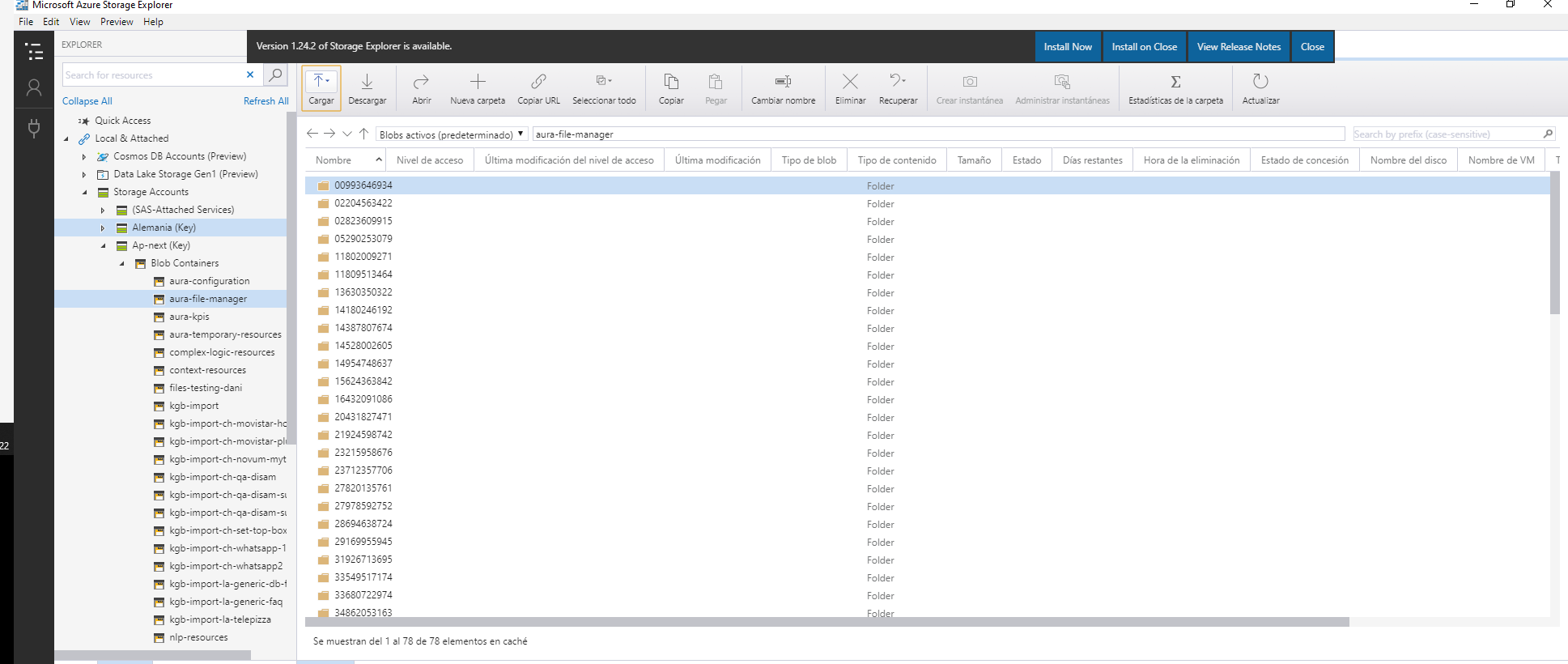
It is also needed to configure a container in Azure Storage with Automatic removal files.
3 - Enable corporate anonymous users check
Enable corporate anonymous users check
Guidelines for the activation and deactivation of corporate anonymous users check, both general steps and specific ones for the use case under development
Prerequirements
-
Request to Kernel and OB Operations Teams to provide a purpose for aura-bot client in Kernel that provides access to UserProfile API via client credentials flow. It should be something like aura-bot-search-customer-purpose.
-
Request to Kernel to update the aura-bot client in Kernel to include the new purpose in client credentials flow. For instance:
        {
            "name": "client_credentials",
            "scopes": [
                "whatsapp:app-admin",
                "whatsapp:app-messaging",
                "whatsapp:manage-templates"
            ],
            "purposes": [
                "auraid-admin",
                "aura-bot-search-customer-purpose"
            ]
        }
Activation
- Set the following environment variable in aura-bot configmap or in the configuration file of the environment.
AURA_FP_CLIENT_CRED_PURPOSES: aura-bot-search-customer-purpose
- Activate the validation in the corresponding channels. These channels must support anonymous users and the identifier coming from the channel must be a phonenumber, WhatsApp based channels, for instance. Add the following settings to your channel configuration:
    "security": {
        "anonymous": "identifiable",
        "anonymousSettings": {
            "checkPromptedNumber": false,
            "enableUserProfile": true
        }
    }
Further information regarding these settings is found in anonymousSettings and aura-configuration-api component.